

In our previous article Network Security: Enabling Two-Factor Authentication, we introduced how to set up two-factor verification on Google and Facebook to strengthen online cybersecurity.
In that guide, we discussed how Google confirms identity by dispatching an "**SMS verification code**" to your mobile phone to complete login on the web—the standard 2FA approach known as "**SMS verification**".
However, major online platforms providing two-factor security (including Google and Facebook) usually offer an alternative approach: "**Authenticator App verification**".
While configuring an authenticator app requires a slightly more hands-on initial setup than SMS, once configured, everyday logins and future device migrations become significantly smoother.
Moreover, we frequently find ourselves in locations with weak cellular reception. Being locked out of an account because an SMS verification text fails to deliver can be immensely frustrating.
App-based verification uses a dedicated 2FA application installed on your smartphone or tablet.
Prominent examples include Google’s "**Google Authenticator**" and our top recommendation, "**Authy**".
Based on hands-on daily use, Google Authenticator earned a meager 1-star rating in our testing due to cumbersome device migration, whereas Authy easily scores 4 stars for convenience, cloud backup, and multi-device synchronization (tested on Android and iOS).
Step-by-Step Tutorial: Setting Up the Authy 2FA App
When activating two-factor authentication on any website, besides SMS texts, you can scan a QR code or manually enter a secret key string using Authy.
During setup, the website generates a QR code containing an encrypted secret seed key (Figure 1). You then scan this code using the Authy app to link the account.
Using Facebook as an example, navigate to Settings > Security and Login > Use two-factor authentication, and choose "**Authentication App / Code Generator**". Facebook will display a QR code containing the secret key string (alongside a manual entry key).
Because web layouts change frequently over time, navigate through your account’s security settings using keywords like “Two-Factor Authentication”, “2FA”, or “Code Generator”.
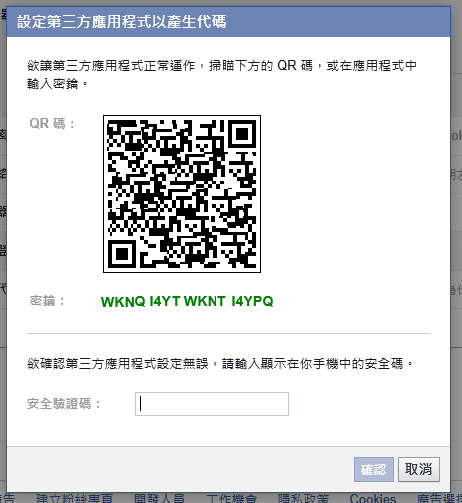 Figure 1: Facebook generating a 2FA QR code for authenticator apps.
Next, open the Authy app on your mobile device and activate the built-in QR Code scanner (Figure 2).
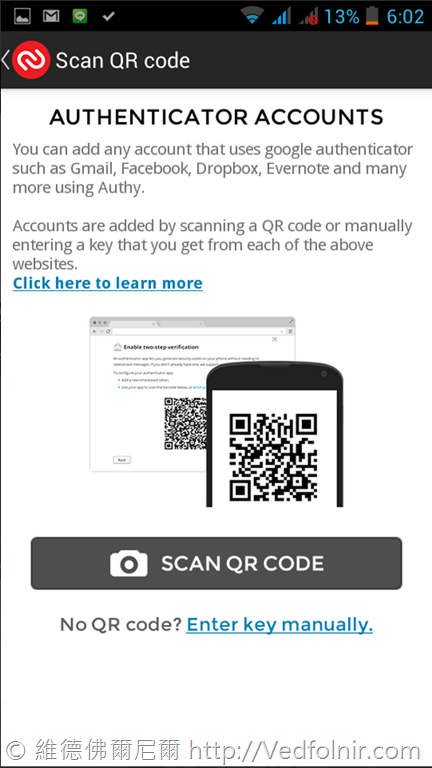 Figure 2: Scanning the QR code inside Authy.
Once verified, your linked site will appear in Authy’s main dashboard (Figure 3), which in our example contains Cloudflare, WordPress, Google, and Facebook accounts.
To add new services in the future, simply tap "**Add Account**" and repeat the process.
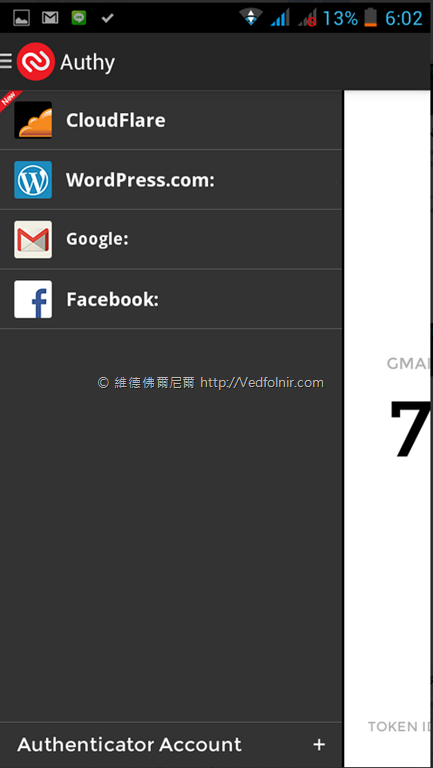 Figure 3: Linked accounts list in Authy.
Generating Time-Based One-Time Passwords (TOTP) in Authy
After registering an account in Authy, tapping on any linked site on your phone reveals the active code generator (Figure 4).
The screen displays the service name (e.g., Google), a time-based token (the 6-to-8 digit verification code), and an animated countdown timer (newer versions use a smooth progress bar indicating remaining validity).
The token changes automatically every 20 to 30 seconds. When the timer expires, a fresh token is generated and the countdown repeats.
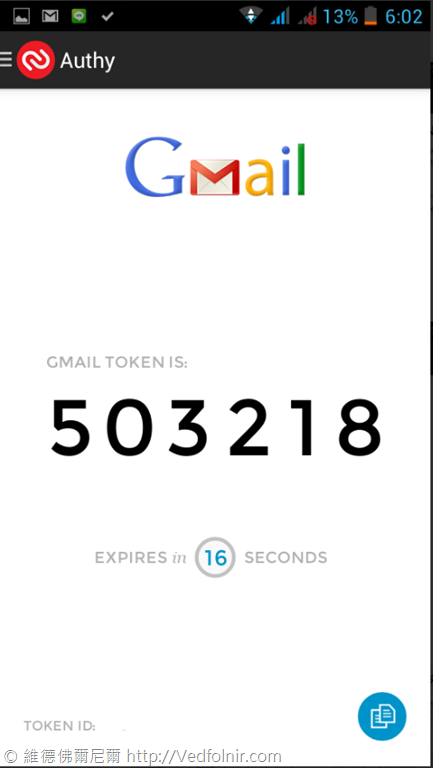 Figure 4: Rotating one-time verification token in Authy.
When signing into your account and prompted for your second-step security code, open Authy, check the active token, enter the digits into the verification box before the timer expires, and submit.
If the timer runs out before you hit submit, the old token becomes invalid and you will need to input the newly generated digits.
Unlike SMS where you must wait for delivery, authenticator apps generate time-based codes locally on your device "**in real time**", working completely offline without needing cellular reception or internet access.
Related Reading
- Authy 2-Factor Authentication App for Google Android
- Authy 2-Factor Authentication App for Apple iOS (iPad / iPhone)
- Cyber Security: Enabling Two-Factor Authentication (Google Walkthrough)
- Application-Specific Passwords: Setting Up App Passwords for Legacy Clients
- Originally published February 10, 2014; revised October 2, 2015.
Support Independent Perspectives & In-Depth Insights
Every thoughtful analysis and candid critique comes from our dedication to truth and quality. We choose not to follow sensational algorithms or clickbait headlines.
Sustaining independent research requires reader support. Make a one-time or monthly contribution, securely processed by Google.
Payments secured by Google · Manage or cancel anytime in your Google Account

Comments