
WordPress is an industry-standard blogging and content management system. It has been nearly a month since migrating Eagle Eye from Blogger to WordPress. Rather than calling this period “usage,” it would be far more accurate to describe it as “reinstalling and rebuilding from scratch.” Through endless tinkering, quite a few practical insights have emerged. Today, however, we are focusing on Automattic’s mobile management and editing application: the dedicated WordPress App for smartphones and tablets.
This mobile app serves as an official mobile dashboard for WordPress. Beyond replicating part of the web-based administrative dashboard, the chief reason for recommending it is its capability as an offline blog post editor (Mantou note: I specifically emphasize this because many Google apps offer only passive management views without native creation or rich editing, earning the moniker “Google Ribs”). For bloggers relying on WordPress, it functions as a remarkably convenient portable publishing workspace.
Curiously, while Automattic invested heavily in offline editing software for smart mobile devices across Google Android and Apple iOS [1], they stubbornly avoided providing an official standalone desktop client, leaving users perplexed. Fortunately, if you wish to draft offline posts on Windows, we highly recommend Microsoft’s Windows Live Writer [2]. For context, WLW is a feature-complete, user-friendly editor that Microsoft preserved as an independent app even after its suite companions were discontinued.
Installation Walkthrough
As shown in Figure 1, launch the Google Play Store on Android (or Apple App Store on iOS), search for the keyword WordPress, and install the app onto your phone or tablet.
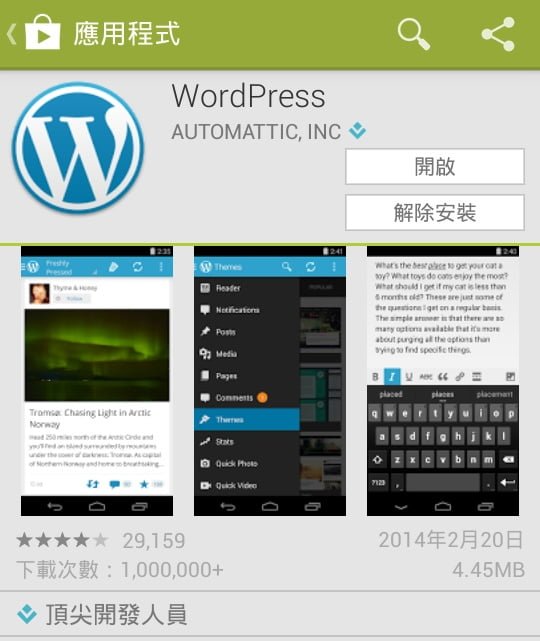
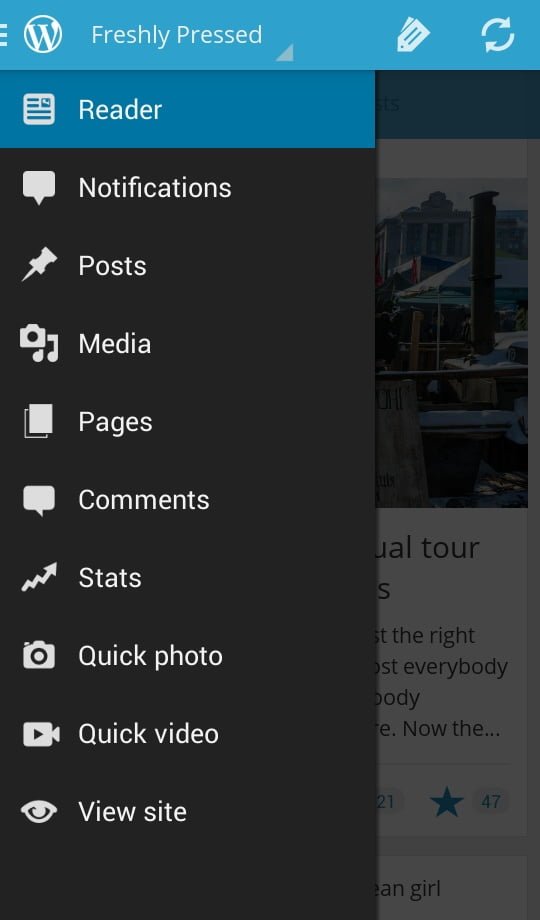
Figure 2 showcases the WordPress app interface. The GUI is divided into four main workspaces: the slide-out management drawer on the left, the action icons in the upper-right header, the primary feed and browsing pane, and the settings view accessible via the device’s hardware menu button (used for managing credentials for WordPress.com or self-hosted installations).
Next, Figure 3 displays the composer view when creating a new post, featuring three main functional areas: Title, Content, and Post Settings.
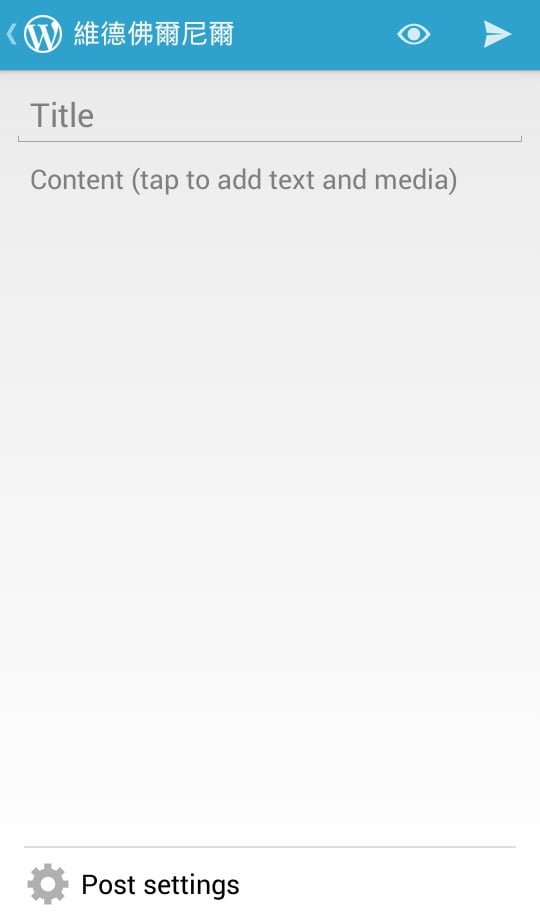
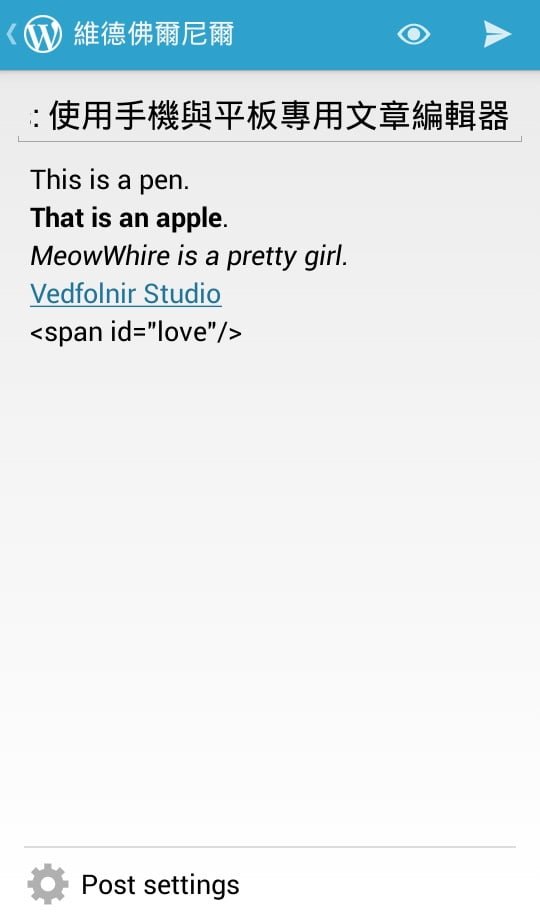
Figure 4 illustrates a live composing draft. Formatting styles render directly within the editing canvas with responsive visual fidelity. If you type raw HTML tags, WordPress automatically parses them into code blocks rather than plain escaped strings.
As shown below in Figure 5, while in active editing mode, the interface displays a persistent rich text toolbar along the bottom above the virtual keyboard. This provides quick access to bold, italics, underline, strikethrough, blockquotes, hyperlinks, page breaks, and media insertion.
Applying formatting mimics standard desktop interactions: highlight the target text and tap the desired style, or toggle the formatting tool before typing.
One cautionary note: because the mobile app lacks a raw code view, applying rich-text formatting can occasionally spill over into neighboring text strings. I recommend syncing drafts to the server first, then polishing typography and layout on a desktop browser—unless you are confident in your mobile formatting precision.
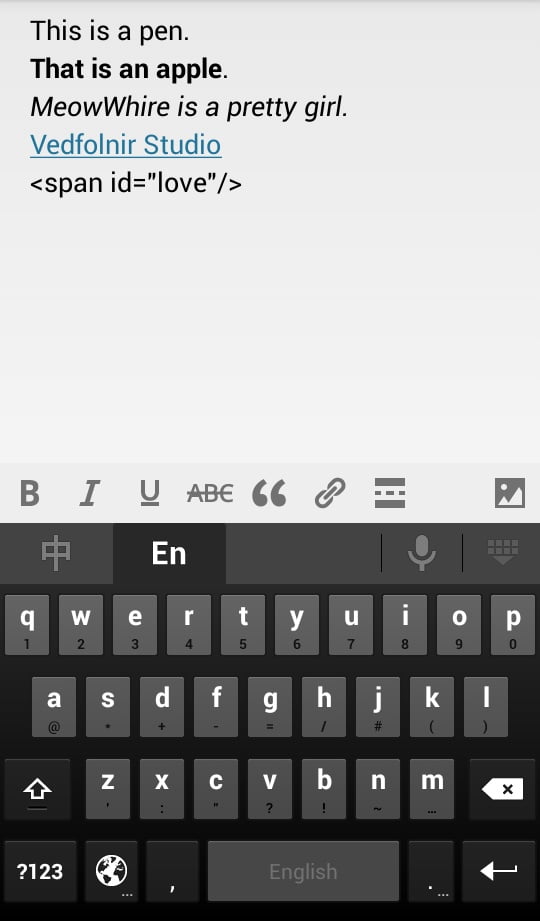
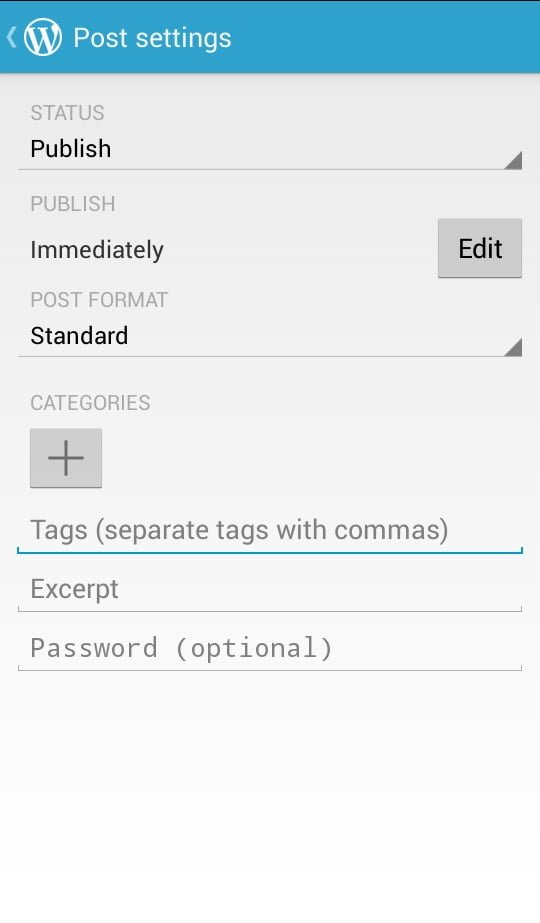
Figure 6 illustrates the Post Settings screen, configuring Status, Publish Date, Post Format, Categories, Tags, Excerpt, and Password. Status options primarily toggle between Published and Draft. If you plan to review changes on a desktop before going live, always upload as a Draft.
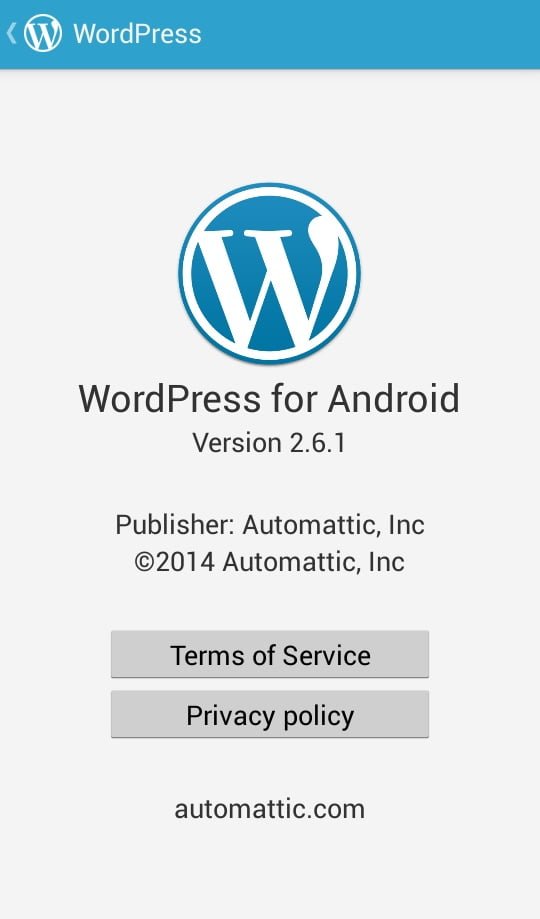
Finally, Figure 7 displays the system info screen for WordPress for Android, running version 2.6.1.
Important Caveats
While the WordPress mobile app offers unmatched mobility for drafting on the go and moderating comments, there are critical pitfalls every writer should beware of.
In terms of lifecycle states, post listings categorize entries into three types: Published, Draft, and Local Draft. The first two states reside primarily on the remote server, with server content taking absolute precedence.
Take careful note! Because server state takes precedence, if you edit a cloud draft locally on your phone and then refresh the post list before syncing your local changes upward, your un-synced mobile edits will be overwritten and restored to the server version. In an instant, hours of painstaking writing can vanish without a trace.
My advice regarding this bug: avoid editing non-local cloud drafts directly on mobile. Because of this sync quirk, I lost two full articles early on (bitter tears).
Additionally, while Post Settings covers excerpts, tags, and categories, it omits one vital option: "**custom post URLs / permalinks**". For writers obsessed with clean slugs, even after publishing via phone or tablet, you will invariably find yourself logging into a PC to sanitize the permalink.
Writers truly are particular creatures (sips hot tea).
Further Reading:
[1] WordPress Apps on Google Play (Android) and Apple App Store (iPad | iPhone).
[2] Windows Live Writer 2012 Offline Editor Tutorial: Best Desktop Blogging Tool (Blogger Compatible).
[3] Quickly Adding Image Watermarks in Windows Live Writer (Blogger Compatible).
[4] Originally written in February 2014; revised in September 2015.
Support Independent Perspectives & In-Depth Insights
Every thoughtful analysis and candid critique comes from our dedication to truth and quality. We choose not to follow sensational algorithms or clickbait headlines.
Sustaining independent research requires reader support. Make a one-time or monthly contribution, securely processed by Google.
Payments secured by Google · Manage or cancel anytime in your Google Account

Comments