

Facebook has recently made aggressive moves introducing new features—from revamped backend advertising tools and the warmly received set of six reaction emojis to the highly anticipated "**profile videos**" feature (which users have eagerly awaited).
Previously held in preview status, the profile video feature has finally begun appearing live on the Facebook mobile app during recent testing. The only minor disappointment is that profile clips must be actual video files rather than animated GIFs, meaning our favorite reaction memes cannot be dropped directly into the avatar slot.
Step-by-Step Guide to Setting a Facebook Profile Video
Currently, dynamic profile videos can only be recorded and uploaded via mobile devices such as smartphones and tablets. Open the Facebook app on your phone, go to your "**User Profile**" screen, and tap the “Edit” button beneath your profile picture to access the video editing prompt (as shown in Figure 1).
The updated profile editing menu introduces two new options: "**Take a New Profile Video**" and "**Upload Video**", allowing you to record directly or select existing video clips from your camera roll.
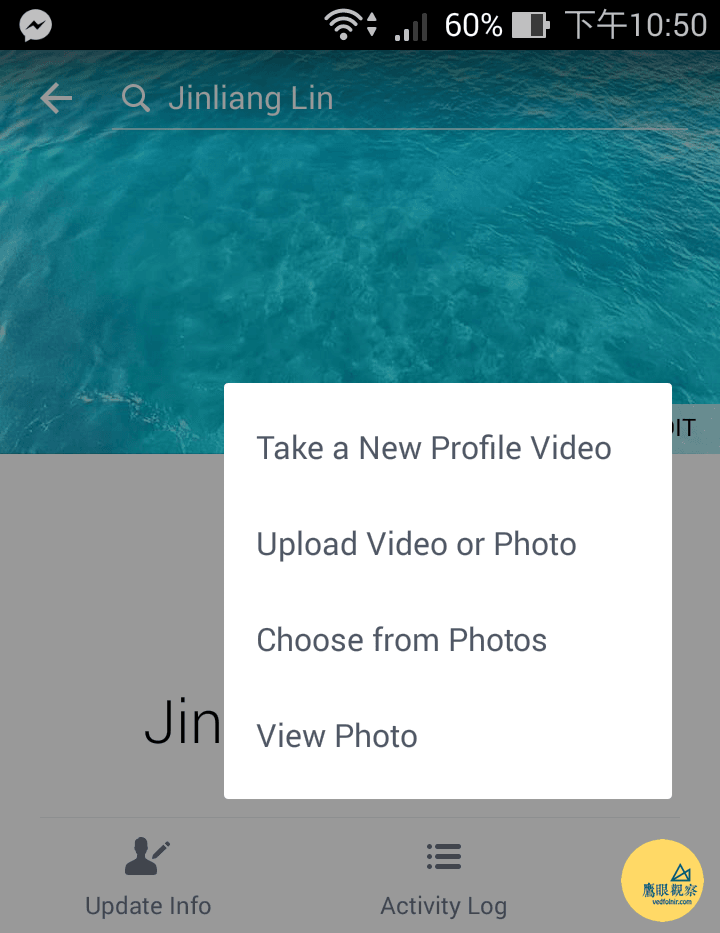 Figure 1: Choosing to upload a photo or video as your profile picture.
If you choose to shoot a fresh video, the app opens the dedicated recording interface (shown in Figure 2). You have up to 7 seconds of video recording time, so be sure to pull off all your expressive faces within those 7 seconds!
At launch, Facebook’s built-in recorder only provides a front/rear camera switch button, offering no built-in beauty filters or skin-smoothing adjustments. If you prefer recording through third-party beauty camera apps first, remember to keep your clip strictly under 7 seconds; Facebook will reject files that exceed the duration (as in-app video trimming is not yet supported).
Additionally, as a newly deployed feature, there are still a few minor bugs. The most noticeable issue is autofocus: during our tests on an Asus ZenFone, tap-to-focus was unresponsive both before and during recording, so capturing a crisp shot requires steady framing and good ambient lighting.
 Figure 2: Recording a 7-second video clip.
Once recording is finished, you must pick a static thumbnail from the timeline to serve as the representative cover photo (shown in Figure 3). Whenever the video is not playing, Facebook displays this thumbnail as a standard traditional profile picture.
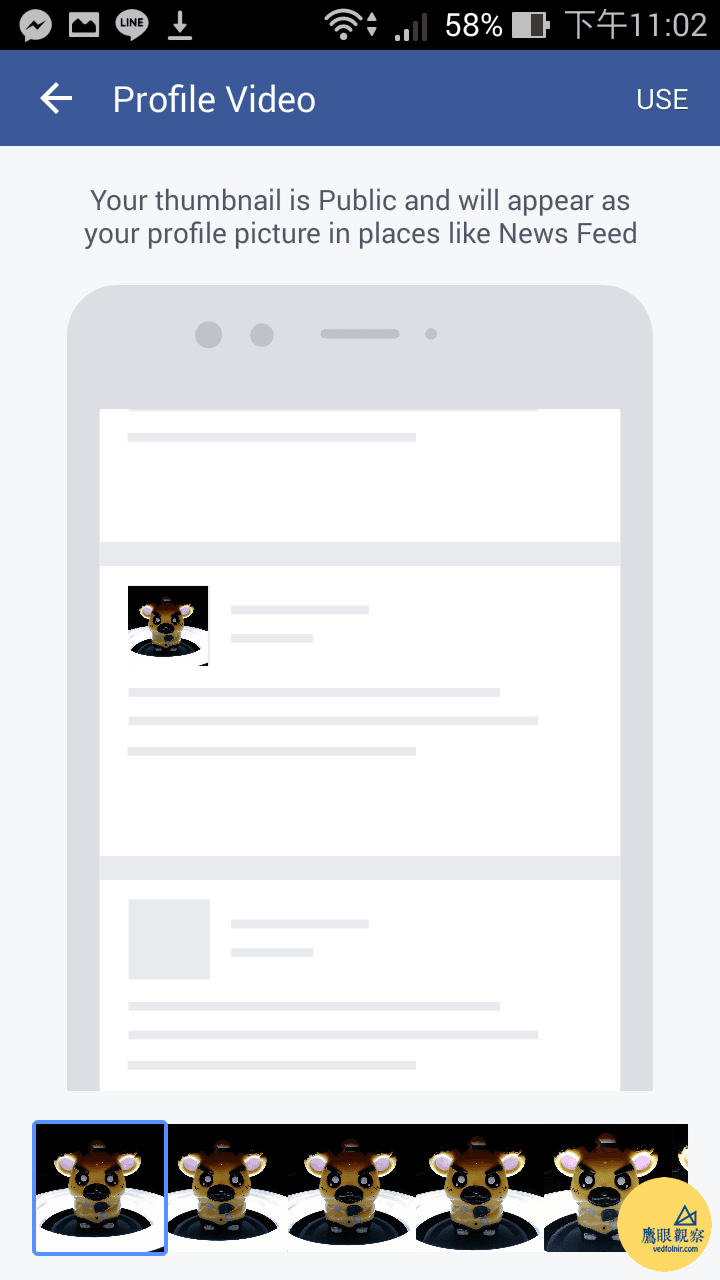 Figure 3: Selecting a video thumbnail.
After completing the upload, you can return to your regular tasks while Facebook processes the video on its servers. Once rendering is complete, Facebook sends a push notification (shown in Figure 4) confirming that your dynamic profile video is live and ready for viewing.
 Figure 4: Facebook notification indicating video processing is complete.
As shown in Figure 5, the profile displays your chosen thumbnail by default. Whenever a user visits your main timeline or taps to expand your avatar, the video loops automatically. In standard feed posts and comment threads, Facebook keeps displaying the static thumbnail—a sensible optimization designed to conserve network bandwidth and avoid visual clutter.
 Figure 5: Viewing the dynamic profile video in standard profile layout.
Support Independent Perspectives & In-Depth Insights
Every thoughtful analysis and candid critique comes from our dedication to truth and quality. We choose not to follow sensational algorithms or clickbait headlines.
Sustaining independent research requires reader support. Make a one-time or monthly contribution, securely processed by Google.
Payments secured by Google · Manage or cancel anytime in your Google Account



Comments