

When a Facebook post or fan page shares an external website, the post screenshot may show an error. Especially with some breaking news, it is even easier to place the wrong image in the rush and draw a round of criticism. (Of course, the exception is some malicious news media that deliberately place fake images to manipulate opinion.)
Facebook has now launched a “Modify Attachment” feature, allowing you to re-modify the post thumbnail (preview image, thumbnail image) of a website article after posting!
How to Correct and Change a Facebook Post Thumbnail (Preview Image) After the Fact
Please refer to Figure 1 below. Find the original Facebook post whose thumbnail you want to update, and find the ”⋯” settings button in the upper right. Clicking it will show a row of operation options.
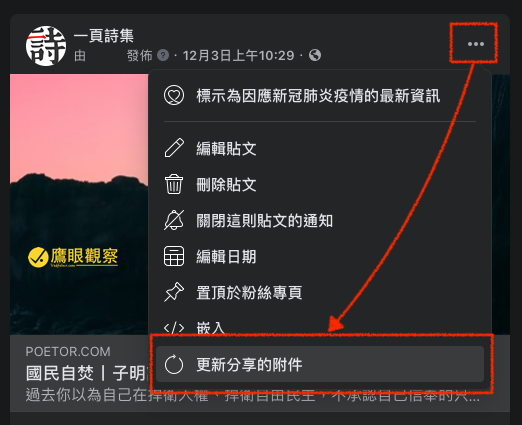
Figure 1, Facebook post “Update Shared Attachment” option.
In the menu, find the “Update Shared Attachment” option. After clicking it, a prompt message as shown in Figure 2 below will appear.
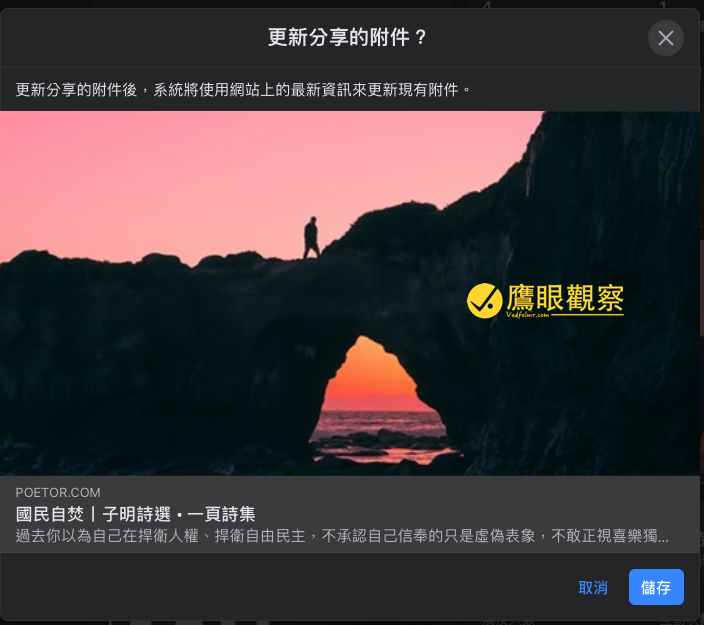
Figure 2, Confirm whether the attachment (thumbnail) is updated.
Confirm whether the new post thumbnail (preview image) is correct. After saving, it will automatically be corrected to the latest share image set within the article (taking WordPress as an example, the default is the image specified in the “Feature Image”).
Still Showing the Old Image After Updating the Attachment?
If you update the image in a website article and want to synchronously update the Facebook post thumbnail, but find that no matter how you update it, the old thumbnail still appears, this is because Facebook does not continuously fetch your website content (that would consume too many resources). Instead, it builds a cache through two methods — the initial post and periodic updates — storing the necessary website information in the database behind Facebook’s system to provide real-time use for a large number of users.
Therefore, Facebook specifically provides a channel to clear the old cache and re-fetch the latest website information, namely the “Sharing Debugger[1]” in Facebook’s developer tools.

Figure 3, Sharing Debugger.
Please refer to Figure 3 above. We just need to enter the address of the corrected article into the URL field and execute the “Debug” action. The Facebook system will then begin fetching the latest internal cached information for that URL.
Please refer to Figure 4 below. Taking our Vedfolnir as an example, the system informs us that the most recent cache fetch time was 46 minutes ago. If you want to fetch the latest article information and thumbnail (preview image) content, just click the “Scrape Again” button to automatically rebuild the cache.
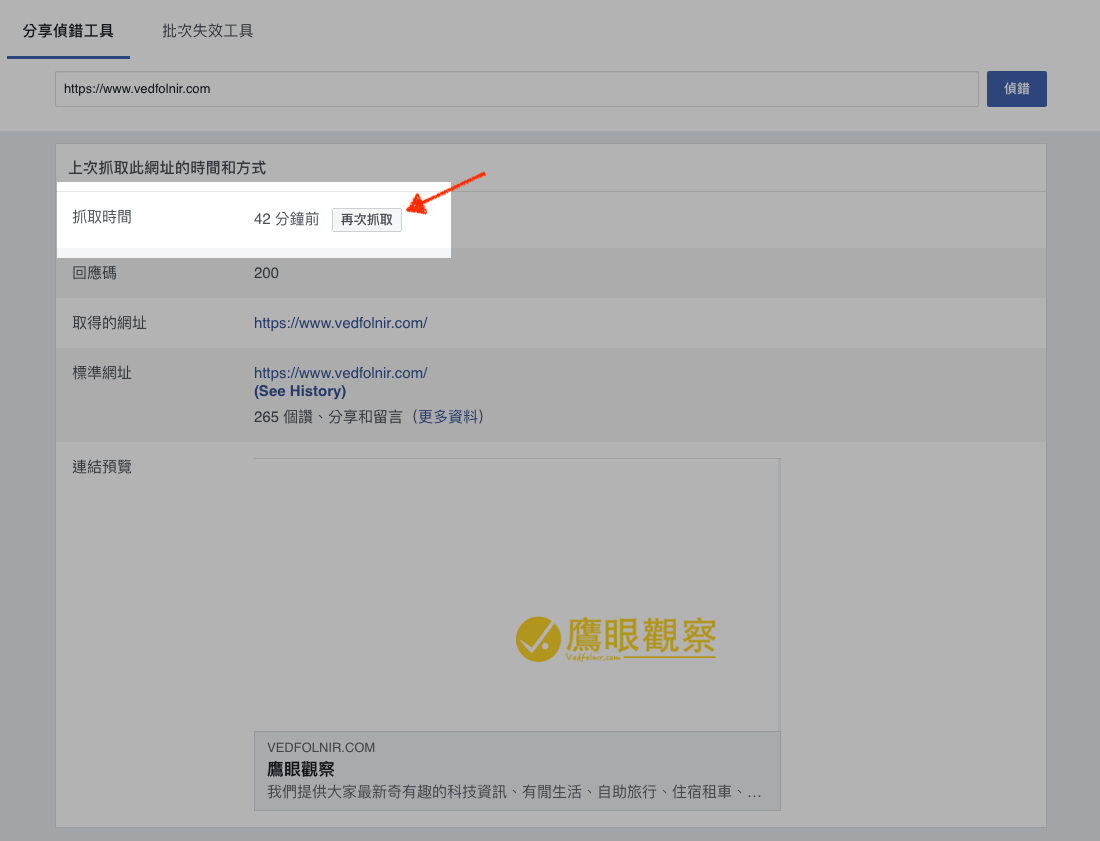
Figure 4, Information about the last time and method this URL was fetched.
After the cache in Facebook’s database is rebuilt, return to the attachment update method for the thumbnail (preview image) introduced earlier in the article and execute it once more!
References
- Facebook for Developers Sharing Debugger.
Support Independent Perspectives & In-Depth Insights
Every thoughtful analysis and candid critique comes from our dedication to truth and quality. We choose not to follow sensational algorithms or clickbait headlines.
Sustaining independent research requires reader support. Make a one-time or monthly contribution, securely processed by Google.
Payments secured by Google · Manage or cancel anytime in your Google Account


Comments