

Emoji—pictographic characters used for emotional expression, originally called emoji in Japan (Japanese: 絵文字 / えもじ)—began as visual emotion symbols used in mobile telecommunications. The word breaks down into “e” (picture) and “moji” (character), functioning as visual metaphors that can represent diverse facial expressions, emotions, foods like cake, and everyday objects.
We know that Emoji represents a complete character set extension (refer to our article WordPress New Feature: Extended Emoji Character Set Support), but how can we efficiently use them? After all, standard physical desktop keyboards do not have dedicated keys for these pictograms.
Beyond opening an online lookup table like Emoji Symbol Cheat Sheet (Universal Symbols for Windows, Android, iOS) in your browser (e.g., Chrome) to find and copy desired symbols, Windows actually provides a built-in method to type them seamlessly. Below is a step-by-step walkthrough on how to input Emoji on the Windows operating system.
As shown in Figure 1, right-click the Windows Taskbar to open the context menu. Under the “Toolbars” submenu, check “Touch Keyboard”. This adds a small white keyboard icon to your taskbar notification area, allowing you to launch the touch-friendly virtual keyboard.
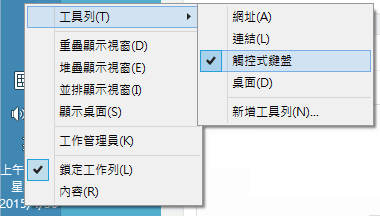 Figure 1, Taskbar menu settings.
Next, locate the white keyboard icon on the taskbar as shown in Figure 2 and click it to bring up the on-screen virtual keyboard.
 Figure 2, Touch Keyboard taskbar toggle.
As shown in Figure 3, clicking that taskbar button opens the on-screen virtual keyboard along the bottom of your display. While originally designed for touch-screen laptops and tablets to input text without a physical keyboard, it conveniently includes a dedicated emoticon key (marked in the red outline), making it ideal for desktop and laptop users who wish to insert Emoji characters.
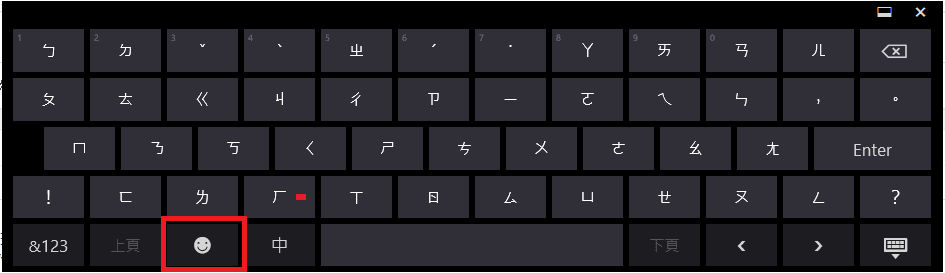 Figure 3, Virtual touch keyboard.
After clicking the “Emoticon” button (highlighted in red in Figure 3), the layout transforms into a dedicated “Emoji Keyboard” as shown in Figure 4. The keyboard offers hundreds of categorized expressive faces, gestures, animals, and symbols ready for one-click typing into any active document or chat window.
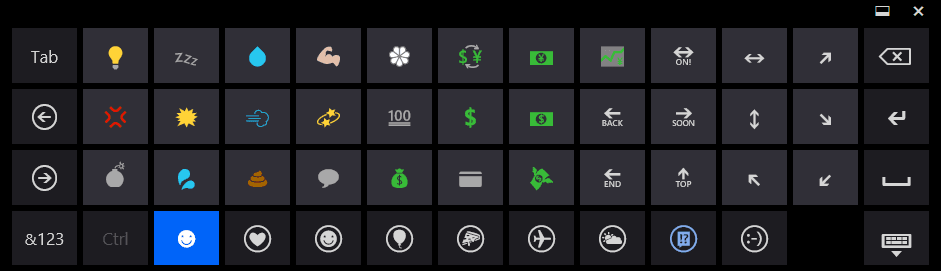 Figure 4, Windows Emoji keyboard layout.
Support Independent Perspectives & In-Depth Insights
Every thoughtful analysis and candid critique comes from our dedication to truth and quality. We choose not to follow sensational algorithms or clickbait headlines.
Sustaining independent research requires reader support. Make a one-time or monthly contribution, securely processed by Google.
Payments secured by Google · Manage or cancel anytime in your Google Account



Comments