
While editing photos in Capture One, I used the “Load Metadata” function and received a warning message: “Metadata conflicts were found in the image variant. Do you want to replace the metadata you set in Capture One with the reloaded metadata, or keep the Capture One values?”
Setting aside the somewhat awkward Chinese translation, the metadata-related functions in Capture One include “Load Metadata,” “Sync Metadata,” and the “Metadata tool tab.” So what exactly is metadata?
Introduction to Metadata
Metadata (also called metainformation, intermediary data, or descriptive data) is data that describes other data. To facilitate unified standardized use across vendors, different industries have each developed their own logical application rules, with the main structures including descriptive metadata, structural metadata, and administrative metadata.
For example, in the photography world, EXIF photographic metadata[2] was born, and some countries have even built national-scale citizen identity databases based on the concept of metadata.
Why Do Capture One Photo Metadata Conflicts Occur?
Metadata conflict errors mainly occur because the camera itself can set metadata, and Capture One can also set metadata and write it into the photo when loading the image. This “load metadata” action is equivalent to overwriting the original photo’s data with Capture One’s built-in data.
In practice, there won’t be any destructive problems. For example, the image file itself and the camera parameters (aperture, shutter, ISO, shooting time, etc.) won’t be changed. Mainly the owner, copyright notice, contact information, and other descriptive content will be changed. Of course, most importantly, the image quality itself won’t be affected.
If, after we load a photo, we run the “Load Metadata” function on it, the system will overwrite the photo with the original photo data — that is, the camera settings.
If we run the “Sync Metadata” function beforehand, the photo’s metadata will be saved separately as a corresponding XMP file. After that, no matter how the metadata is modified, as long as the “Load Metadata” function is run again, the system will overwrite the photo with the descriptive data recorded in the XMP file.
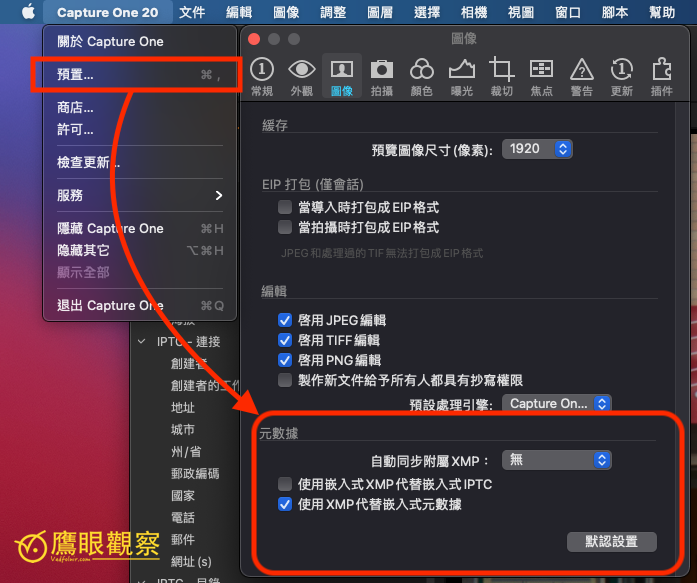 Capture One metadata auto-sync XMP
Please refer to the image above. If you plan to use only Capture One settings and don’t want the camera settings to affect operations afterward, you can go to “Preferences” (the Phase One Chinese version was probably translated by a mainlander), under the “Image” page, find the “Metadata” section, and enable the “Auto Sync Sidecar XMP” function to let the system create the latest version of the data in one go.
In short, the “Load Metadata Conflict” problem lies in the lack of synchronization between the camera system and Capture One’s data, so syncing the metadata solves the problem.
References
- Capture One official website
- The Photographic Uses and Trivia of Digital Photo EXIF and IPTC Information
Support Independent Perspectives & In-Depth Insights
Every thoughtful analysis and candid critique comes from our dedication to truth and quality. We choose not to follow sensational algorithms or clickbait headlines.
Sustaining independent research requires reader support. Make a one-time or monthly contribution, securely processed by Google.
Payments secured by Google · Manage or cancel anytime in your Google Account


Comments