

While organizing your Apple iCloud folders and local Mac backups, have you ever been startled by strangely named files occupying colossal amounts of disk space? Recently, while auditing storage capacity, I stumbled upon a file named IMG_9922.photosasset that alone swallowed an astonishing 1.62GB of storage space!
What exactly is the .photosasset file extension? Why does its footprint expand to such gargantuan proportions? And will deleting it directly from Finder cause you to lose your precious photos forever? This article provides an in-depth breakdown of how the Apple Photos library operates, along with recommended best practices for safe storage reclamation.
What Is a .photosasset File?
The .photosasset extension is a proprietary package format utilized by Apple within the “Photos” application on macOS and iOS.
Put simply, it is not just a standalone JPG photo or MP4 video; rather, it is a “composite asset bundle” encapsulating multiple layers of rich data. These packages typically bundle several essential components:
- Original Media Files: High-resolution source images, 4K videos, or the separate video and audio tracks of Live Photos.
- Non-Destructive Editing Information: Edit histories of filters, crops, rotations, and color adjustments applied on your iPhone or Mac.
- Metadata: Comprehensive EXIF capture parameters, GPS coordinates, facial recognition indices, and timestamp markers.
- Multi-Version Previews: Various cached resolutions, thumbnails, and preview renders generated by the system for instant browsing.
Through this cohesive architecture, Apple allows users to synchronize photo libraries seamlessly across iPhone, iPad, and Mac while preserving the flexibility to “Revert to Original” at any time through non-destructive image processing.
Why Do .photosasset Files Reach Multiple Gigabytes?
A single .photosasset package regularly balloons beyond 1GB to 2GB primarily due to the following factors:
- High-Definition, Long-Duration Video Content: If the underlying asset is a 4K 60fps ProRes recording or an extended high-bitrate clip, the original video file itself is inherently massive.
- Burst Photography Combined with Live Photos: A Live Photo bundles both a static still image and several seconds of high-frame-rate video; when paired with rapid-fire Burst shooting, the internal package footprint multiplies dramatically.
- RAW Files and Wide Color Gamut Formats: Photos shot using Apple ProRAW or external camera RAW formats encapsulate immense high dynamic range (HDR) sensor data within the container.
How to Safely Clean Up and Manage .photosasset Files
When you discover certain .photosasset files hogging vast quantities of drive space, never drag them directly from Finder into the Trash! Manually deleting files inside internal library packages breaks the Photos application’s internal relational SQLite indices, causing library corruption, blank thumbnails, and missing media errors.
Here are the safe and recommended methods to free up space:
1. Locate and Manage Original Media via the Photos App
Use the base filename (such as IMG_9922) to search inside the “Photos” app on your Mac or iPhone. Review whether the matching item is an unwanted duplicate, an accidental video clip, or an obsolete take. Delete it directly from within the Photos app, and remember to empty the “Recently Deleted” album to reclaim space immediately.
2. Enable “Optimize Mac Storage”
If you utilize iCloud Photos, navigate to “Photos” > “Settings” (or Preferences) > “iCloud” on your Mac, and check “Optimize Mac Storage.” The operating system will automatically store full-resolution, oversized .photosasset masters in iCloud while maintaining lightweight, low-resolution local previews on your Mac, downloading original full-sized media on demand.
3. Export and Archive Large Videos to External Media
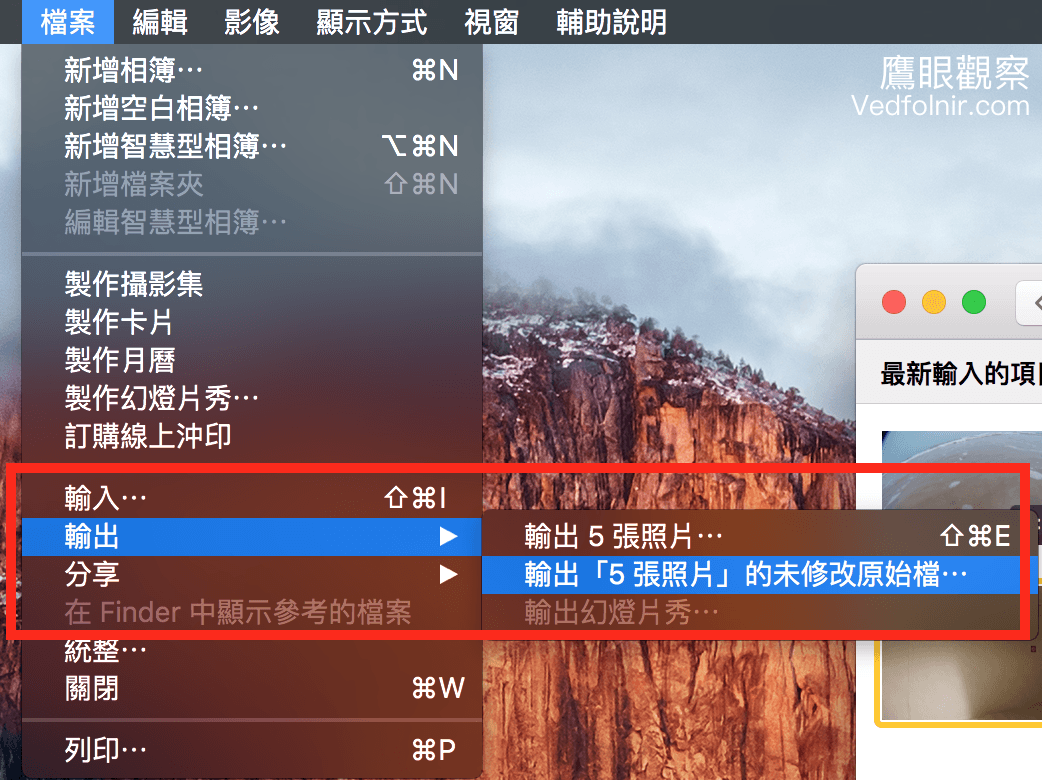
For multi-gigabyte family recordings or major video projects, use Photos’ built-in menu via “File” > “Export” > “Export Video” to save files as standard MP4 containers onto an external hard drive or NAS. Once safely backed up externally, remove the item from your Photos library to instantly liberate valuable internal SSD capacity.
Support Independent Perspectives & In-Depth Insights
Every thoughtful analysis and candid critique comes from our dedication to truth and quality. We choose not to follow sensational algorithms or clickbait headlines.
Sustaining independent research requires reader support. Make a one-time or monthly contribution, securely processed by Google.
Payments secured by Google · Manage or cancel anytime in your Google Account



Comments