
When Typhoon Megi made landfall packing tremendous destructive power, its rare howling winds and torrential rains struck my old home in Tamsui—a place that hadn’t seen a blackout or water outage in years. Following an ominous distant boom down the street, our neighborhood plunged into a blackout lasting tens of hours.
Fortunately, nearby cellular base stations were equipped with backup generators, allowing my Apple iPhone SE to stay connected so I could report safety and chat with friends. Even so, the creeping dread of running out of phone battery was hard to ignore.
A typical modern symptom: tech withdrawal anxiety compounded by acute power deprivation.
Luckily, from a trip to Japan in mid-September, my external power bank was still fully charged. Used sparingly, it might just carry me through this howling, endless night.
BUT—in life, that “BUT” is always the kicker.
Early that evening, an old friend called. Believe it or not, someone actually had the audacity to commission urgent work right in the middle of a typhoon!
Then again, we weren’t like those department store employees forced by upper management to brave typhoon-force gusts just to clock in. Shrugging it off, I told my friend I had free time that evening and could help push the project forward.
I won’t bore you with the project details, but my Apple MacBook laptop happened to have 87% battery remaining. Just as I rolled up my sleeves, reality hit: how was I supposed to get online during a blackout?
“Duh, connect through your Apple iPhone’s 3G/4G cellular network, of course.”
As mentioned earlier, however, the iPhone’s battery reserves couldn’t be taken lightly, especially with the risk of power outages extending into tomorrow. The real challenge was: “How to configure the Apple MacBook and Apple iPhone SE to consume minimal power while maximizing battery uptime and internet connectivity.”
Connecting a Computer to the Internet via Smartphone
Tethering an Apple Mac or MacBook through an Apple iPhone is remarkably straightforward.
As shown in the image below, open the iPhone’s “Settings” app, and locate the “Personal Hotspot” feature shown in Figure 1.
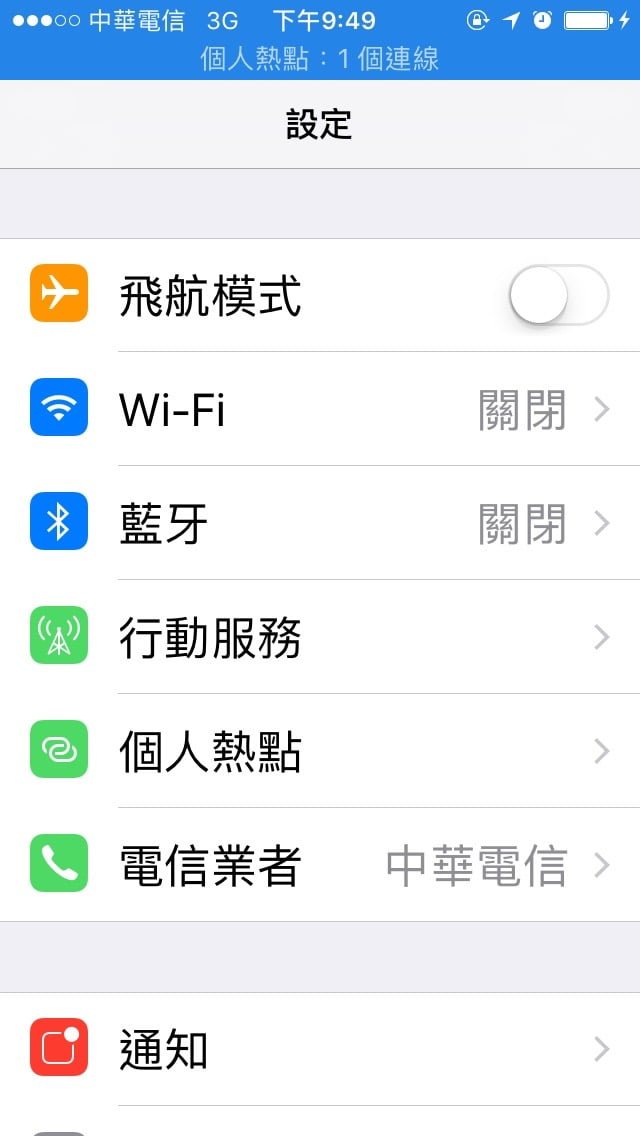 Figure 1: Personal Hotspot feature under iOS Settings.
Personal Hotspot essentially transforms your Apple iPhone (Google Android devices provide similar functionality) into a wireless base station / router, allowing other smartphones, tablets, desktops, or laptops to connect via Wi-Fi.
In this configuration, the device physically accessing the global internet is the smartphone via 3G/4G cellular data, which then relays packets to other devices over Wi-Fi or Bluetooth.
If you don’t have an unlimited cellular data plan, be very cautious when sharing your personal hotspot with others, or your data allowance will vanish in an instant. (For instance, at a previous company where the office network crawled constantly, employees complained nonstop. When I investigated, I discovered a manager was using company bandwidth to download gigabytes of uncensored adult videos.)
Our goal today, however, is extreme power conservation. Using convenient Wi-Fi or Bluetooth tethering is out of the question, because radio transmission chips consume massive amounts of power—rivaling glowing screens as the top battery drains on mobile devices.
That leaves one optimal choice: connecting the Apple MacBook Pro directly to the iPhone via a USB cable.
First, connect your Apple iPhone to your Apple Mac / MacBook using a USB cable.
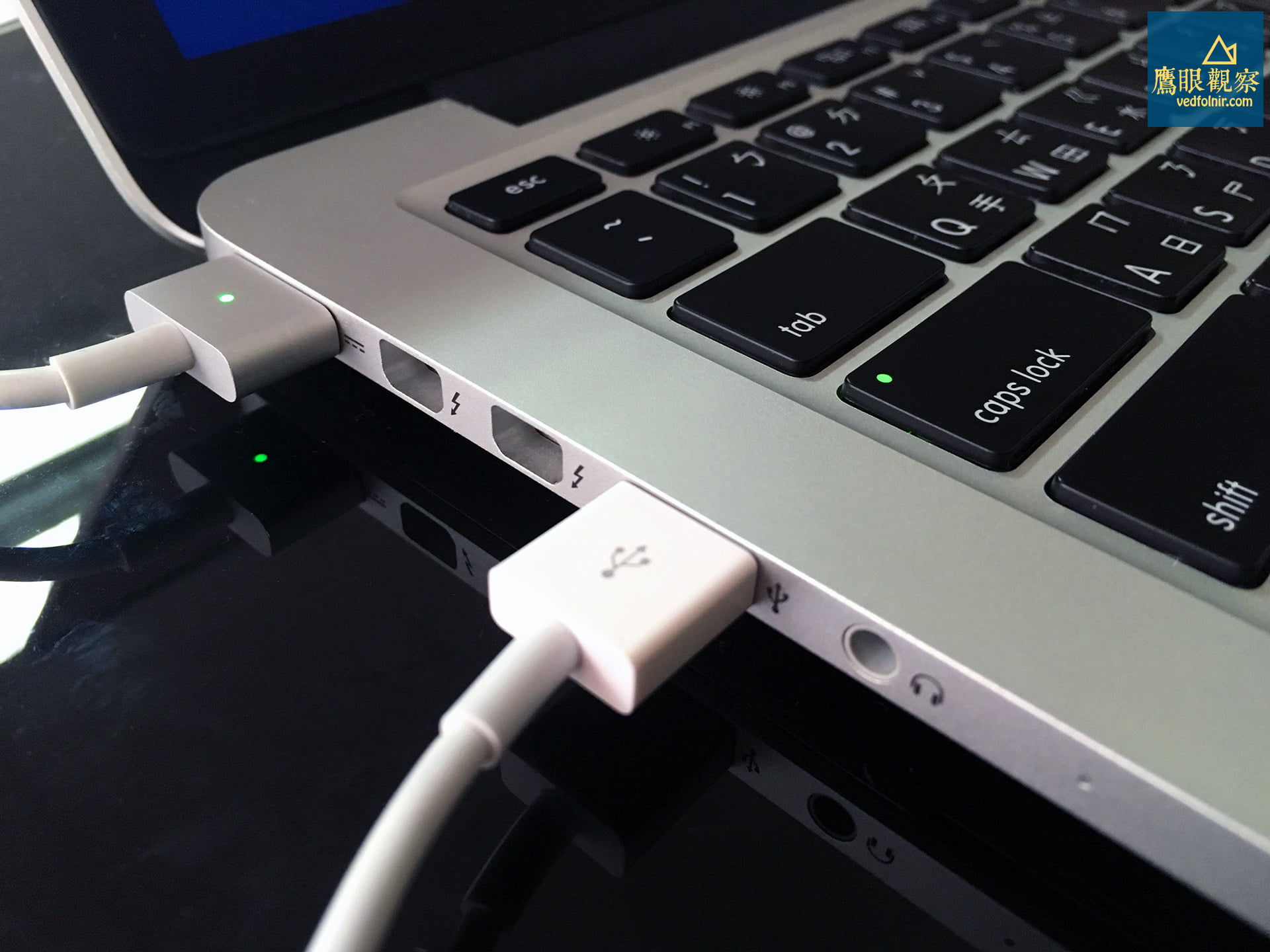 Figure 2: Apple MacBook Pro power cable and USB connection.
Next, as shown below, when you enable Personal Hotspot, iOS will prompt whether to turn on “Wi-Fi and Bluetooth”. Leaving wireless transmitters on wastes precious battery, so choose “USB Only” for the connection.
If you must connect via Wi-Fi, remember to navigate back to Settings afterward and manually disable Bluetooth to conserve power.
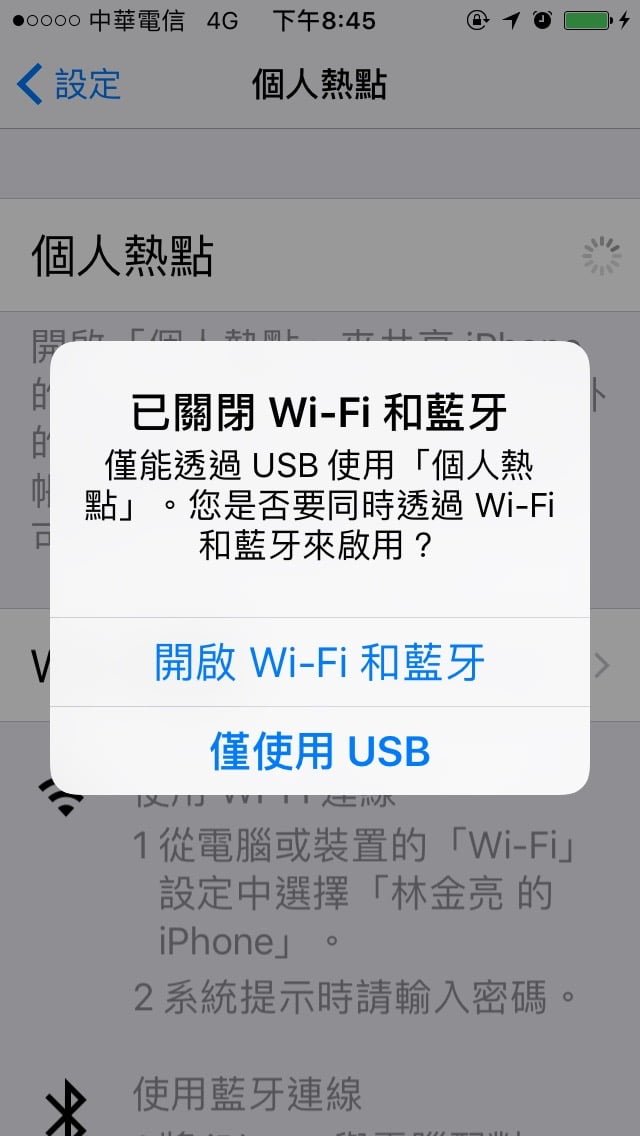 Figure 2: Personal Hotspot: Wi-Fi and Bluetooth, or USB.
After completing these steps, your Apple MacBook Pro can access the global internet through the Apple iPhone’s cellular data connection.
Furthermore, unless you are streaming video or chatting, you can toggle off the internet while drafting or coding to conserve even more juice.
The quickest way to cut off network power drain is to flip the iPhone into Airplane Mode. If you still need to receive phone calls, simply unplug the USB cable from the MacBook when not actively sending or receiving files.
Enabling Personal Hotspot on an iPhone provides seamless, instantaneous connectivity for fellow Apple ecosystem hardware like the MacBook Pro—one of the undisputed perks of staying within a unified ecosystem.
Support Independent Perspectives & In-Depth Insights
Every thoughtful analysis and candid critique comes from our dedication to truth and quality. We choose not to follow sensational algorithms or clickbait headlines.
Sustaining independent research requires reader support. Make a one-time or monthly contribution, securely processed by Google.
Payments secured by Google · Manage or cancel anytime in your Google Account

Comments