

Building on the convenience of the existing sidebar widgets (which Apple calls Slide Over), Apple’s latest iOS version for the iPad tablet introduces a Quick Note feature, making the hidden tool menus on screen even more versatile and letting users immerse themselves more deeply in the operating experience.
Sidebar Widgets (Floating Windows)
The sidebar widget (also known as a floating window) feature has been available for some time now (unlike the Split View screen used for multitasking), and I believe many people are already using it. If you haven’t tried it yet, the author highly recommends you give it a go.
For example, commonly used tools such as the Google Translate app, Calculator, Notes, and even browser pages can be directly “stuffed” into the sidebar to become a floating window widget (see the image below — simply drag the app icon from the bottom toolbar to the right side of the screen).
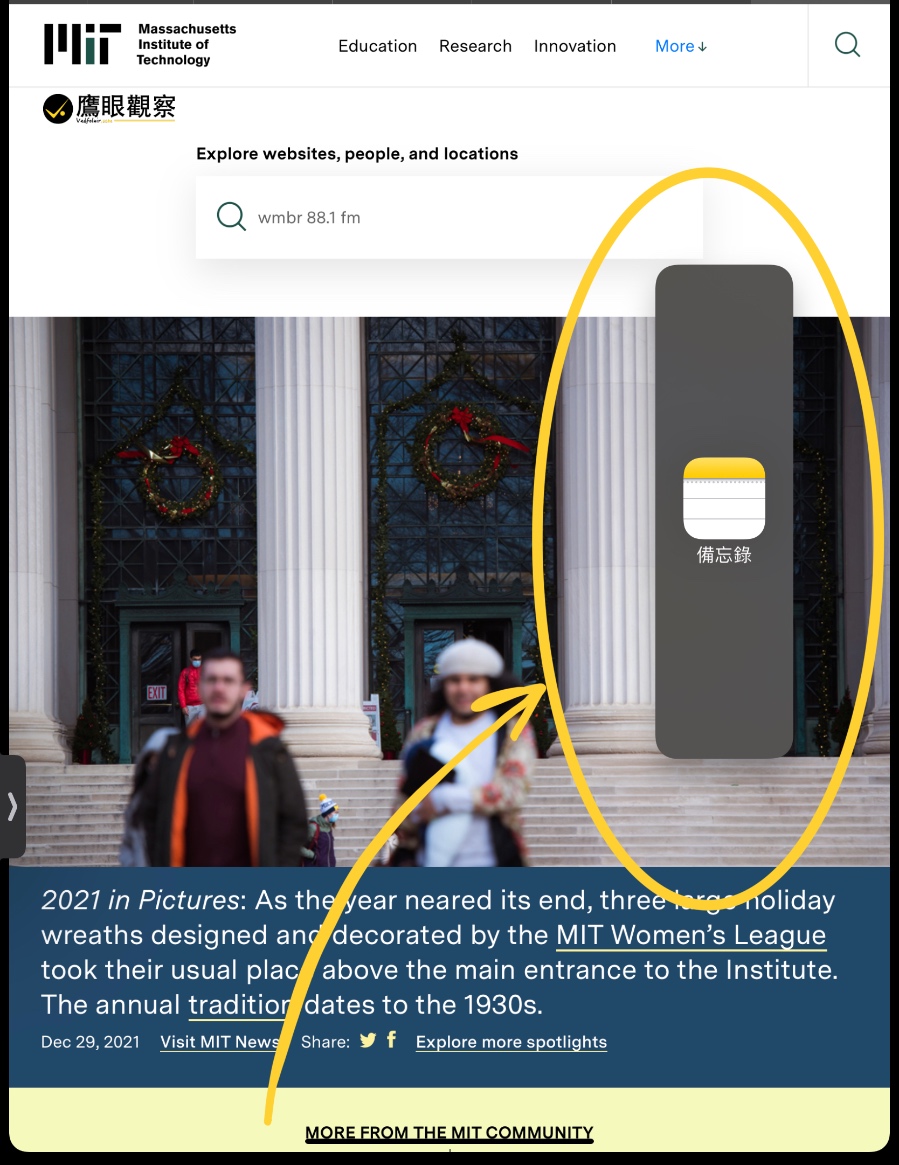
When you need to use a widget, simply pull it out from the right edge of the screen ] toward the center of the screen with a single-finger gesture, and you can even quickly switch between different widgets (see the image below).
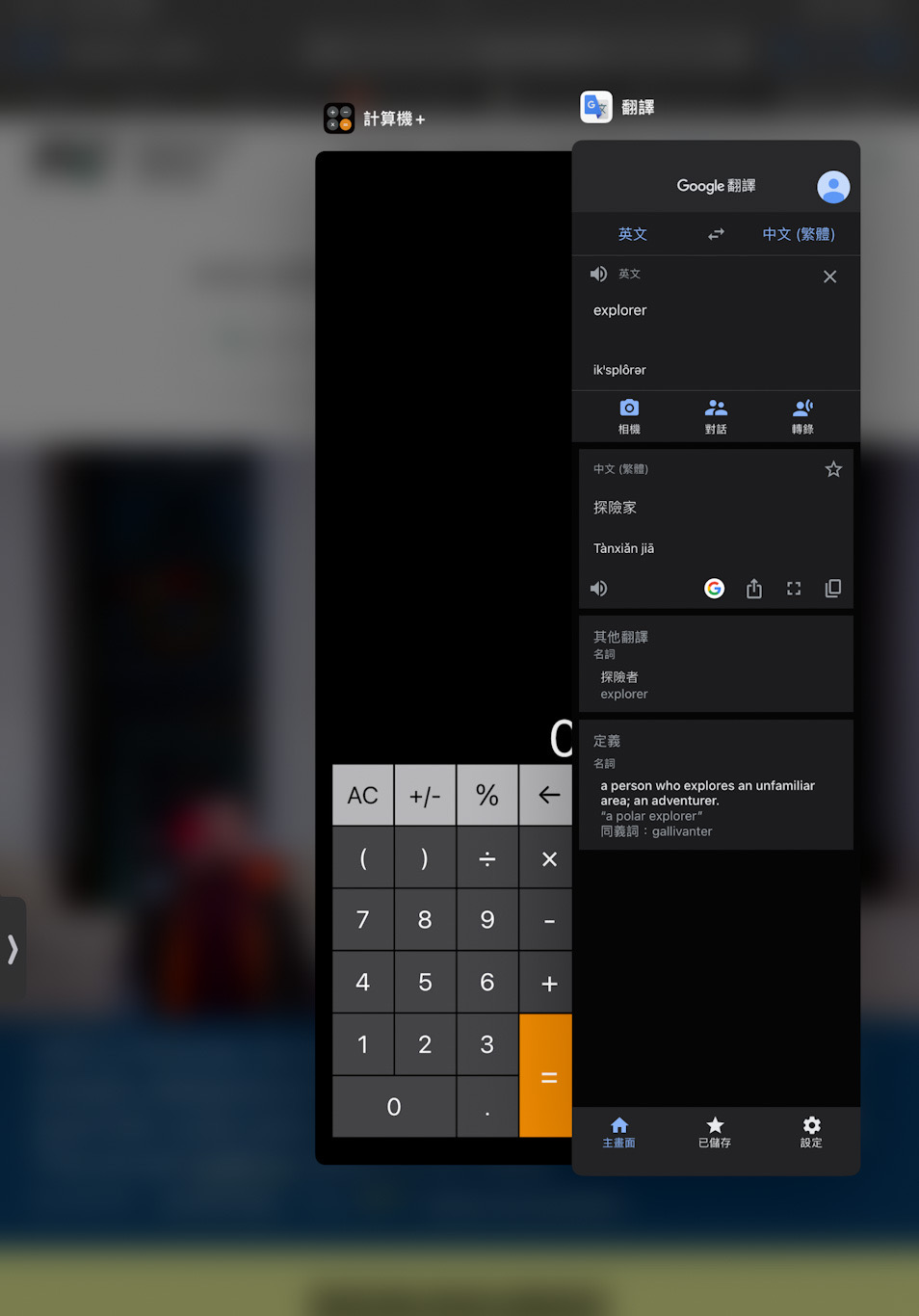
Switching widgets
These widgets float above the main work area (see the image below), without affecting the operation of the program you originally opened, and can speed up your work efficiency. When not in use, simply move the widget toward the right edge of the screen to quickly tuck it away, without taking up visible space.

In practice, for example, you can move a single browser page into a floating window (press and hold the browser tab with your finger, then move it to the right side of the screen), so you can reference web content while writing your own report.
Quick Note
Apple’s “Notes” is, in the author’s view, the best quick note-taking app on the market — so much so that every time I see the Apple Store featuring a certain white bear in its featured app promotions, the corner of my mouth always curls up slightly.
Notes is not only simple and intuitive to operate, with moderately powerful features (meaning it isn’t dragged down by features crammed in everywhere), but it is also fully integrated with the macOS, iOS, and iPadOS operating systems, offering extremely high versatility and stability, and it opens extremely fast. It is one of the apps I use most after switching systems and jumping ship from Microsoft to Apple.
You can even record your thoughts and inspiration on the spot just by speaking to the Siri assistant.
The new generation of the operating system, iPadOS[1], offers a more convenient Quick Note design on the iPad (not supported on iPhone). Simply swipe from the bottom-right corner ┘ of the iPad screen toward the middle of the screen with a single-finger gesture, and you can pull out a new blank note (or a note you were previously editing).
How do you set up Quick Note?
Quick Note can be configured in the “Notes” menu under “Settings” in the Apple iPadOS system, toggling features on or off according to personal habits.
If you pull out a Quick Note while browsing a Safari web page, you can even insert the web address directly (see the image below).
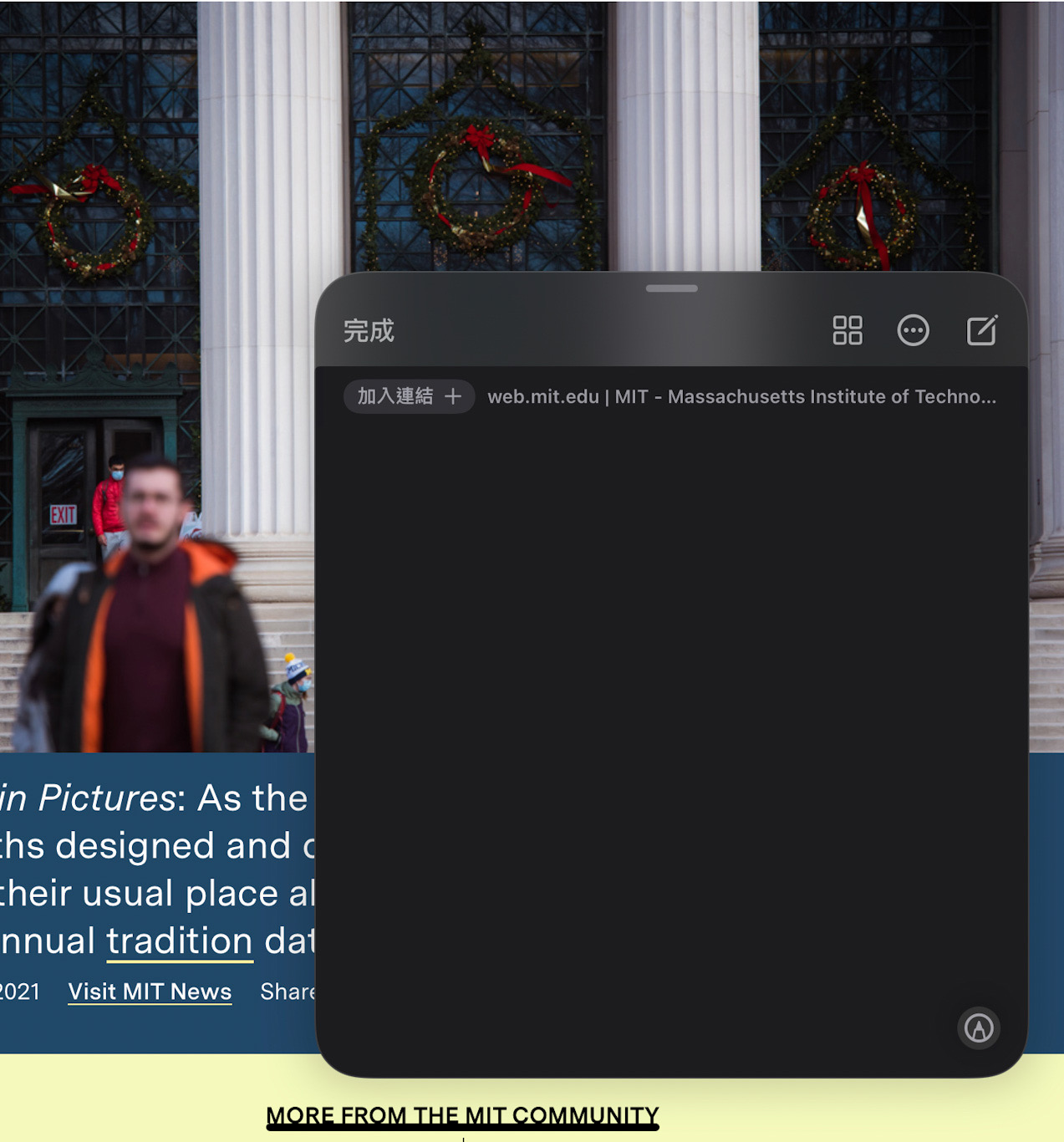
A new Quick Note
Unlike the sidebar widget tabs mentioned above, which can only be fixed to the middle of the right or left side of the screen, we can temporarily tuck the Quick Note into the sidebar as a new tab, and that floating tab can be freely moved to any preferred position on the left or right side of the screen (see the image below).

The storage area on the right side of the screen
References
- Apple iOS/iPadOS 15 System Upgrade Features and Highlights.
Support Independent Perspectives & In-Depth Insights
Every thoughtful analysis and candid critique comes from our dedication to truth and quality. We choose not to follow sensational algorithms or clickbait headlines.
Sustaining independent research requires reader support. Make a one-time or monthly contribution, securely processed by Google.
Payments secured by Google · Manage or cancel anytime in your Google Account


Comments