

Display Menu is a dedicated utility for Apple’s macOS designed to grant instant access to all supported display resolutions and refresh rates directly from the top system menu bar.
For multi-monitor workstations and users connecting external 4K displays or ultrawide monitors, navigating macOS System Preferences can feel cumbersome. Display Menu places a compact icon in your menu bar, listing every native, scaled, and HiDPI resolution along with exact refresh frequencies (Hz).
Key Use Cases
- Multi-Monitor Workflows: Seamlessly switch between expanded desktop layouts, mirrored displays, and single-display modes when docking a MacBook Pro to an external 43-inch monitor.
- Accessing Hidden Resolutions: Reveal custom or non-standard aspect ratio resolutions that macOS occasionally hides in default preferences.
- Optimizing Refresh Rates: Verify whether an external 4K panel is running at full 60Hz or accidentally throttled to 30Hz due to cable or port bandwidth constraints.
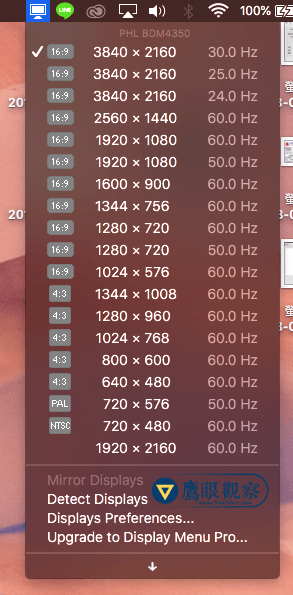
Native Alternative in macOS
If you prefer avoiding third-party utilities, macOS offers a hidden native resolution selector:
- Open System Preferences -> Displays.
- Hold down the Option (⌥) key while clicking Scaled.
- A complete text list of all supported resolutions and refresh rate dropdowns will be exposed natively.
For users frequently docking and undocking external displays across creative workflows, Display Menu remains a fast, single-click shortcut.
Support Independent Perspectives & In-Depth Insights
Every thoughtful analysis and candid critique comes from our dedication to truth and quality. We choose not to follow sensational algorithms or clickbait headlines.
Sustaining independent research requires reader support. Make a one-time or monthly contribution, securely processed by Google.
Payments secured by Google · Manage or cancel anytime in your Google Account

Comments