

When watching YouTube videos in a desktop web browser (such as Google Chrome), maximizing video playback into full-screen mode occasionally causes the picture to distort into an unnatural green wash, a magenta hue, or even a solid block of color with missing video frames. This persistent glitch has plagued YouTube playback across different operating systems for years.
Strangely enough, whenever this tinting occurs, nudging your mouse cursor or pressing any keyboard key temporarily snaps the colors back to normal—making it an annoying nuisance during long viewing sessions.
If you encounter color shifting when streaming movies or animations on YouTube in full-screen, there are three practical solutions:
- Disable hardware acceleration in your browser;
- Switch to an alternative web browser;
- Update your graphics card display drivers.
Because this full-screen tinting occurs predominantly within Google Chrome, troubleshooting investigations revealed that Chrome’s underlying GPU hardware acceleration pipeline is often the culprit. Disabling hardware acceleration reliably eliminates the color distortion.
Disabling Hardware Acceleration in Google Chrome
Launch Google Chrome, click the three-dot menu icon in the upper-right corner (“Customize and control Google Chrome”), and select “Settings”.
Next, scroll down to the bottom of the Settings page and expand the “Advanced” section to find the System preferences shown in Figure 1 below.
Toggle off “Use hardware acceleration when available”, then relaunch the browser to apply the change.
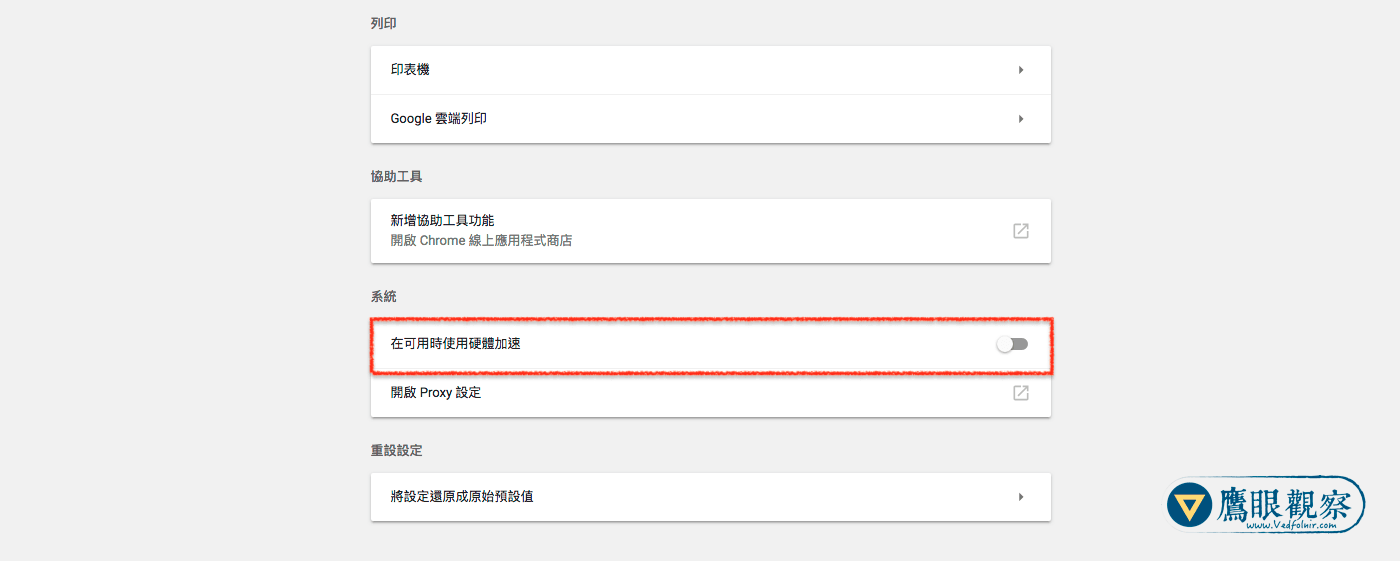 Google Chrome Hardware Acceleration Settings
Switching to an Alternative Web Browser
Because hardware acceleration plays a vital role in smooth web rendering and battery efficiency, completely disabling it might slightly degrade other browser performance. For that reason, switching browsers is often an attractive workaround.
For Apple macOS users, streaming YouTube through Safari typically avoids this rendering glitch entirely. For Microsoft Windows users, switching to Microsoft Edge or Mozilla Firefox provides clean full-screen rendering without color shifts.
Updating Graphics Drivers
Updating GPU drivers is particularly relevant for Windows users, as newer driver patches from NVIDIA, AMD, or Intel often resolve known hardware acceleration conflicts with Chromium browsers. For macOS users, graphics drivers are integrated directly into macOS system updates, so maintaining an up-to-date operating system ensures you have the latest graphics framework installed.
Support Independent Perspectives & In-Depth Insights
Every thoughtful analysis and candid critique comes from our dedication to truth and quality. We choose not to follow sensational algorithms or clickbait headlines.
Sustaining independent research requires reader support. Make a one-time or monthly contribution, securely processed by Google.
Payments secured by Google · Manage or cancel anytime in your Google Account




Comments