

In earlier generations, WordPress provided statistics on the amount of written text and thoughtfully placed them below the editor, so users could intuitively see how many words they had written. Bloggers and writers find watching the word count grow a kind of achievement while writing posts and articles. But since WP upgraded to the fifth generation[1], this information has long disappeared from the screen.
To state the conclusion first: the WP word count feature has not only not disappeared, it has become even more powerful.
WordPress 5.0 New Word Count
The new version of WordPress has pulled the word count feature out of the editor’s auxiliary information and made it an independent function button called “Details”. This button is located in the top toolbar of the editing area and looks like an exclamation mark inside a circle (see Figure 1 below).
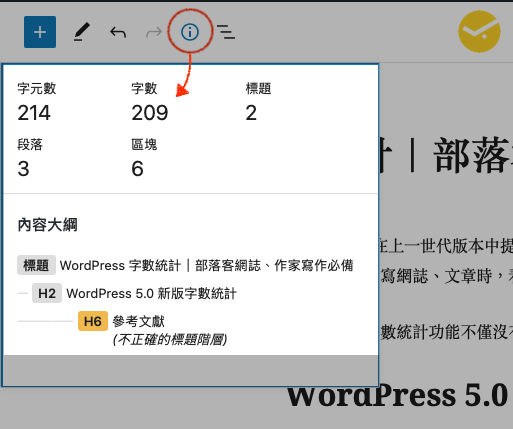
Figure 1, the Details function button
Clicking the “Details” button brings up an information window containing detailed information. It provides two major function groups, including:
Word Count
Here you should pay attention to two pieces of information: “Characters” and “Words”.
If WordPress’s language is set to Chinese by default, the problem is not significant; it is just that things like spaces cause differences in the statistics. However, be aware that this information counts all kinds of characters, including spaces, punctuation marks, Chinese characters, and English letters, so it does not equal the true word count.
If you are taking on work that requires submitting an article with an agreed word count, the author recommends recalculating it in Microsoft Word or Apple macOS Pages after writing.
Conversely, if the language is set to English by default, then no matter how many Chinese characters you enter, the word count will be 0, because it counts English words. Its method of determination is actually quite simple: it analyzes based on spaces. For example, entering “aaaaa” is one word, and “a a a a a uh” is six words.
Content Outline
This automatically organizes article paragraphs and headings into a table of contents, which is a useful feature for authors writing very long pieces.
The content outline also comes with an interesting feature: it automatically determines whether the order of “heading levels” is logical. For example, if a main heading uses H2 and the next subheading uses H6, it will issue a warning with a yellow block as shown in Figure 2 above.
References
Support Independent Perspectives & In-Depth Insights
Every thoughtful analysis and candid critique comes from our dedication to truth and quality. We choose not to follow sensational algorithms or clickbait headlines.
Sustaining independent research requires reader support. Make a one-time or monthly contribution, securely processed by Google.
Payments secured by Google · Manage or cancel anytime in your Google Account



Comments