
Whether delivering a presentation or writing a report, we often present information in itemized lists to express ideas clearly. When applied to web content, we structure such list items using numbered lists (ordered lists) or bulleted lists (unordered lists).
However, during web content design, because content is written using HTML syntax, styling flexibility is often constrained by the limited features provided by editing tool developers. It may not feel as straightforward or flexible as Microsoft Office Word or Apple Keynote. But in fact, with an in-depth understanding of HTML and CSS, the resulting visual styling can be very satisfying—sometimes even offering more freedom than desktop software, despite being slightly more tedious to code by hand.
Note: I tested the following anomaly on two different websites; one could successfully change the nested list back to numbers, while the other could not. Therefore, I cannot guarantee you will encounter the exact same behavior. In short, even when using correct HTML syntax and parameters, the actual display may vary depending on the active theme or browser support. You will need to test it in your own environment. Hence, the focus of this article is the list style syntax list at the end for reference.
For example, in WordPress, listing three items normally produces the following result:
- Item One
- Item Two
- Item Three
The underlying HTML syntax:
- Item One
- Item Two
- Item Three
If I want to insert two sub-items under item 1 (using the “Increase Indent” button or pressing the “Tab” key on the keyboard), it becomes:
- Item One Sub-item 1
- Sub-item 2
Item Two Item Three
The underlying HTML syntax:
- Item One
- Sub-item 1
- Sub-item 2
- Item Two
- Item Three
Next, if I want to use different symbols (such as lowercase alphabet letters or lowercase Greek letters), I can select them directly from the dropdown menu of the ordered list button:
- Item One Sub-item 1
- Sub-item 2
Item Two Item Three
The underlying HTML syntax:
- Item One
- Sub-item 1
- Sub-item 2
- Item Two
- Item Three
However, there is a quirk in WordPress’s editor design: if the primary numbering is not decimal numbers, the nested sub-items (might) not allow switching back to default numbers through the UI:
- Item One Sub-item 1
- Sub-item 2
Item Two Item Three
The underlying HTML syntax:
- Item One
- Sub-item 1
- Sub-item 2
- Item Two
- Item Three
At this point, we can manually edit the HTML syntax (Text/Code view) to switch the sub-items back to numbers:
- •••: disc (default; filled bullet).
- ○○○: circle (hollow circle).
- ▪▪▪: square (filled square).
- 1, 2, 3: decimal (default; numbers).
- 01, 02, 03: decimal-leading-zero (numbers with leading zeros).
- i, ii, iii: lower-roman (lowercase Roman numerals).
- I, II, III: upper-roman (uppercase Roman numerals).
- α, β, γ: lower-greek (lowercase Greek letters).
- a, b, c: lower-latin (lowercase Latin letters).
- A, B, C: upper-latin (uppercase Latin letters).
- Ա, Բ, Գ: armenian (traditional Armenian numbering).
- ა, ბ, გ: georgian (traditional Georgian numbering).
- a, b, c: lower-alpha (lowercase Latin alphabet).
- A, B, C: upper-alpha (uppercase Latin alphabet).
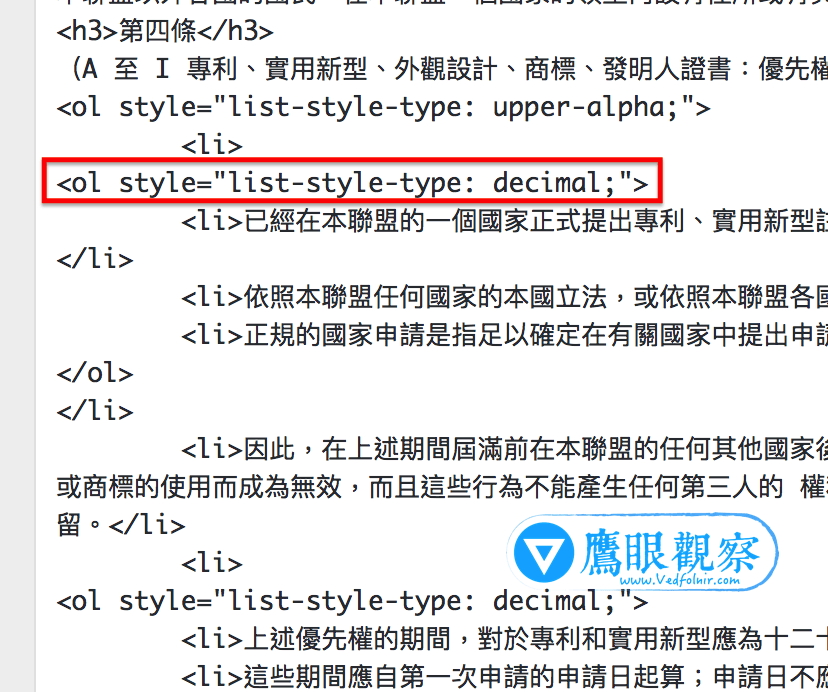
List Style Type Syntax
Other available parameters for numbered lists and bulleted lists are listed below for your reference. When the visual editor doesn’t support them directly, you can manually specify the desired list markers, including:
Support Independent Perspectives & In-Depth Insights
Every thoughtful analysis and candid critique comes from our dedication to truth and quality. We choose not to follow sensational algorithms or clickbait headlines.
Sustaining independent research requires reader support. Make a one-time or monthly contribution, securely processed by Google.
Payments secured by Google · Manage or cancel anytime in your Google Account



Comments