

Microsoft’s Windows 8 and 8.1 operating systems come pre-installed with the modern Microsoft .NET Framework 4.x runtime environment, eliminating the need to manually search the web for installers as in previous eras.
However, many existing Windows desktop applications were built on the .NET 3.x or even 2.x architecture.
When installing these legacy applications, users frequently encounter error dialogs prompting that an earlier version of .NET Framework is required.
Fortunately, managing this in Windows 8 and 8.1 is straightforward. Below, I will cover both offline standalone installation methods suitable for Windows XP, Vista, and 7, as well as the native feature enablement method in Windows 8/8.1.
If your system lacks Microsoft .NET Framework 3.0/3.5 (which provides backward compatibility for 2.x) and an application requires it, what should you do?
For example, Windows Live Writer 2012 (WLW), introduced in our article on offline blogging tools, explicitly depends on .NET Framework 3.0.
Here are two reliable methods to install and enable .NET Framework on your Windows PC.
Method 1: Download the Offline .NET Framework Standalone Installer
This approach is suitable for Windows XP, Windows Vista, and Windows 7.x.
Visit the official Microsoft Download Center directly to fetch the standalone installer for Microsoft .NET Framework 3.x.
The latest cumulative release for the 3.x family is Microsoft .NET Framework 3.5 Service Pack 1.
Refer to the link in the Further Reading section at the end of this guide.
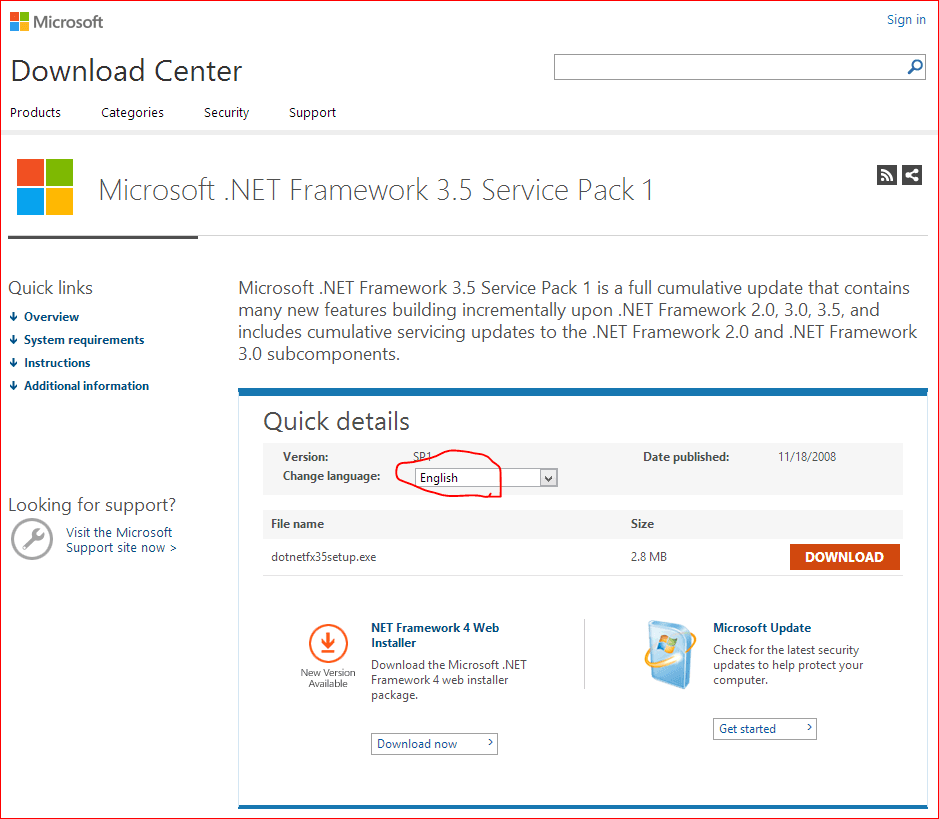
Figure 1: Microsoft .NET Framework 3.5 Service Pack 1 official page.
Method 2: Enable Built-In Windows Features in Windows 8 / 8.1
Tip: Remember to toggle the search scope from “Files” to “Everywhere” if using the Charms search bar!
This method is specifically designed for Windows 8 and 8.1.
Navigate through: Control Panel → Programs → Turn Windows features on or off. The configuration window shown in Figure 2 will appear on your screen.

Alternatively, press the keyboard shortcut Win + F, search for "**Turn Windows features on or off**", and click the shortcut to jump straight into the settings panel.
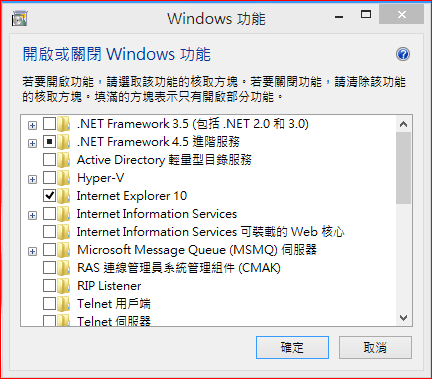
Figure 2: Turn Windows features on or off dialog.
Next, check the box next to .NET Framework 3.5 (includes .NET 2.0 and 3.0) as illustrated in Figure 2, and click OK. The operating system will automatically verify whether the necessary component binaries exist on your drive.
If your local drive lacks the required payload files, a prompt will appear asking whether to Download files from Windows Update. Simply authorize the download, and Windows will pull the necessary packages automatically and finish setup. Windows 8 makes this process remarkably seamless.
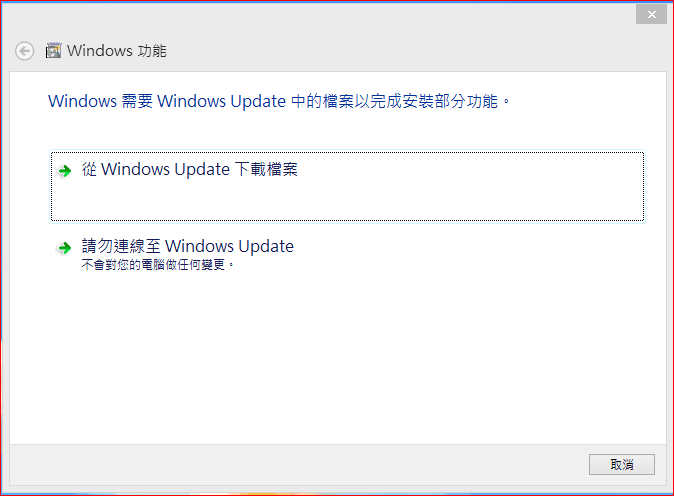
Figure 3: Windows Update installation complete.
Whether you employ the standalone installer on older platforms or use the built-in feature switcher in Windows 8, your system will correctly enable the required version of .NET Framework. Best of all, no reboot is required—a welcome change from the old days when every single component install demanded a full system restart.
Further Reading: Microsoft .NET Framework 3.5 Service Pack 1 (Download URL).
Support Independent Perspectives & In-Depth Insights
Every thoughtful analysis and candid critique comes from our dedication to truth and quality. We choose not to follow sensational algorithms or clickbait headlines.
Sustaining independent research requires reader support. Make a one-time or monthly contribution, securely processed by Google.
Payments secured by Google · Manage or cancel anytime in your Google Account




Comments