
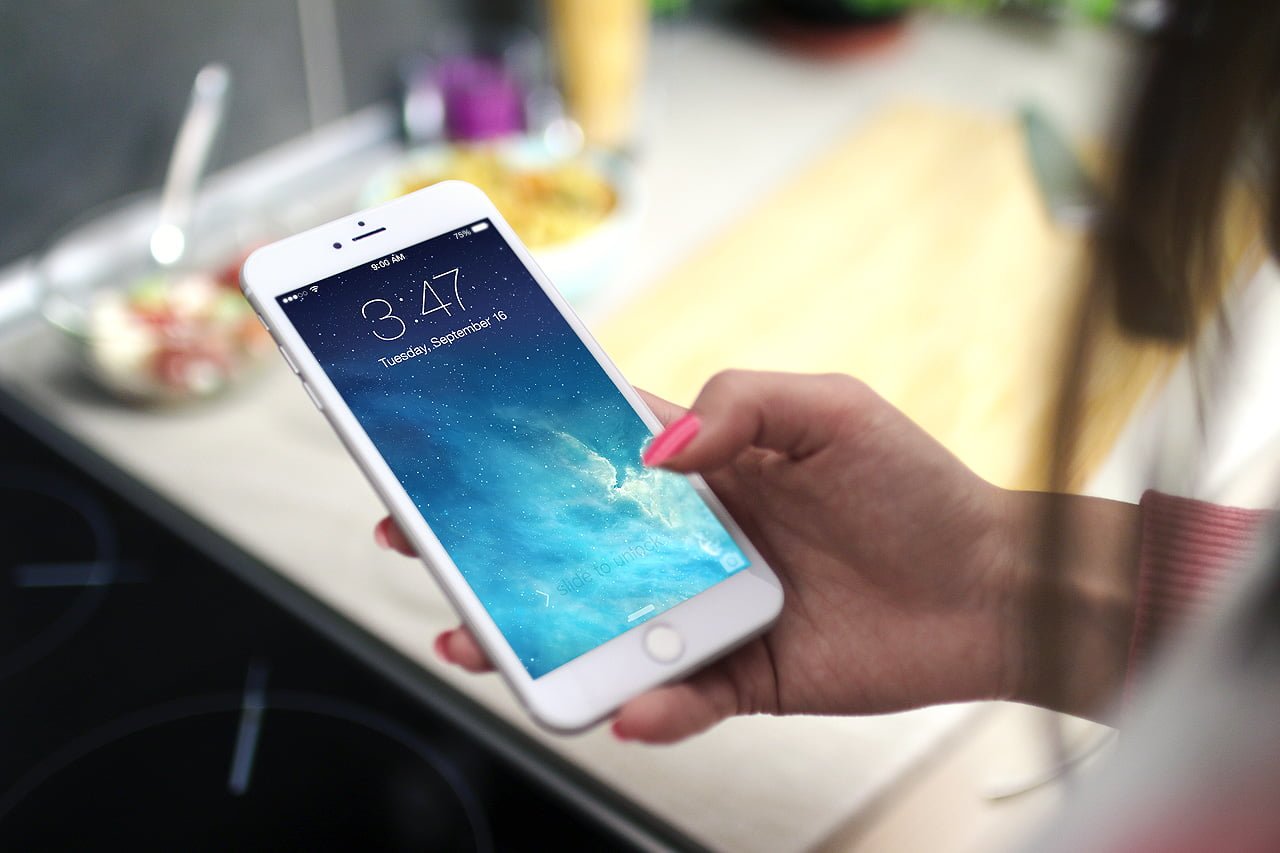
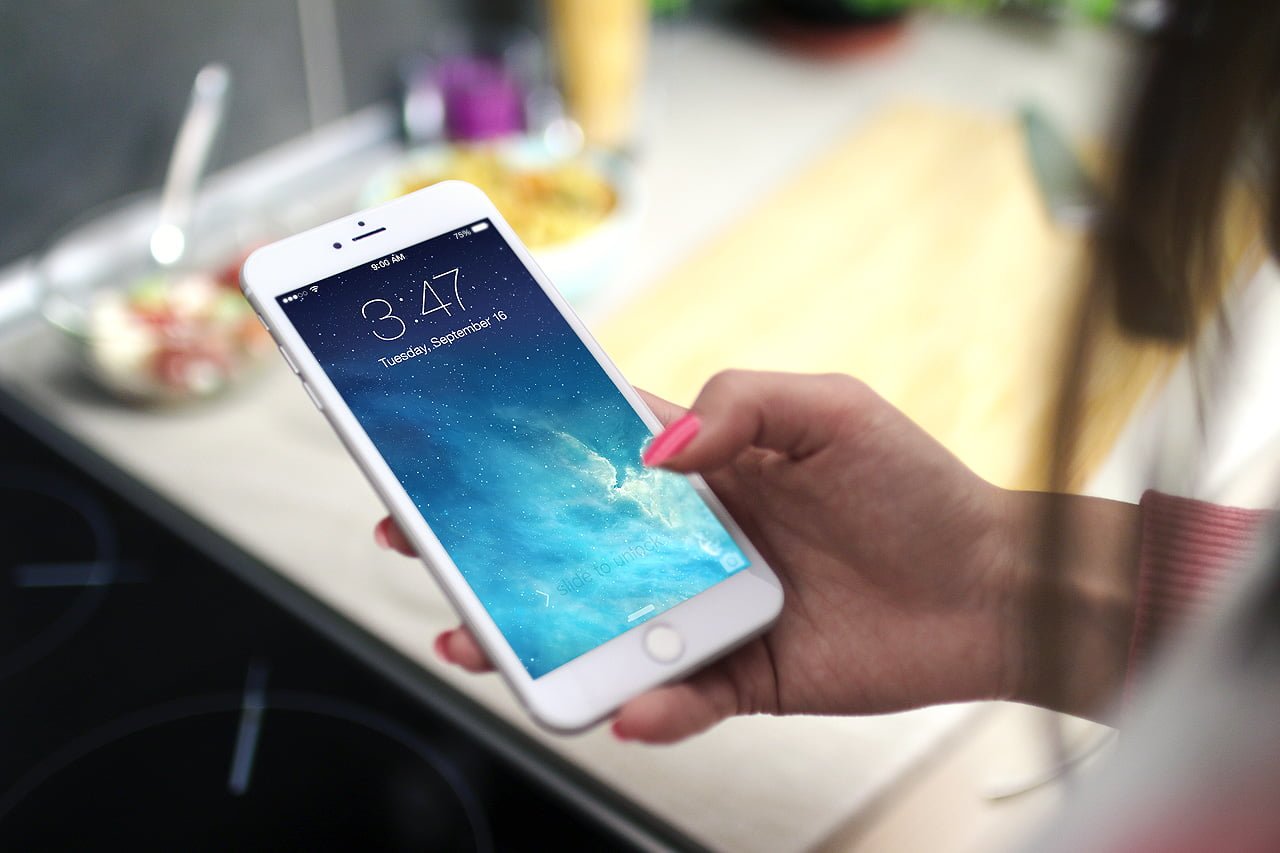
Recently on social media and across tech forums, I’ve noticed many friends earnestly cautioning one another: “Whatever you do, do not update!”
Whenever Apple rolls out a new release of iOS and that bright red notification badge pops up over the Settings app, countless iPhone and iPad users react as if facing a crisis. They stall for as long as possible, or turn off automatic updates entirely. The fear holding users back typically boils down to two main anxieties:
- Fear of device slowdown: Worrying that the update will make their phone sluggish or laggy, often suspecting official “planned obsolescence” aimed at pushing consumers toward new hardware.
- Fear of bricking the device: Terrified that an installation crash will freeze the phone on a black screen with a white Apple logo, rendering their prized device an unresponsive brick and vaporizing photos and documents overnight.
Allow me to state emphatically: Wake up! With proper basic backup habits, regularly updating iOS is not only completely safe, but also crucial for safeguarding your digital assets and ensuring an optimal user experience!
Dispelling the Myths: Why “Bricking” and “Slowdowns” Are Widely Misunderstood
1. Apple’s Rigorous Hardware Screening
Before rolling out the final public release of any major iOS generation each year, Apple conducts months of rigorous Developer Beta and Public Beta testing. Apple’s software engineering teams repeatedly evaluate and stress-test performance across every single older model on the support list.
If a device’s internal hardware architecture or RAM capacity can no longer support modern software requirements, Apple simply removes it from the “Compatible Devices List”. In short: As long as your iPhone or iPad receives an official update push, it has already passed Apple’s baseline performance validation.
2. The Technical Truth Behind “Temporary Heating and Sluggishness”
Many users complain that “for the first day or two after updating, the phone runs hot, battery drains fast, and swiping stutters.” This is frequently misinterpreted as buggy software.
In reality, after completing a major operating system upgrade, the system executes heavy background maintenance tasks:
- Spotlight Global Search Re-indexing: Scanning all emails, contacts, notes, and messages.
- Deep Machine Learning Analysis on Photos: Leveraging the Neural Engine in the background to detect faces, scenes, and object tags across your entire photo library.
- File System Reorganization and Cache Rebuilding.
These background processes consume substantial CPU cycles. Typically, after 24 to 48 hours of normal use connected to a charger, indexing wraps up and temperature and responsiveness return completely to normal.
3. Third-Party App Conflicts and Latent Hardware Faults
If your phone remains unusually sluggish after several days, common culprits include:
- Unoptimized Third-Party Apps: Legacy apps that have not been updated for newer system APIs can trigger severe memory leaks or background infinite loops. Updating all apps via the App Store resolves the majority of these problems.
- Exposing Latent Hardware Defects: Major OS upgrades involve intensive multi-gigabyte read/write operations and flash memory verification. If the NAND flash memory had pre-existing bad blocks or subtle motherboard trace issues, the heavy upgrade load brings these flaws to the surface. If your device is still under warranty, discovering such latent issues early allows you to get a free repair or replacement before coverage expires!
4 Critical Reasons Why You “Must Update”
| Dimension | Regular Updates | Chronic Update Avoidance |
|---|---|---|
| Cybersecurity | Constantly patches known exploits, defending against spyware and malware | Leaves known vulnerabilities wide open, becoming an easy target for attackers |
| Features & UX | Enjoy refreshed UI designs, productive utilities, and new emoji | Stuck on legacy interfaces, missing out on modern conveniences |
| App Support | Seamless compatibility with the latest versions of modern apps | Popular apps gradually deprecate old OS versions, eventually blocking logins |
| Upgrade Curve | Adapt to interface changes incrementally year over year | Face a jarring learning curve when finally jumping several generations ahead |
Reason 1: Security Patches Are the True Core of Every Update
Smartphones store our most intimate secrets: mobile banking authentications, credit card credentials, private conversations, and sensitive personal photos. Threat actors and cybercriminals constantly probe for WebKit browser engine and system kernel zero-day vulnerabilities.
When Apple’s release notes state that an update “includes important security fixes”, it is not empty boilerplate. Once an exploit becomes public, an unpatched device can be compromised simply by visiting a malicious webpage or receiving a crafted message. Regular updates are the strongest digital lock guarding your privacy.
Reason 2: Fresh Features and Ecosystem Synergy
Beyond fundamental security, updates introduce delightful functional refinements—from smarter notification summaries and redesigned control centers to fluid multitasking gestures. These features breathe new life into older devices and keep you connected with the latest Apple ecosystem perks.
Reason 3: Maintaining the App Lifecycle
Developers on the App Store build against the latest SDKs. Over time, major apps (such as messaging apps, social networks, and mobile banking apps) gradually sunset support for outdated iOS releases. Chronic refusal to update eventually leads to an unwelcome warning: “This app requires a newer version of iOS”, locking you out of essential everyday services.
3-Step Painless Upgrade Standard Operating Procedure (SOP)
Follow these three straightforward preparatory steps, and updating your system will be as smooth as clockwork:
- Complete a Full Backup First (Most Critical Step):
Perform a manual iCloud backup right before updating, or connect your device to a computer to generate an encrypted local backup via iTunes or macOS Finder. This guarantees that in the unlikely event of an unexpected interruption, your data can be restored with a single click. - Ensure Ample Free Storage:
Update packages require working space for downloading and unpacking. Free up at least 5 GB to 8 GB of available capacity beforehand to prevent the update from stalling mid-installation. - Connect to Reliable Wi-Fi and Plug Into Power:
Connect to a stable, high-speed home Wi-Fi network and keep the device plugged into a charger with battery levels above 50% to prevent sudden shutdowns during firmware writing.
Conclusion
When dealing with technological evolution, evasion and fear provide no genuine security. The lasting user satisfaction and longevity of the iOS ecosystem stem directly from tightly integrated, sustained software update support.
Stop agonizing over that red notification badge. Tonight when you get home, plug in your charger, connect to Wi-Fi, run a backup, and confidently tap “Update Now” to grant your iPhone and iPad a safer, smoother lease on life!
Support Independent Perspectives & In-Depth Insights
Every thoughtful analysis and candid critique comes from our dedication to truth and quality. We choose not to follow sensational algorithms or clickbait headlines.
Sustaining independent research requires reader support. Make a one-time or monthly contribution, securely processed by Google.
Payments secured by Google · Manage or cancel anytime in your Google Account


Comments