
A while back, Toshiba released a 2.5-inch external hard drive called the “Toshiba Canvio AeroCast 1TB”. It features a basic shock-resistant casing, supports Wi-Fi connectivity and AP router functionality, and comes equipped with a built-in SD card slot providing wireless access, serving as high-capacity mass storage for travel photography. The ability to back up SD card contents anytime and anywhere saves you from having to carry a laptop, lightening your load during travel.
However, according to real-world feedback from Mizuc after taking it on a trip, this Toshiba Canvio AeroCast portable external drive suffers from a headache that is neither negligible nor minor: photo timestamps get overwritten.
For example, if a photo was taken on March 8, 2018, and the SD card was inserted into the external hard drive only on August 5, all timestamps for the photos saved to the hard drive (whether date taken, date created, or date modified) are rewritten to August 5.
As shown in the image below, the time interval between individual photos is only 2 to 5 seconds. This does not represent the actual photo-shooting intervals, but rather the processing speed of the hard drive reading photos from the SD card and saving them onto the disk.
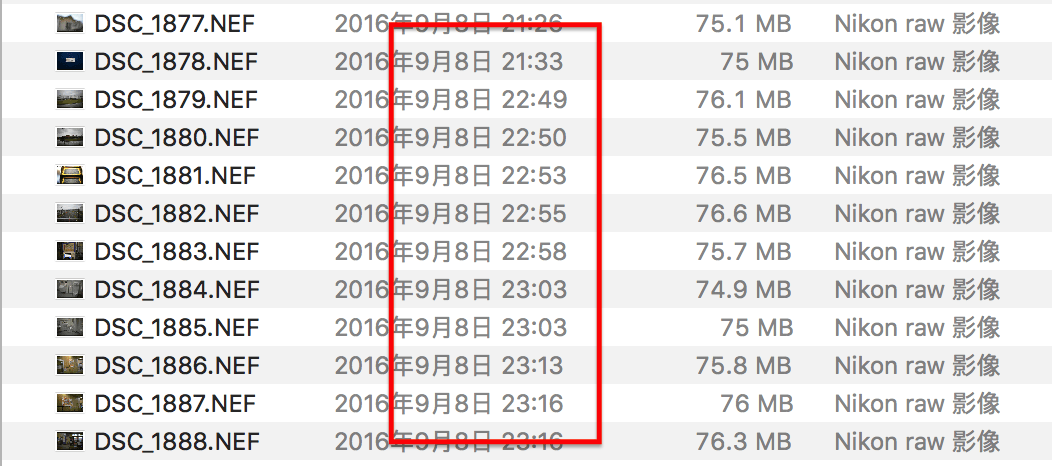
This is actually a very serious problem because you can no longer organize or manage photos by capture date afterward.
If you keep a travel journal, this is even worse, because you lose track of the exact time when each photo was taken!
Strictly speaking, this bug is not an issue with the portable hard drive hardware itself, but is closely tied to Toshiba’s companion mobile app, “Toshiba Wireless HD”. Whenever you use the mobile application to instruct the external drive over Wi-Fi to back up SD card contents, this flaw occurs.
Therefore, until this mobile app issue is fixed, I would not recommend buying their Wi-Fi portable hard drives. It will create considerable hassle for subsequent image management and photo organization.
Of course, there is a workaround: as long as your camera supports setting file names in a “YYYYMMDD_HHMMSS” format, you can still deduce the capture time from the file name when managing photos later. But fair warning: standard photo management software still won’t be able to organize everything automatically by metadata, and you will eventually have to sort through them manually by hand.
Support Independent Perspectives & In-Depth Insights
Every thoughtful analysis and candid critique comes from our dedication to truth and quality. We choose not to follow sensational algorithms or clickbait headlines.
Sustaining independent research requires reader support. Make a one-time or monthly contribution, securely processed by Google.
Payments secured by Google · Manage or cancel anytime in your Google Account



Comments