
Sublime Text[1] is a relatively young text editor[2]. The reason I want to introduce it today is simple: it’s handsome. Thinking back and forth, ‘handsome’ is truly the best word to describe it.
Being handsome is an aura. If the default Notepad/WordPad that comes with Windows is the classroom sanitation monitor who wins perfect attendance every year but gets mediocre grades; if Vim is the privileged class president who only grabs first place through hardcore cram school but has zero social charm (inner voice: insisting on squeezing in topical jokes); if Notepad++ is the cheerful recreation monitor who gets excellent grades, plays hard, and knows how to hype up the crowd; then Sublime Text is undeniably the arts monitor—academically stellar, deeply beloved by both classmates and teachers, and undeniably handsome. Because it’s important, it bears repeating three times.
The programs mentioned above are all globally renowned text editors.
Vim is an venerable text editor, a beloved favorite of many traditional programmers, a must-install during my graduate school days, and the default editor on Linux systems[3]. Its learning curve is rather steep, though once mastered, attempting to switch away from it brings another prolonged period of frustration and complaints.
Notepad++ is an editor software independently developed by a domestic developer in Taiwan (ROC). Its rich initial features and native Chinese interface have earned it significant acclaim in recent years.
As for WordPad and Notepad, they have been Microsoft’s default text editors since Windows 1.0 was released in 1985. We’ve all used them, and we’ve all complained about them.
The Windows installer sizes for these editors are surprisingly similar: from smallest to largest, Sublime Text comes in at 6,361 KB, GVim at 6,533 KB, and Notepad++ at 7,759 KB (Notepad is built into the OS, so it’s not included).
Advantages and Features of Sublime Text
There is another simpler reason for highlighting this text editor today: it is young, with many designs tailored closely to modern user habits. At the same time, it integrates the best traits of the aforementioned programs, such as robust package support, rich syntax color themes, hierarchical indentation guides, and more. It can truly be called an editor that synthesizes the best of modern text editors. The developer even provides a 64-bit version, satisfying our inner enthusiast (inner voice: what kind of absurd excuse is that?).
Generally, users who seek out feature-packed text editors are programmers. In my case, I was using a sledgehammer to crack a nut—merely looking for a tool to capture creative ideas and take notes. I specifically needed software that met the following writing environment requirements:
- A file-browsing sidebar to quickly switch and select document files;
- A streamlined interface where document colors and themes can be customized;
- A full-text minimap sidebar for wide-range mouse navigation across long documents;
- Tabbed document bars to jump swiftly between multiple opened files;
- Document session memory: closing the application while editing preserves state, returning immediately to where you left off upon reopening.
Strictly speaking, while Notepad++ offers a native Chinese interface, is developed by a fellow countryman, and already fulfilled most of my writing needs—meaning my search should have ended there—it unfortunately lacked a 64-bit version at the time. That became the final straw tipping my decision. If you don’t mind that, Notepad++ remains an outstanding text editor capable of handling most workloads.
Software Download
Currently, the latest stable release of Sublime Text is 2.0.2 (Version 2.0.2 64-bit for Windows x86/x64, OS X 10.6 or later, Linux 32-bit/64-bit, file size: 6,361 KB), supporting two major operating systems:
- Operating System: Microsoft Windows 64-bit
- Operating System: Apple macOS
- Portable Version (Windows 32-bit / Windows 64-bit)
Additionally, the official site offers beta testing for Sublime Text 3 (3.x Beta). Interested users are encouraged to download and try it out, as stability is already quite solid.
After downloading, simply follow the standard installation prompts and click OK. The process is straightforward and clutter-free. Below, we dive deeper into practical tutorials and everyday operations.
Sublime Text Tutorial
The very first time you launch Sublime Text, it may pause for a few seconds to configure the environment on your computer. Subsequent launches are virtually instantaneous.
In a later test, I opened dozens of files simultaneously (including text files, images, Word documents, and various assorted formats) and then closed the program. Upon reopening, there was no noticeable lag whatsoever, demonstrating the excellent algorithmic design of Sublime Text’s file handling.
Figure 1 shows the default user interface of Sublime Text 2. The left side displays line numbers, while the right side features a Mini Map for full-document navigation. The light grey indicator marks your current viewing position, allowing rapid navigation with the mouse.
The center of the screen is the editing area, flanked top and bottom by the familiar menu bar and status bar.
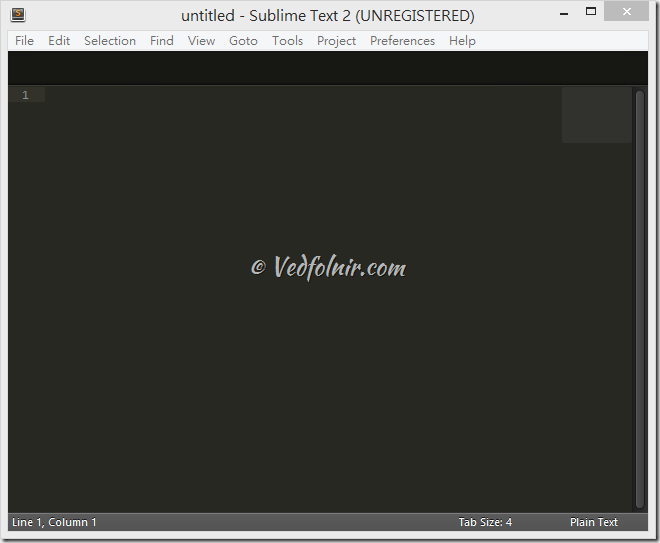
Figure 1. Sublime Text window interface.
Figure 2 illustrates opening an image file in Sublime Text, showing how various interface panels appear. Notably, besides plain text and source code, unknown file formats are opened in binary code.
Even when opening multi-megabyte image files, the program parses and renders them in an instant. Scrolling from the very top to the bottom of the page is butter-smooth without stutter (outperforming GVim on both fronts).
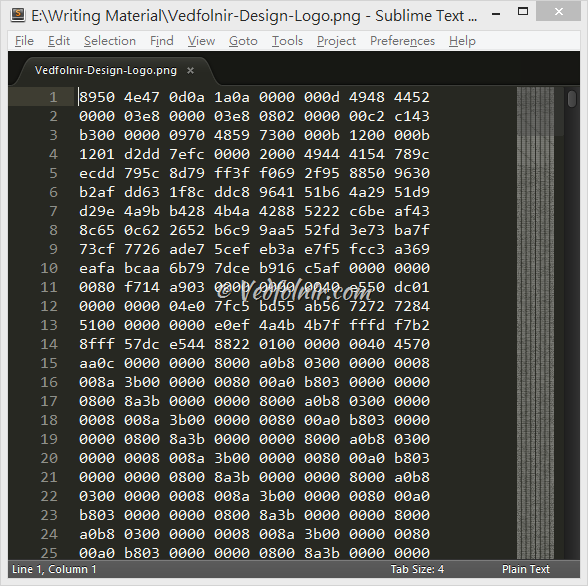
Figure 2. Editing view when opening an image in binary format.
Next, as shown in Figure 3, I opened a standard plain text file using Sublime Text.
You can see that all the creative writing requirements mentioned earlier are thoroughly satisfied.
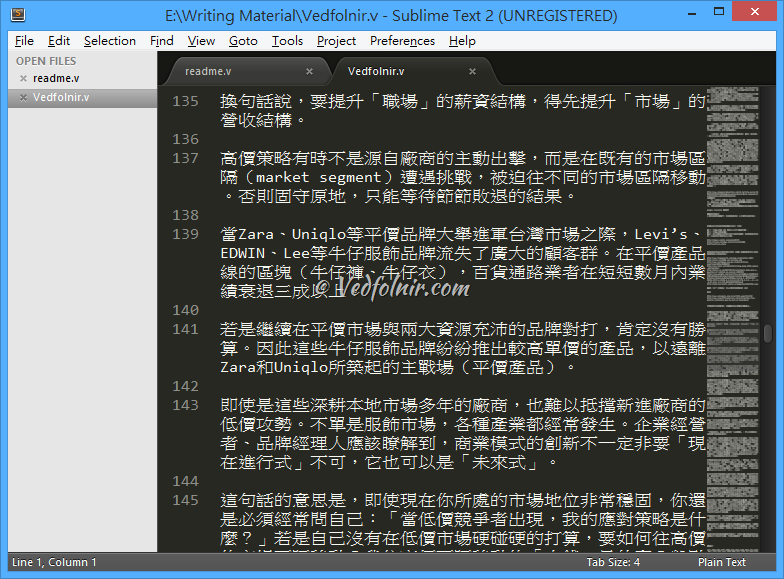
Figure 3. Demonstration of opening a plain text file.
Please note that the “Side Bar” section on the left in Figure 3 was manually enabled. Enabling it is simple: navigate through the top menu via “View” → “Side Bar” → “Show Open Files”, which brings up the file management bar shown on the left of Figure 4. Opened file names appear in this list and vanish upon closing.
Furthermore, you can drag an entire folder from your system file explorer directly into the sidebar to automatically add a directory navigation tree under “Folders.”
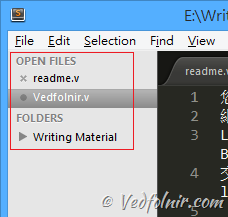
Figure 4. Sublime Text file management sidebar.
Sublime Text also features full-screen modes—in fact, two of them!
Refer to Figure 5 below. Pressing “F11” displays the software interface in standard full-screen mode (left), which most modern editors support.
Alternatively, pressing “Shift + F11” switches to the view shown on the right of Figure 5: the system hides all UI clutter and displays only the document content and menu bar. This is the famed “Distraction Free Mode,” perfect for focused writing and creation.
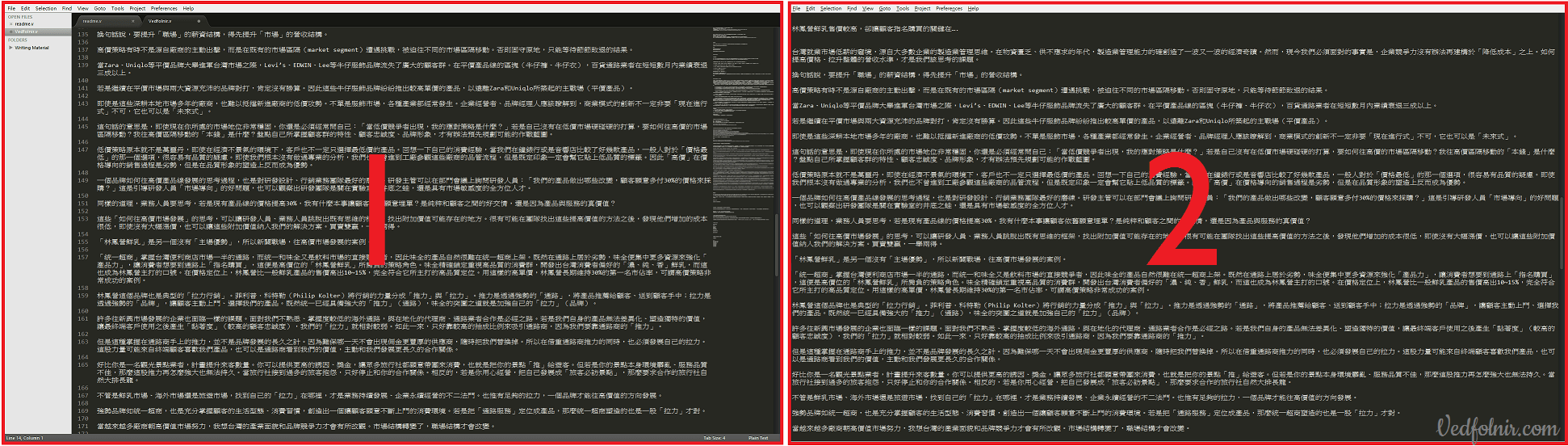
Figure 5. Comparison of the two full-screen display modes.
One Screenshot Is Enough for Programmers
The introductions above were centered on my personal workflow. If you are a software developer, a single glance at Figure 6 below will immediately reveal the power of this text editor without needing further explanation.
And this is a native feature.
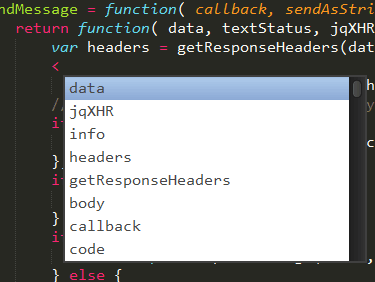
Figure 6. Code command auto-completion popup window.
Next, let’s explore installing packages to supercharge Sublime Text.
Package: Package Control
As mentioned, Sublime Text inherits the spirit of Vim’s plugin ecosystem, with countless developers and community contributors crafting powerful extensions. The one package I wholeheartedly recommend—and the only one I will introduce in this article—is: “Package Control.”
Package Control, as the name suggests, is a community-developed package manager designed to discover, download, install, and manage all Sublime Text packages available online. Because it is so fundamental and convenient, it is virtually always the very first package users install.
Installation Instructions
In the menu bar, navigate to “View” → “Show Console” to open the console window at the bottom of the editor, then paste and run the following command in the input line:
import urllib2,os; pf='Package Control.sublime-package'; ipp=sublime.installed_packages_path(); os.makedirs(ipp) if not os.path.exists(ipp) else None; urllib2.install_opener(urllib2.build_opener(urllib2.ProxyHandler())); open(os.path.join(ipp,pf),'wb').write(urllib2.urlopen('http://sublime.wbond.net/'+pf.replace(' ','%20')).read()); print('Please restart Sublime Text to finish installation')After pasting and pressing Enter, an installation completion notice will appear as shown in Figure 7: “Please restart Sublime Text to finish installation.” Restart the editor to complete setup.
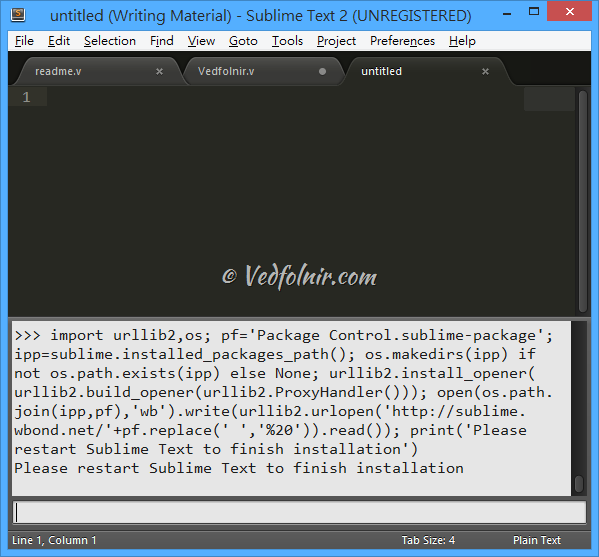
Figure 7. Package Control installation script.
Using Package Control
Refer to Figure 8. In Sublime Text, press “Ctrl + Shift + P” (or “Cmd + Shift + P” on macOS) to open the Command Palette, or select “Preferences” → “Package Control” from the menu.
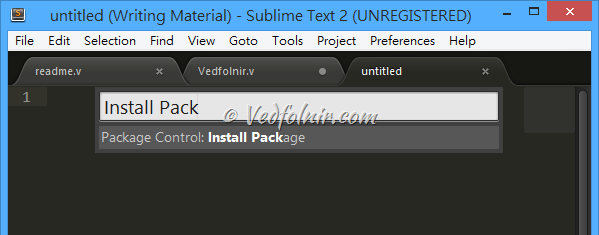
Figure 8. Install Package command.
Next, type “Install Package” into the prompt shown in Figure 8 and press Enter. The system will search online repositories for available packages. As seen in Figure 9, the status bar will indicate that the program is loading online repositories.

Figure 9. Loading repositories.
Once loading finishes, as shown in Figure 10, a searchable list of all available Sublime Text packages will appear, along with descriptions. Simply search for the desired package and press Enter to install[4].
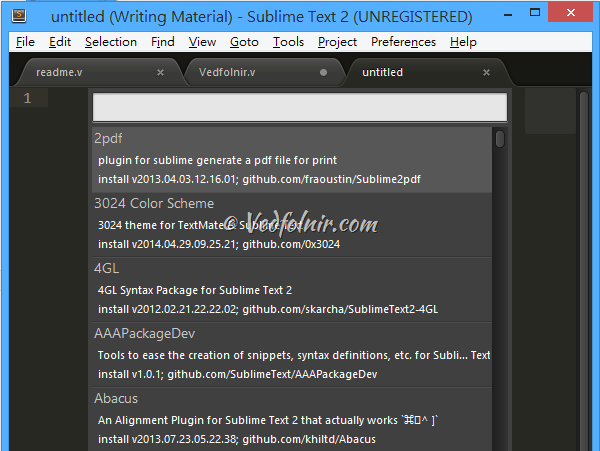
Figure 10. Detailed package list.
Removing Packages
Packages are installed to meet needs. If you find yourself rarely using a package and want to remove it, simply open the Package Control palette as before, type “Remove Package,” and select the package you wish to uninstall. The system will cleanly remove it. Simple and effortless!
Note that once a package is used, configuration files may be generated under the Packages/User/ directory shown in Figure 11. These settings files are not automatically deleted upon uninstallation; if you prefer a clean slate, you can remove them manually.
To access this folder, go to “Preferences” → “Browse Packages” in the menu bar to open the Packages directory, then navigate into the User folder.
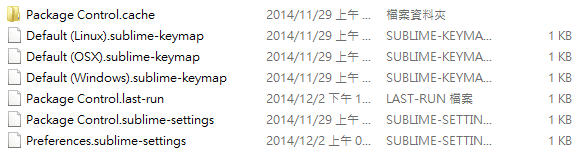
Figure 11. Contents of the Packages/User/ folder.
Below is a summary of impressions and reflections on using Sublime Text, along with carefully curated further reading links.
Results and Discussion
My primary criteria for choosing a text editor are simple: whoever provides me with an optimal writing environment wins my vote. Currently, Sublime Text fulfills all my requirements, and its powerful package ecosystem ensures room for growth as my demands expand (in this regard, Vim and Sublime Text have greater depth than Notepad++).
For cross-platform utility software, mastering one tool well is often all you need. After using Sublime Text for several days, I am thoroughly impressed, awarding it a high rating of three stars ★★★ (out of five, though my cap is usually four :P).
To stay true to our site’s motto—“nitpicking systems and analyzing flaws”—let’s look at a couple of minor shortcomings.
You might have noticed an unsightly label at the end of the window title in the screenshots above: “UNREGISTERED,” commonly known as the evaluation tag.
Indeed, Sublime Text is not free software; in contrast, both Vim and Notepad++ are completely free. Sublime Text’s price tag isn’t cheap either, coming out to roughly 2,200 NTD (~$70 USD) at current exchange rates.
While measuring software value purely in money can seem cynical, having a completely free, native Chinese rival like Notepad++ standing right in front of it may give prospective buyers pause. Fortunately, aside from the unregistered notice in the title bar, the developer imposes no restrictive limitations on evaluation use, so there is no need to hunt for cracked versions.
Furthermore, unlike Notepad++, which was developed by a fellow countryman in Taiwan (ROC) with native multi-language support (Notepad++‘s official website even natively provides Chinese and Japanese), Sublime Text only provides native English (EN-US and EN-GB). Although third-party Chinese language packs are available online, given Sublime Text’s frequent update cadence, getting accustomed to the English interface is the recommended approach.
Further Reading
- Official Website: Sublime Text.
- Sublime Text first launched in 2008, with its first official stable release arriving five years later in 2013.
- Software Tutorial / VI & VIM Quick Reference Command Sheet.
- Software Tutorial / Using Vim to Write a Personal Wiki Journal.
- The Legendary History of VI/VIM Document Editing Software
- All plugins you need can be discovered on the Package Control official site, categorized by latest releases and most popular, making it an indispensable resource.
Support Independent Perspectives & In-Depth Insights
Every thoughtful analysis and candid critique comes from our dedication to truth and quality. We choose not to follow sensational algorithms or clickbait headlines.
Sustaining independent research requires reader support. Make a one-time or monthly contribution, securely processed by Google.
Payments secured by Google · Manage or cancel anytime in your Google Account



Comments