
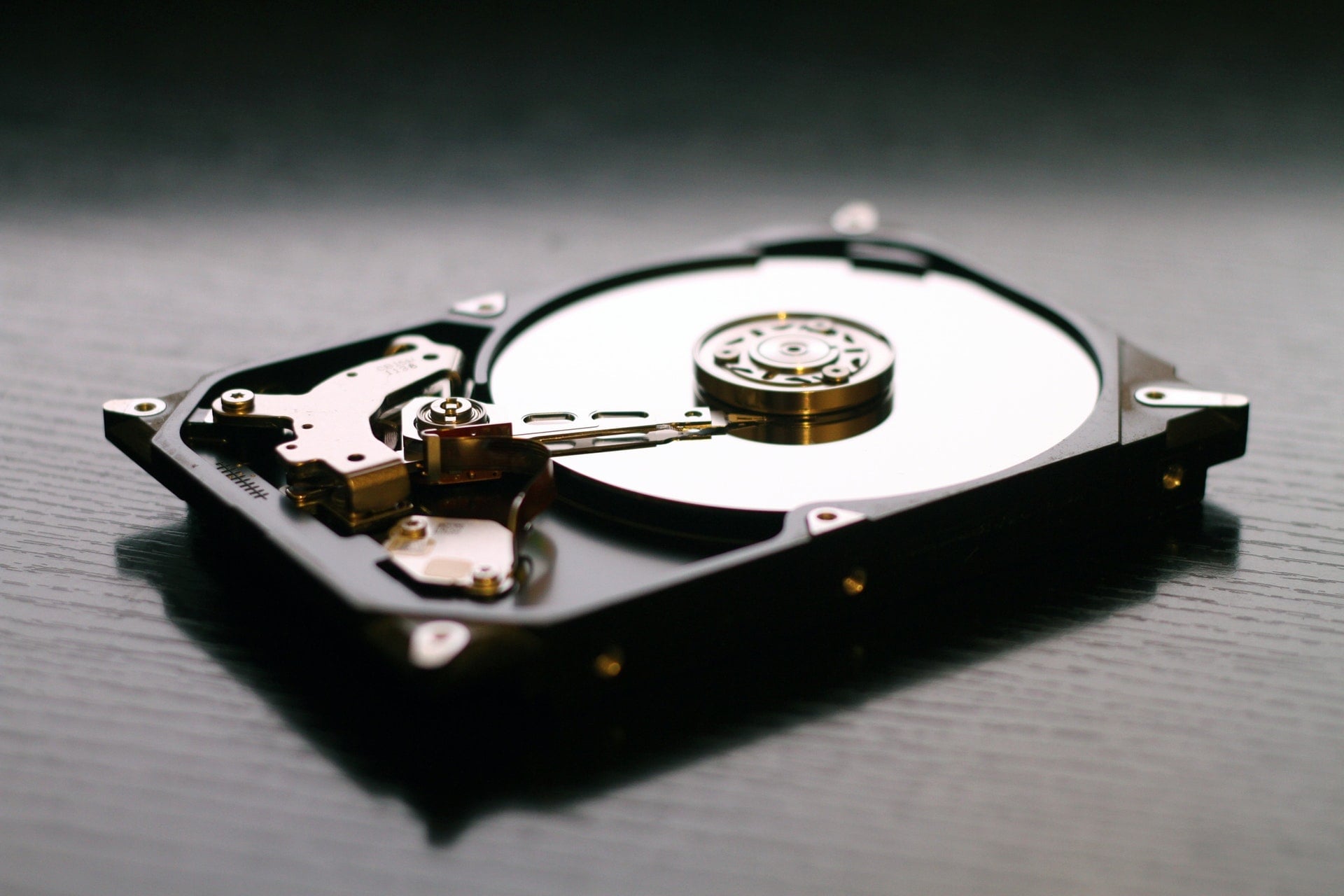
A hard disk drive bought just two years ago—a Seagate 500GB 7200RPM Barracuda Hard Drive—suddenly began exhibiting severe anomalies without any prior warning. Because I rarely install drive diagnostic utilities in daily routines, I didn’t spot the issue right away.
Fortunately, on a whim a few days ago, I decided to install the Ubuntu operating system. An unmissable warning prompt immediately popped up on screen alerting me that the drive had developed critical issues (which explained why the system had crashed so frequently recently).
After swapping back to Microsoft Windows, I immediately navigated to Seagate’s website to download a dedicated diagnostic utility: SeaTools.
SeaTools is the official proprietary disk utility suite provided by Seagate, used to perform multiple types of drive health checks.
Although general-purpose utilities like HD Tune can also perform drive diagnostics regardless of drive brand [1], why do users still need to download SeaTools specifically?
The answer is simple: Seagate offers a five-year limited warranty policy (terms may vary depending on the era and drive tier). However, Seagate’s warranty terms mandate that users submitting an RMA request must provide a test error code generated by running SeaTools. If you ship a drive without an error code and factory technicians deem the drive fully functional upon inspection, Seagate reserves the right to charge you diagnostic testing fees!
Since the utility is free and scans the drive properly, installing SeaTools is a sensible move.
Step-by-Step Seagate RMA Guide
Below is the walkthrough covering diagnostics, filling out warranty claims, and actual shipping procedures:
- First, install SeaTools and launch the application.
- When the End User License Agreement dialog appears, click “I Accept”.
- Enter the main SeaTools dashboard. Here, all connected storage devices on the system will be listed, including PATA drives, SATA drives, and external USB storage.
- Check the box corresponding to the drive you wish to test, and under the Basic Tests menu, run a Short Drive Self Test to inspect the drive.
- If the hard drive is malfunctioning, the utility will display a failure status alongside a failure details option.
- Click the failure details option to open a new window showing basic drive telemetry and failure codes. To file a warranty claim, you will need the test error code. Switch to the Warranty Check tab where the SeaTools diagnostic code will be displayed. Seagate also provides a Warranty Checker link on this page for convenience.
- Click the Warranty Checker link to open the online portal. Follow the instructions to select your country, input the Part Number and Serial Number (Note 2), enter the CAPTCHA verification code, and click Submit.
- Wait for the RMA system to confirm whether the drive details comply with the warranty terms and active coverage period.
- Once warranty eligibility is validated, proceed to enter the RMA claim details: fill in Serial Number, Part Number, Country, and the SeaTools Test Error Code. On the subsequent page, enter your delivery address so the replacement drive can be shipped directly to your door upon completion.
- Select the return shipping hub address. For the Taiwan area, Republic of China, two return addresses are offered: Singapore and Taoyuan. For those of us located in Taiwan Province, Republic of China, selecting the Taoyuan drop-off point is naturally sufficient, eliminating the need to incur international shipping costs.
- Finally, a confirmation declaration screen appears, signaling that the warranty application has reached its conclusion. After verifying all information is correct, click the print icon to print out this RMA confirmation page in full.
- Check your email inbox to confirm receipt of the Order Confirmation from Seagate, containing the RMA number and submission summary. Save this securely for tracking purposes.
- Securely pack and protect the hard drive with antistatic and cushioning materials, then ship it to: “UPS SCS (Taiwan) Co., LTD”, No. 1676, Zhongzheng N. Rd., Luzhu Township, Taoyuan County 338, Taiwan Province, Republic of China.
Although the factory eventually shipped a replacement back to me, the turnaround took nearly 30 days. Furthermore, upon checking the returned unit, it was merely a certified refurbished replacement (and diagnostics still threw minor warning flags). Next time a drive starts throwing a tantrum, it will probably be wiser to simply buy a brand-new replacement. After all, 500GB is quickly becoming cramped anyway.
Further Reading
- SeaTools is officially intended for Seagate drives, but with an exception: as long as at least one Seagate drive is connected to the PC, SeaTools can also run diagnostic tests on drives from other manufacturers.
- The Part Number and Serial Number (S/N) can be found printed on the drive’s metal casing label. If you follow the SeaTools wizard described above, both numbers will be populated automatically by the software.
Support Independent Perspectives & In-Depth Insights
Every thoughtful analysis and candid critique comes from our dedication to truth and quality. We choose not to follow sensational algorithms or clickbait headlines.
Sustaining independent research requires reader support. Make a one-time or monthly contribution, securely processed by Google.
Payments secured by Google · Manage or cancel anytime in your Google Account



Comments