

According to official announcements, PHP version 5 is reaching the end of its life, and security updates and bug fixes will cease in two months. This leaves countless Content Management Systems (CMS) built on PHP 5—including popular platforms favored by webmasters and bloggers such as WordPress, Joomla, and Drupal—at risk of facing unaddressed bugs and wide-open backdoors.
The PHP development team announced that development and maintenance for PHP 5 will officially terminate on January 1, 2019, with security support ending on December 31, 2018 (the lifecycle timelines for subsequent versions such as 7.0, 7.1, and 7.2 can be viewed on PHP’s official Supported Versions page).
The termination of security updates means that whenever crackers discover fresh software bugs and security flaws, they can penetrate systems unhindered and compromise the websites and blogs you have worked hard to build.
Therefore, over the next two months, the critical mission for webmasters and bloggers is to upgrade the PHP runtime of their CMS installations and blogs to PHP 7.0 or higher. In addition to securing crucial patches, PHP 7 delivers substantially superior performance compared to version 5 (with version 7.2 being the highest stable release at present).
If you are unsure of your current PHP version, here are three ways to check it.
3 Ways to Check Your PHP Version
1. Querying via the phpinfo() Function
In the article Where Are the “php.ini” and “conf.d” Configuration File Paths Located on an Apache Web Server?, I introduced a method for creating a simple testing script. By executing PHP’s built-in diagnostic function, you can display your active PHP version directly in a browser (as shown below with PHP 5.6.3).
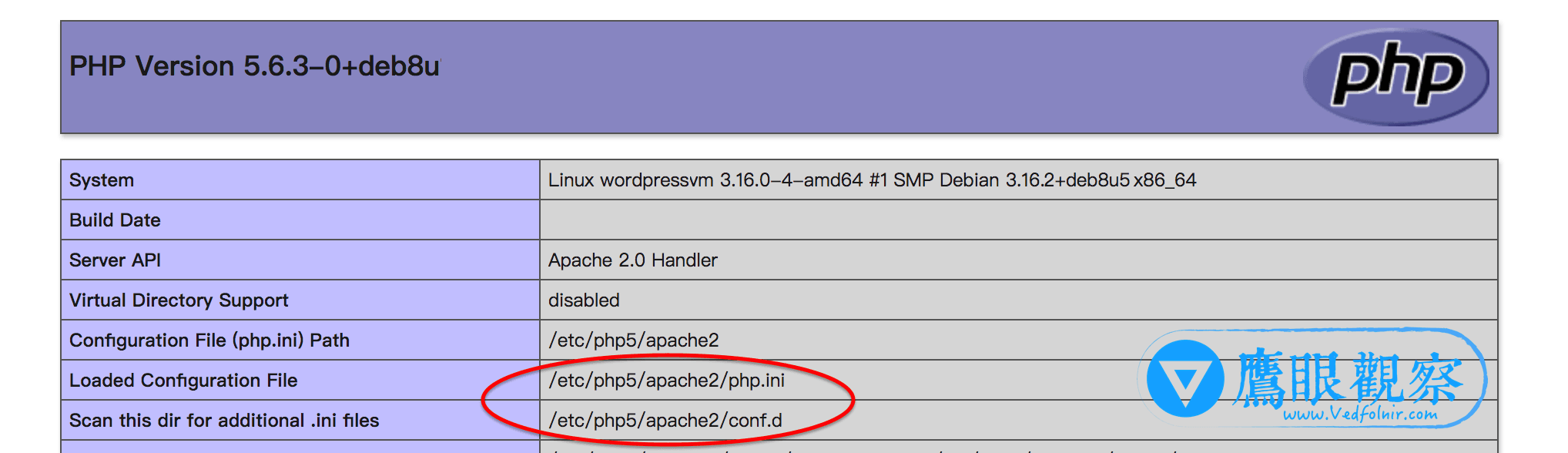
Querying via the phpinfo() Function
2. Installing a Diagnostic Plugin
Several plugins provide quick access to server environment information. For instance, the well-known security plugin “Wordfence” or specialized diagnostic plugins like “Display PHP Version” allow you to verify your active PHP version directly from the admin dashboard.
3. Checking Your Hosting Control Panel
If your website or blog is hosted with providers such as Bluehost or SonderCloud, their control panels provide direct access to server metrics, including PHP version, Apache status, and SSL configuration (as shown below).
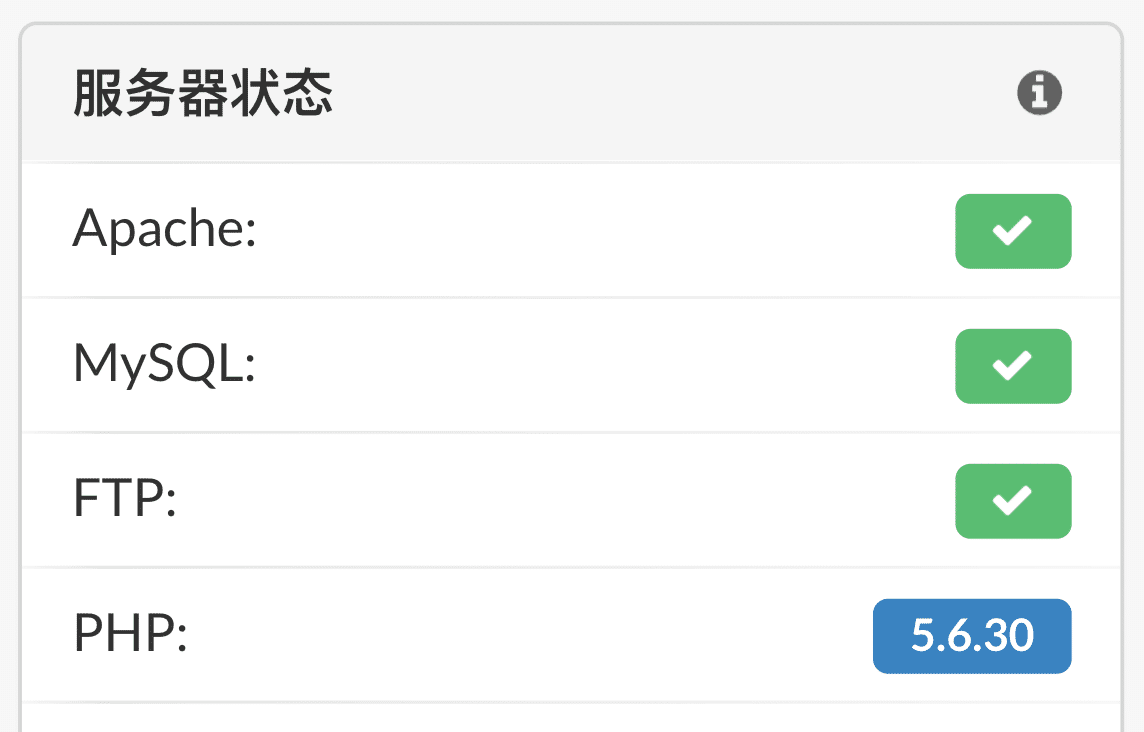
Checking PHP Version in Control Panel
Beyond hosts that enforce automated upgrades to the latest PHP releases, most hosting environments offer manual version pickers, allowing customers to select the specific system environment that best matches their requirements.
If you are concerned about future forced updates breaking your setup, try manually switching to PHP 7.x now to test whether your website or blog functions properly.
Generally, if you consistently keep your WordPress core up to date, upgrading to PHP 7.x runs smoothly 99.9% of the time. If issues do arise, I suggest deactivating all active plugins before logging back in to troubleshoot. Some plugins have not been maintained for years, and it is entirely expected that outdated code may lack compatibility with modern PHP 7 runtime standards.
Support Independent Perspectives & In-Depth Insights
Every thoughtful analysis and candid critique comes from our dedication to truth and quality. We choose not to follow sensational algorithms or clickbait headlines.
Sustaining independent research requires reader support. Make a one-time or monthly contribution, securely processed by Google.
Payments secured by Google · Manage or cancel anytime in your Google Account



Comments