
Today, I would like to introduce an enhancement plugin for Adobe Photoshop Lightroom called the “Picasa Web Plugin.” It allows you to add the “Picasa Web” service directly to Lightroom’s “Publish Services,” enabling photographers to upload post-processed photos straight to “Picasa Web Albums” right from the Lightroom image editing interface.
Usually, after a photo shoot, I am accustomed to using Nikon’s bundled “ViewNX” software to import photos from the memory card to my computer and make preliminary white balance adjustments. When I want to share photos with others, I typically use “Picasa” for quick touch-ups or adding captions, then upload directly to “Picasa Web Albums”—the whole workflow is seamless and quick.
Of course, when I want to share on Facebook, I still have to export another copy from Picasa and upload it to a Facebook album. While that extra step feels a bit cumbersome, the overall workflow remains simple and straightforward.
Because my friend had been praising Lightroom as an indispensable tool, I downloaded Lightroom from Adobe yesterday to test whether it truly lived up to the hype.
Software Download: Adobe Photoshop Lightroom
Lightroom includes a “Publish Services” feature that aligns very well with my workflow. Providers such as Facebook and Flickr are built-in presets, allowing users to publish images directly from Lightroom to personal online galleries. Unfortunately, my personal go-to photo service happens to be Google’s Picasa Web Albums (partly because integrating with a Google account is so convenient).
Naturally, it would be ideal if Lightroom supported Picasa out of the box. The “Picasa Web Plugin” is an add-on I found online that bridges this exact gap. Below is a walkthrough of the installation process. If you find it useful, feel free to try it out. If you are already a power user, jump right in and skip my rambling. :)
Picasa Web Plugin Installation Guide
After downloading the “Picasa Web Plugin,” extract the archive to generate a folder. Next, launch Lightroom. On the left panel of the main window, you will see a collection of panels—one of which is labeled “Publish Services,” the star of our show today.
As shown in the screenshot below, click the “Set Up” option on the right side of the “Publish Services” header to open the Lightroom Publishing Manager dialog.
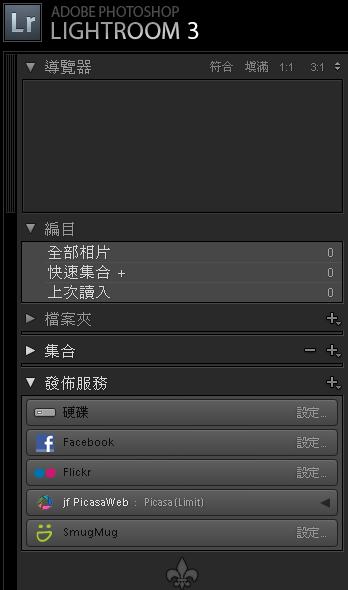
In the Lightroom Publishing Manager dialog, click the “Plug-in Manager” button in the lower-left corner to open the Lightroom Plug-in Manager window.
In the Lightroom Plug-in Manager window, click the “Add” button in the lower-left corner. A folder browser dialog will appear. Navigate to and select the folder you extracted earlier, then click “Done.” This installs the plugin into Lightroom, adding the “jf PicasaWeb” option to the left-hand list, as shown below.
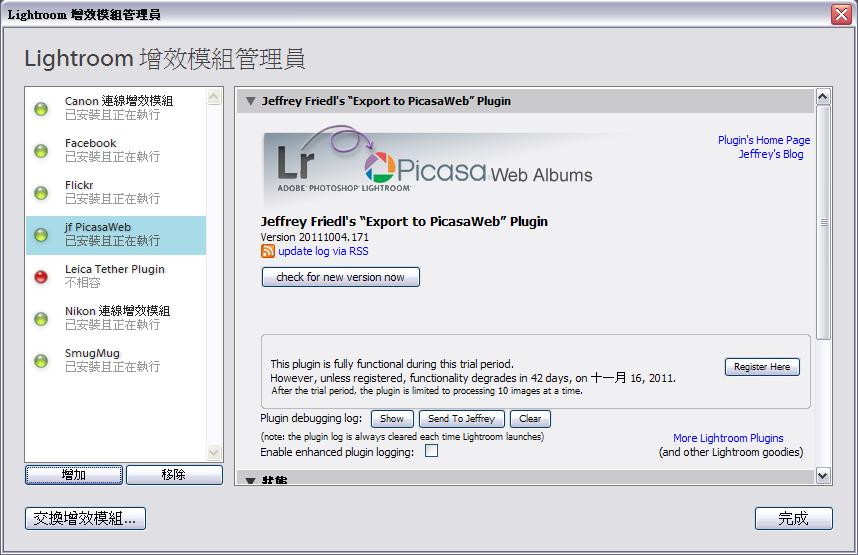
Once you complete the previous step and return to the Lightroom Publishing Manager dialog, you will notice that the newly added “jf PicasaWeb” service now appears in the list. Clicking on “jf PicasaWeb” displays the configuration options on the right side of the window.
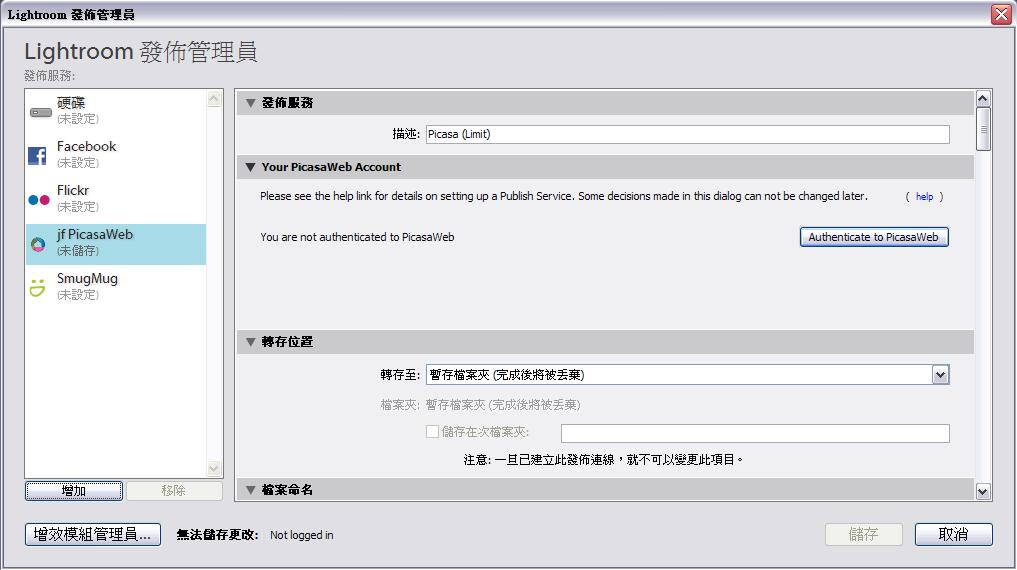
Under the configuration pane, there is a section titled “Your PicasaWeb Account” requesting account authorization. When you proceed with authorization, Lightroom will automatically open a Google authentication web page.
Click “Allow Access,” and Google will present a prompt asking to launch the associated application. Confirm by selecting “Open Application” (or equivalent), and the system will finalize the authorization.
After returning to the Lightroom Publishing Manager window, you will see that the information in the “Your PicasaWeb Account” section has updated. Your Picasa username and a “Log Out” button will now appear, confirming that Lightroom and Picasa are successfully connected and ready for direct uploads.
It is worth noting that while the Picasa Web Plugin is very handy, it is not completely free. Once authorized, you can configure granular upload preferences. You will also notice under the “PicasaWeb Export Plugin Info” section that the trial period is six weeks (42 days).
That said, Adobe only provides a 30-day trial for Lightroom anyway, so six weeks of plugin testing is more than generous.
Support Independent Perspectives & In-Depth Insights
Every thoughtful analysis and candid critique comes from our dedication to truth and quality. We choose not to follow sensational algorithms or clickbait headlines.
Sustaining independent research requires reader support. Make a one-time or monthly contribution, securely processed by Google.
Payments secured by Google · Manage or cancel anytime in your Google Account


Comments