
When working in an outdoor café without public Wi-Fi, traveling on transit, or facing an unexpected power outage that cuts your home broadband, what should you do if your Apple MacBook Pro or MacBook urgently needs internet connectivity to hit a project deadline?
“Obviously, tether to your Apple iPhone’s cellular connection.”
However, during a sudden blackout or in constrained environments without accessible wall outlets, battery reserves on your iPhone and MacBook cannot be taken for granted—especially if you must prepare for power remaining out through the next day. The crucial technical challenge becomes: “How can you keep your Apple MacBook and iPhone running at minimal power draw while delivering maximum uptime and online connectivity?”
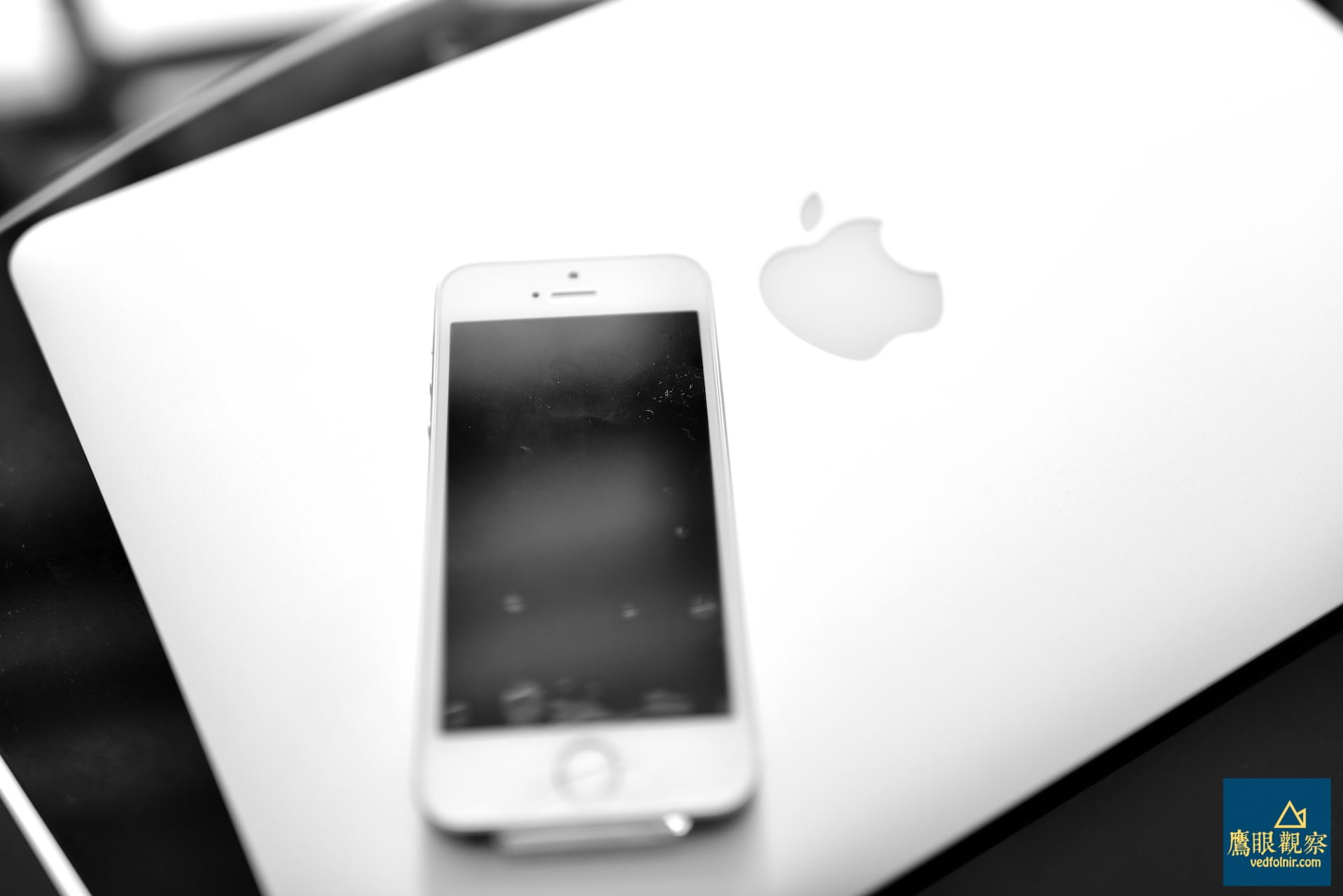
What Is a “Personal Hotspot”? The Power Draw Truth Across Three Connection Methods
A Personal Hotspot turns your iPhone into a portable cellular gateway, relaying 3G/4G/5G mobile signals to your MacBook, iPad, or other devices.
Under iOS, Personal Hotspot offers three primary sharing methods:
- Wi-Fi Wireless Network: The most common method, allowing multiple devices to connect simultaneously. However, the Wi-Fi transceiver chip consumes substantial power and generates noticeable heat, standing alongside high screen brightness as one of the top battery drains on any phone.
- Bluetooth: Consumes slightly less power than Wi-Fi, but bandwidth throughput and latency are physically constrained, and it still requires active RF broadcast.
- Wired USB Connection (The Top Recommended Power-Saving Method): Physically bridging your iPhone and MacBook with a single cable. Because it completely eliminates the need to activate power-hungry Wi-Fi and Bluetooth transmission radios, power consumption drops to its absolute baseline, RF interference is zero, and connection reliability is superior to any wireless alternative!
Practical Reminder: If your mobile data plan is not unlimited, exercise caution when sharing a hotspot with your laptop! Desktop operating systems run background tasks (like cloud backups and automatic system updates) that can consume gigabytes of data unnoticed, quickly burning through monthly data caps.
Step-by-Step SOP: Connecting Your Mac via iPhone USB Tethering
To connect your laptop online smoothly while preserving maximum battery life, follow these straightforward steps:
Step 1: Enable Personal Hotspot on Your iPhone
Pick up your iPhone, launch the Settings app, tap Personal Hotspot, and toggle it on.
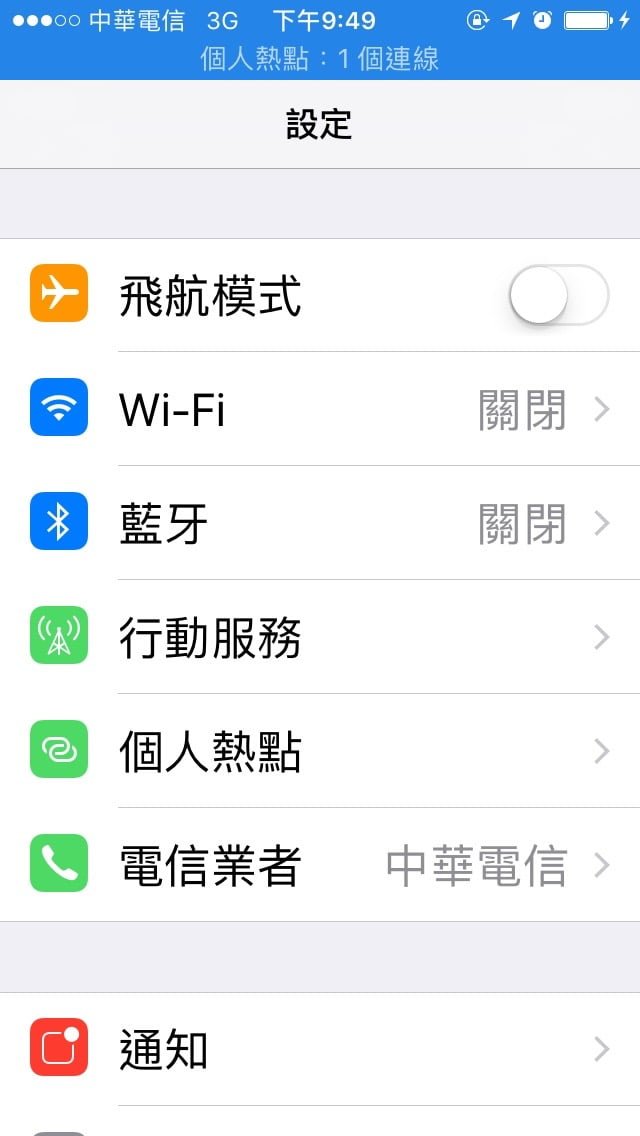
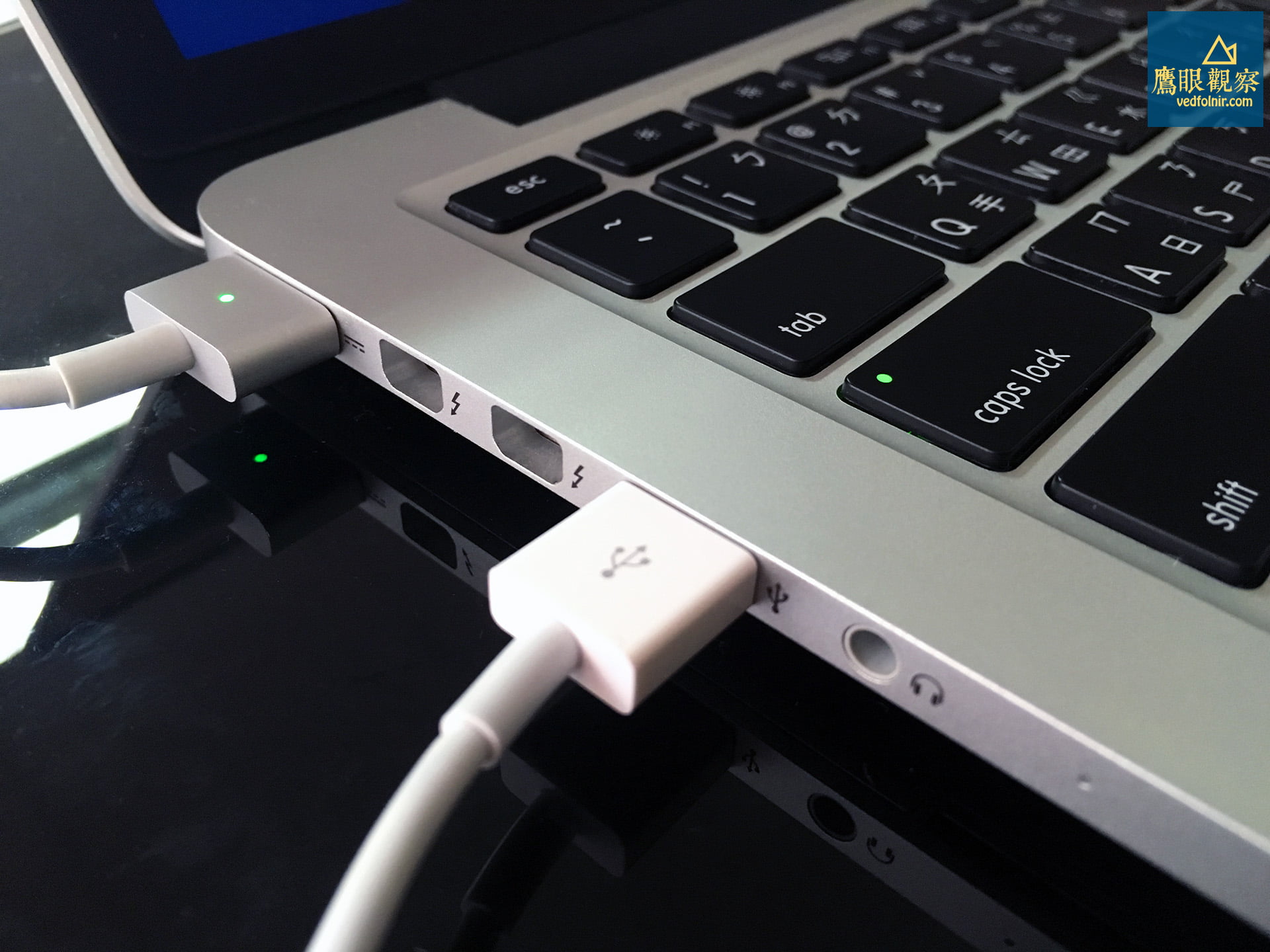
Step 2: Connect Mac and iPhone with a USB Cable
Grab an official USB (Lightning or USB-C) cable and plug it into your MacBook’s USB port and the bottom port of your iPhone.
Step 3: Crucial Decision Point—Select “USB Only”
When the cable is plugged in with Personal Hotspot active, an alert prompt will appear on your iPhone screen asking whether to turn on “Wi-Fi and Bluetooth.”
Do NOT turn on Wi-Fi and Bluetooth! Explicitly tap “USB Only”!
Doing this ensures the power-hungry Wi-Fi and Bluetooth broadcast radios remain completely dormant, preserving 100% of available battery power for core cellular connectivity and processor operations.
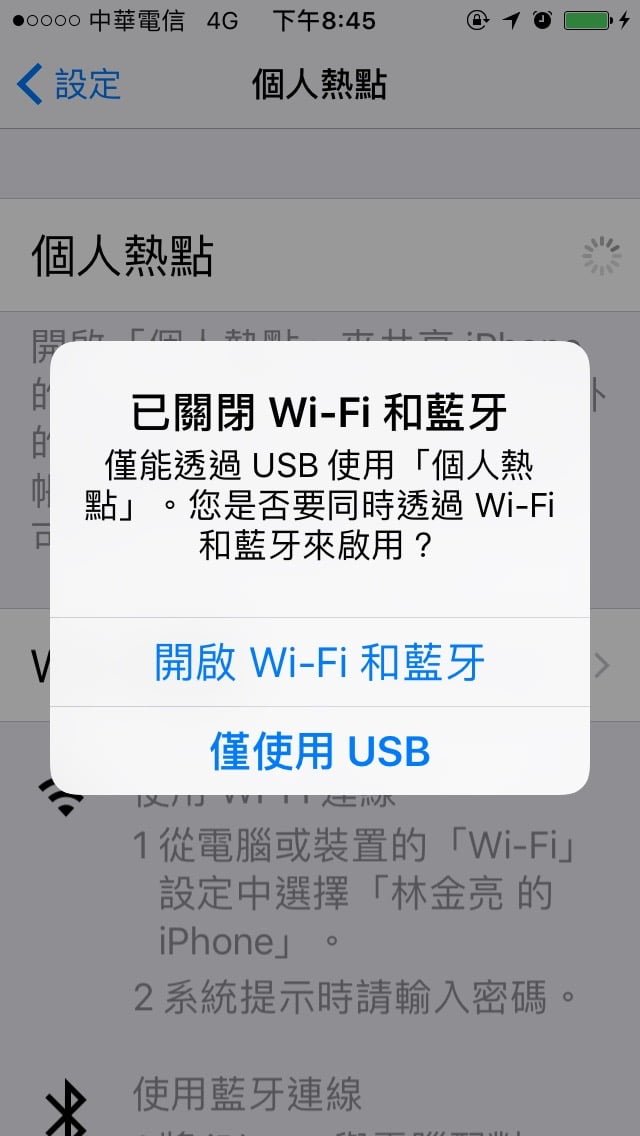
Quick Tip: If circumstances force you to connect via Wi-Fi and you tap “Turn on Wi-Fi and Bluetooth,” remember to navigate back to Settings and manually switch off unused Bluetooth to conserve standby power.
Step 4: Plug-and-Play Instant Connection on Mac
Once these steps are completed, macOS automatically recognizes the “iPhone USB” network interface through native drivers. Your MacBook will instantly gain internet access, enabling you to submit urgent documents, send vital emails, or update colleagues.
Advanced Power-Saving Tips for Extended Outages
In critical scenarios where power is running low and every percent counts, adopt these field-tested habits:
- Adopt an Offline-First Workflow: Unless actively downloading reference pages or dispatching deliverables, unplug the USB cable or toggle Airplane Mode on your iPhone while writing or formatting slides. Reconnect the cable only when you are ready to transmit files.
- Halt High-Energy Background Applications: Check Activity Monitor on macOS to terminate non-essential resident apps, close idle streaming tabs in your browser, and dim your display brightness to the lowest comfortable level.
- The Advantage of Native Ecosystem Integration: While Android devices also support USB tethering, macOS often requires third-party drivers (such as HoRNDIS) that encounter system extension permission barriers. In contrast, iPhone and Mac provide deep, driverless plug-and-play tethering out of the box—giving professionals unmatched peace of mind during emergencies.
Conclusion
The magic of modern tech is that it offers seamless wireless freedom in everyday life; but when resources are constrained during a blackout or travel emergency, returning to a pure “physical wired connection” demonstrates extraordinary endurance and rock-solid stability.
The next time you face a power outage or low battery warning, skip the power-draining wireless hotspot. Pull out a humble USB cable and let your digital workstation glide through the crunch with ease!
Support Independent Perspectives & In-Depth Insights
Every thoughtful analysis and candid critique comes from our dedication to truth and quality. We choose not to follow sensational algorithms or clickbait headlines.
Sustaining independent research requires reader support. Make a one-time or monthly contribution, securely processed by Google.
Payments secured by Google · Manage or cancel anytime in your Google Account


Comments