
After Niantic and Nintendo officially launched Pokémon GO in Taiwan, everyone’s Facebook feed was instantly flooded with a deluge of Pokémon GO posts.
Quite a few people expressed sheer exhaustion with the constant barrage of Pokémon GO updates, with some even declaring they would unfriend anyone who posted about it again.
 Hide That Post Facebook
In my view, rather than demanding that others “stop” doing something, it is far more practical to find a solution on your own end.
Today, I want to recommend a handy browser extension called “Hide That Post Facebook.” It allows you to automatically hide Facebook posts containing specific keywords, keeping your timeline fresh and pleasant.
Hide That Post Facebook is an extension built for Google Chrome. You can install it directly in Google Chrome[1] via the link below.
Google Chrome Extension Link: Hide That Post! Facebook Filter
Installing Hide That Post! Facebook Filter
Step 1: Open the Chrome Web Store link above, and you will see the installation page shown below.
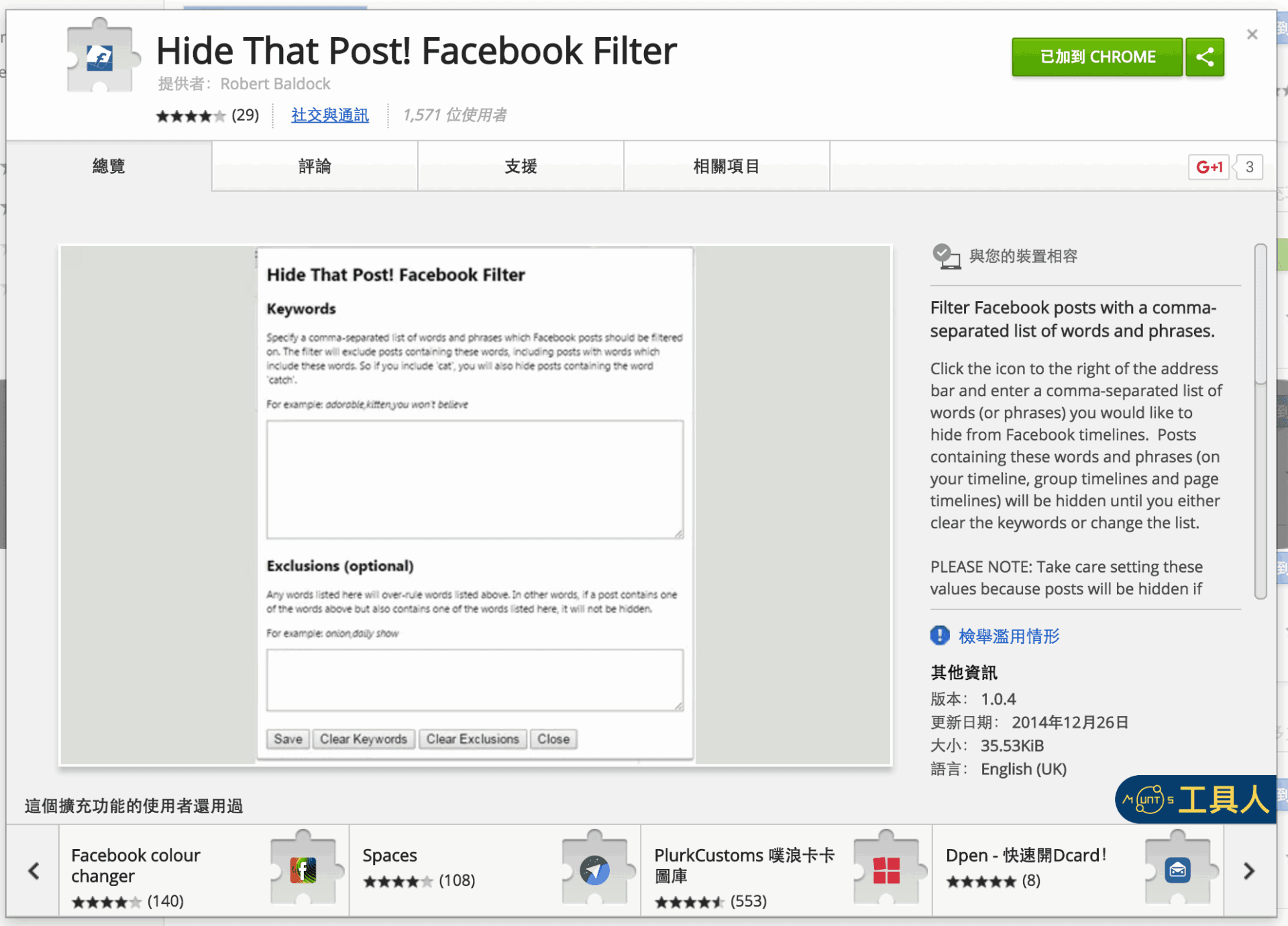 Extension: “Hide That Post Facebook”.
Step 2: Click the “Add to Chrome” button in the upper-right corner. Once installed, the button changes to “Added to Chrome.” You will now see the “Hide That Post Facebook” icon in your Chrome toolbar.
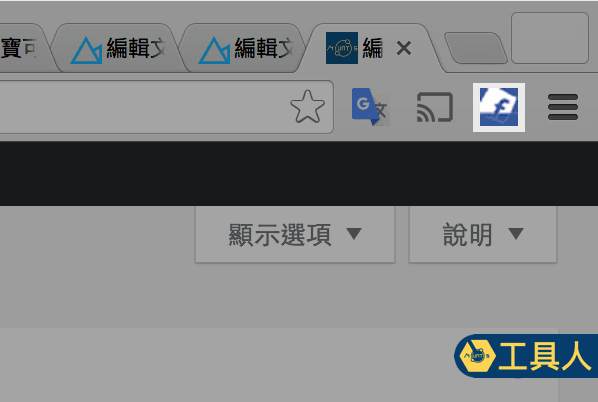 Hide That Post Facebook toolbar icon.
How to Use “Hide That Post! Facebook Filter”
Step 1: Click the “Hide That Post! Facebook Filter” icon on the Google Chrome toolbar to open the settings popup shown below.
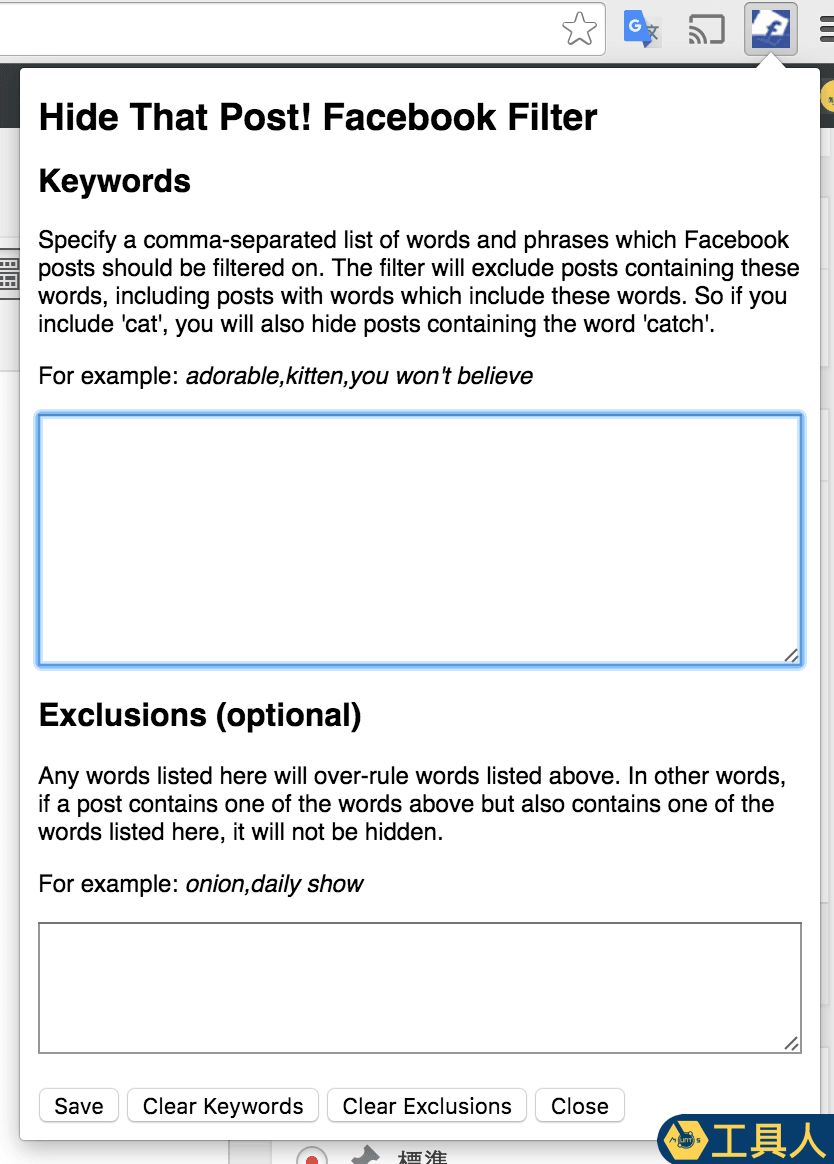 Enter keywords to hide related Facebook posts.
Step 2: In the “Keywords” input field, type the keywords you wish to block, such as “Pokemon” or other terms, and click the “Save” button to apply your changes.
Once configured, open Facebook, and you will find that all traces of Pokémon have vanished from your news feed.
As shown in the screenshot below, I published a test post titled “Pokemon Go Test” on my Facebook account on August 12.
 Newly published Pokémon GO post.
However, when I checked the timeline using another account, the most recent visible post was from August 10. The newer test post was cleanly hidden by “Hide That Post! Facebook Filter.”
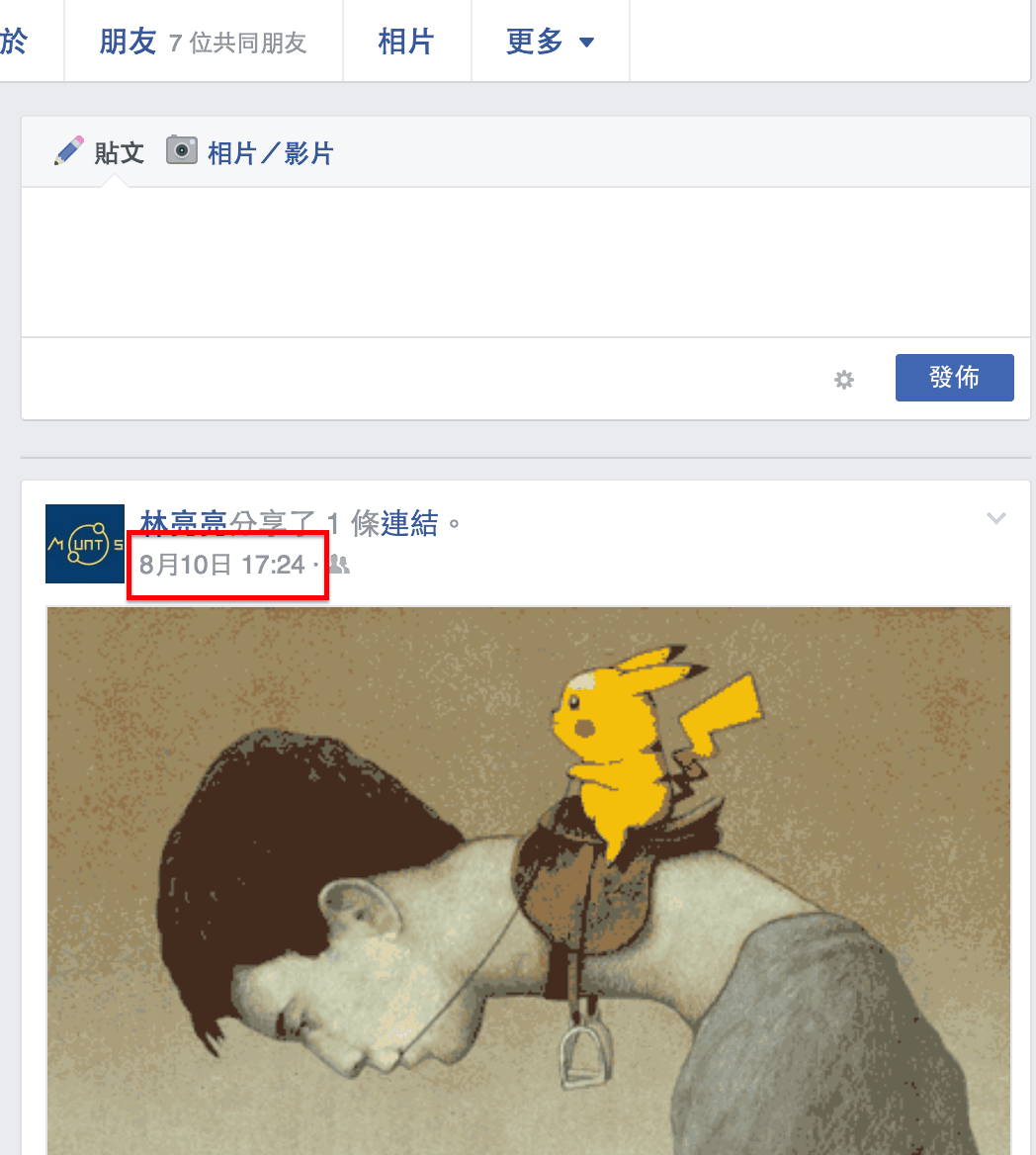 Posts related to Pokémon GO are successfully hidden.
You might notice in the image above that the August 10 post was also about Pokémon GO; however, because its text didn’t contain the exact blocked keyword, the image post still appeared on Facebook.
This is a minor limitation of keyword filters: you would need an exhaustive keyword list to catch 100% of related posts, which quickly hits diminishing returns. It’s best to use this tool with the expectation of filtering roughly 80% of unwanted content.
Another small quirk to keep in mind: even your own posts containing those keywords will be hidden from your view.
How to Remove Hide That Post! Facebook Filter
Because keeping your browser lean is always good practice, here is how to easily uninstall the Chrome extension when you no longer need it.
Simply move your cursor over the “Hide That Post! Facebook Filter” icon on the Chrome toolbar, “right-click (or two-finger tap on a trackpad)” to open the context menu, and click “Remove from Chrome…” to quickly remove the extension.
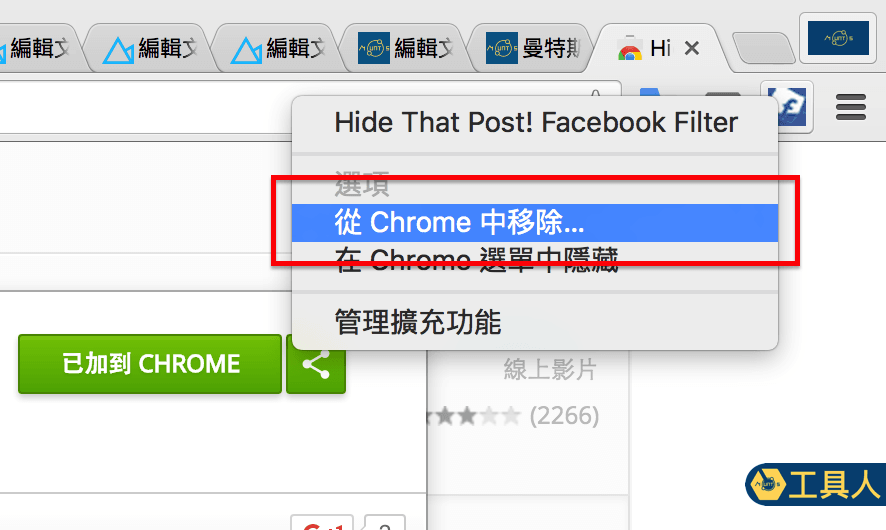 Removing “Hide That Post! Facebook Filter”.
1. If you use other browsers such as Apple Safari or Mozilla Firefox, similar extensions are available; feel free to search their respective addon stores.
Support Independent Perspectives & In-Depth Insights
Every thoughtful analysis and candid critique comes from our dedication to truth and quality. We choose not to follow sensational algorithms or clickbait headlines.
Sustaining independent research requires reader support. Make a one-time or monthly contribution, securely processed by Google.
Payments secured by Google · Manage or cancel anytime in your Google Account




Comments