

In modern society, the online world has become an indispensable part of people’s lives. It brings convenience, but at the same time it brings many cybersecurity threats, making it an important issue for both technology and daily life that everyone needs to pay attention to.
To help users better protect their privacy, Google has introduced “Enhanced Safe Browsing.” It can proactively guard against dangerous websites, downloads, and extensions (Extensions), letting users more directly fend off digital threats and surf the web with peace of mind.
In addition, the author also suggests that if you are a parent, you should proactively enable this feature for your child’s Google account, so they are less exposed to the malice of online attacks and nip the danger in the bud.
What Is Enhanced Safe Browsing?
The “Enhanced Safe Browsing” feature can proactively guard against dangerous websites, downloads, and extensions. This feature can more quickly check whether the websites you visit are safe, making you safer when using Google apps such as Chrome, Gmail, or Chat.
In addition to checking websites, when your passwords for various sites are leaked in a data breach, the Chrome browser will proactively warn you, ensuring you can change your password immediately. At the same time, links in Chrome and Google apps are also sent to the “Safe Browsing” feature for checking, ensuring the links you visit are safe and trustworthy.
The system also sends small samples of web pages, downloads, extension activity, and system information in order to keep track of new security threats. When you are signed in to your Google account, this data is temporarily linked to your account to protect you when using Google apps.
However, a reminder first: once this feature is enabled, the system needs to send your browsing data to Google for checking. If you have privacy concerns about American companies (suspicion of America?), you can also choose not to enable this service, or manually turn it off later.
How to Set Up Enhanced Safe Browsing
Enabling this feature is very simple. Just open Google’s official page: “Google Security Checkup.”
At the bottom of the “Security Checkup” page, find the “Safe Browsing” section as shown in the image below, and choose to continue enabling it.
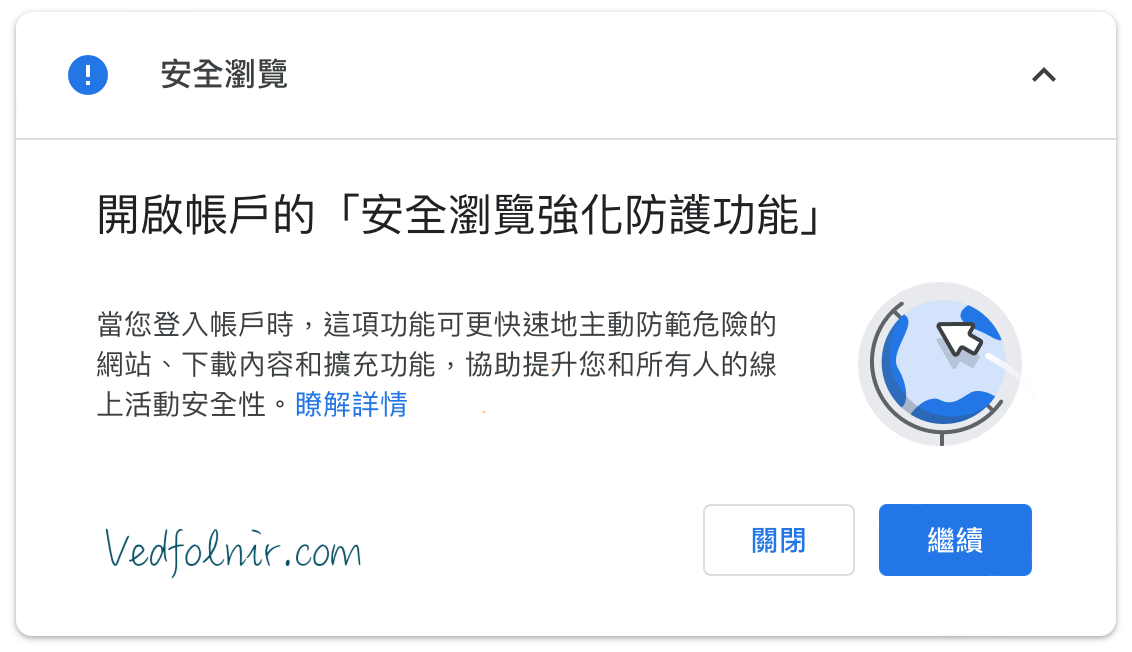 Enable “Enhanced Safe Browsing” for your account
After enabling the feature, the original Security Checkup page will show the successful setup screen as shown in the image below.
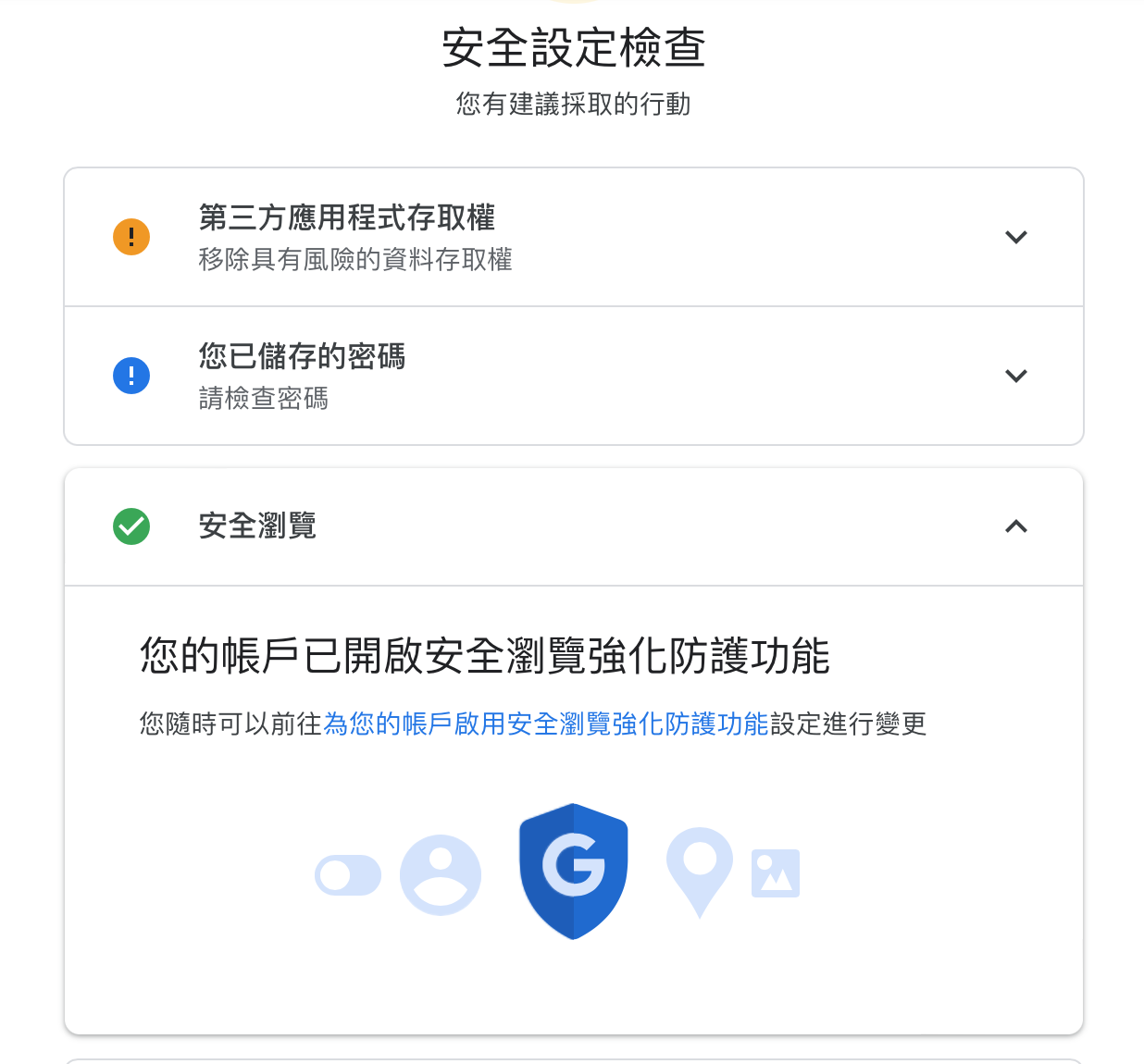 Google Security Checkup
In addition, besides the Safe Browsing feature, please refer to the second item in the image above, “Saved Passwords.” The author suggests that everyone use its “Password Checkup” feature periodically to understand whether the passwords you use have been leaked, and to confirm password strength and whether you have reused passwords.
Well, as for how many of the author’s passwords have been leaked, I’m too embarrassed to disclose that here. But those are all tiny, tiny sites, and I deliberately used weak, weak passwords, so there isn’t really much of a problem.
Cybersecurity is an issue that cannot be ignored. To protect our own safety and that of others, we should learn how to protect our cybersecurity. Enabling the “Enhanced Safe Browsing” feature can provide more comprehensive protection for your cybersecurity.
Support Independent Perspectives & In-Depth Insights
Every thoughtful analysis and candid critique comes from our dedication to truth and quality. We choose not to follow sensational algorithms or clickbait headlines.
Sustaining independent research requires reader support. Make a one-time or monthly contribution, securely processed by Google.
Payments secured by Google · Manage or cancel anytime in your Google Account



Comments