

When executing git push to GitHub for the first time on macOS, developers routinely face prompts asking for account usernames and passwords—only to have the push rejected. This occurs because GitHub officially deprecated standard account password authentication for Git operations in August 2021.
This guide provides a comprehensive walkthrough of modern authentication solutions, including Personal Access Tokens (PAT), native macOS Keychain caching, Ed25519 SSH keys, and the GitHub CLI.
Background Context
Why Is Dedicated Authentication Required?
- Access Verification: GitHub requires cryptographically verifiable credentials before permitting repository write operations.
- Password Deprecation: Plaintext passwords are vulnerable to brute-force attacks and credential stuffing.
- Workflow Efficiency: Manually typing credentials on every push slows down engineering momentum.
Supported Authentication Protocols
- Personal Access Tokens (PAT): Scoped token substitutes for legacy passwords over HTTPS.
- SSH Keys: Asymmetric cryptographic key pairs offering seamless, passwordless operations.
- GitHub CLI (
gh): Official command-line integration providing browser-based OAuth authentication.
Solution 1: Personal Access Tokens (Classic)
Step 1: Generate a Personal Access Token
- Sign in to your GitHub account.
- In the upper-right corner, click your profile picture and select Settings.
- In the left sidebar, scroll down and click Developer settings.
- Select Personal access tokens > Tokens (classic).
- Click Generate new token > Generate new token (classic).
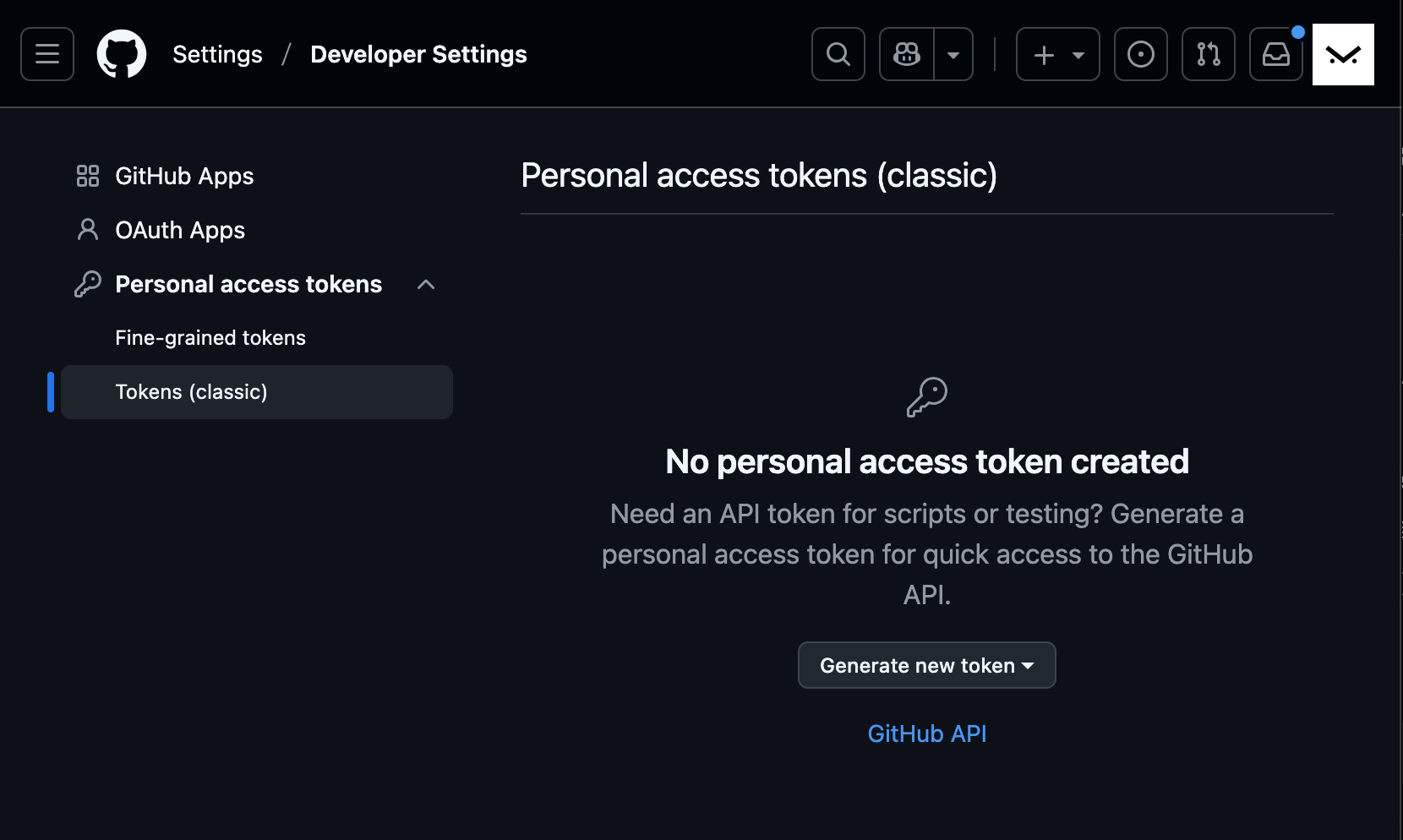
Step 2: Configure Scopes and Expiration
- Note: “MacBook Pro Dev Credential” (A descriptive label)
- Expiration: Select 90 days or 1 year.
- Scopes: At minimum, check:
repo(Full repository control)workflow(If updating GitHub Actions workflows)
Click Generate token and copy the string immediately—it will never be displayed again.
Step 3: Authenticate in Terminal
# Push over HTTPS
git push origin main

# When prompted:
# Username: Your GitHub username
# Password: Paste the generated token (not your account password)
Solution 2: Store Credentials in macOS Keychain
Typing tokens repeatedly is tedious. You can integrate Git directly with macOS Keychain:
Enable the macOS Keychain Credential Helper
# Configure Git to store credentials securely in macOS Keychain
git config --global credential.helper osxkeychain

# Verify current configuration
git config --global --get credential.helper
Initial Authentication and Storage
git push origin main
# Enter your GitHub username and PAT token.
# macOS will display a prompt asking: "git-credential-osxkeychain wants to access your keychain."
# Click "Always Allow".
Managing Stored Keychain Credentials
# Inspect stored Git credentials in Keychain
security find-internet-password -s github.com

# Delete obsolete credentials if expired or changed
security delete-internet-password -s github.com
Solution 3: SSH Key Authentication (Recommended Long-Term)
SSH keys provide the cleanest, most resilient authentication pipeline for developers.
Step 1: Generate an Ed25519 SSH Key Pair
# Generate key using modern Ed25519 algorithm
ssh-keygen -t ed25519 -C "[email protected]"

# Press Enter to accept default path (~/.ssh/id_ed25519)
# Optionally set a passphrase for added defense
Step 2: Upload Public Key to GitHub
# Copy public key to clipboard on macOS
pbcopy < ~/.ssh/id_ed25519.pub- Navigate to GitHub Settings > SSH and GPG keys.
- Click New SSH key.
- Set Title (e.g., “MacBook Pro M-Series”).
- Keep Key type as Authentication Key.
- Paste your clipboard contents and save.
Step 3: Switch Repository Remote to SSH
# Inspect existing remotes
git remote -v

# If remote starts with https://, switch to SSH:
git remote set-url origin [email protected]:username/repository.git

# Confirm remote change
git remote -v
Step 4: Test SSH Connection
ssh -T [email protected]
# Successful output:
# "Hi username! You've successfully authenticated, but GitHub does not provide shell access."
Solution 4: GitHub CLI (gh)
Installation and Interactive Login
# Install via Homebrew
brew install gh

# Run interactive OAuth login
gh auth login
Follow the interactive prompts:
- What account do you want to log into? GitHub.com
- What is your preferred protocol for Git operations? SSH or HTTPS
- Authenticate Git with your GitHub credentials? Yes
- How would you like to authenticate? Login with a web browser
Once authenticated via browser, all Git operations seamlessly reuse gh credentials without further configuration.
Troubleshooting Common Friction Points
1. Terminal Repeatedly Prompts for Password
If Keychain holds a stale token:
# Erase cached credentials
git credential-osxkeychain erase
host=github.com
protocol=https
2. Multi-Account Management (Work vs. Personal)
Configure git user credentials per repository locally rather than globally:
cd /path/to/work-project
git config user.name "Corporate User"
git config user.email "[email protected]"

cd /path/to/personal-project
git config user.name "Personal User"
git config user.email "[email protected]"
Summary
Choose the approach that aligns with your workflow:
- Quick or temporary work: Personal Access Token + macOS Keychain helper.
- Primary engineering setup: Ed25519 SSH Key (most secure and seamless).
- Extensive GitHub operations: GitHub CLI (
gh).
With modern authentication properly configured, your macOS machine delivers frictionless git push interactions while safeguarding your code repositories.
Support Independent Perspectives & In-Depth Insights
Every thoughtful analysis and candid critique comes from our dedication to truth and quality. We choose not to follow sensational algorithms or clickbait headlines.
Sustaining independent research requires reader support. Make a one-time or monthly contribution, securely processed by Google.
Payments secured by Google · Manage or cancel anytime in your Google Account




Comments