

On Apple macOS, you can use the built-in Terminal application to generate secure SSH key pairs (containing both a public key and a private key) under your user .ssh directory.
If you manage web servers, cloud VPS hosting, or remote git repositories, this step-by-step tutorial will help you replace password authentication with cryptographic key pairs, dramatically boosting remote connection security.
Step 1: Launch the default macOS Terminal application.
Terminal is located inside the “Other” folder within macOS Launchpad, or can be opened quickly via Spotlight search (Command + Space, type Terminal).
Step 2: Once the command prompt appears, enter the following command:
ssh-keygenStep 3: The keygen utility will prompt:
Enter file in which to save the key (/Users/USERNAME/.ssh/id_rsa):
You can specify a custom file path and key name, or simply press Enter to accept the default path ~/.ssh/id_rsa (we use the default path in this guide).
Step 4: The system will prompt you twice for an optional passphrase:
Enter passphrase (empty for no passphrase):
Type your chosen passphrase and press Enter. While you can press Enter without a passphrase, assigning a strong passphrase adds a critical layer of defense if your computer is ever compromised.
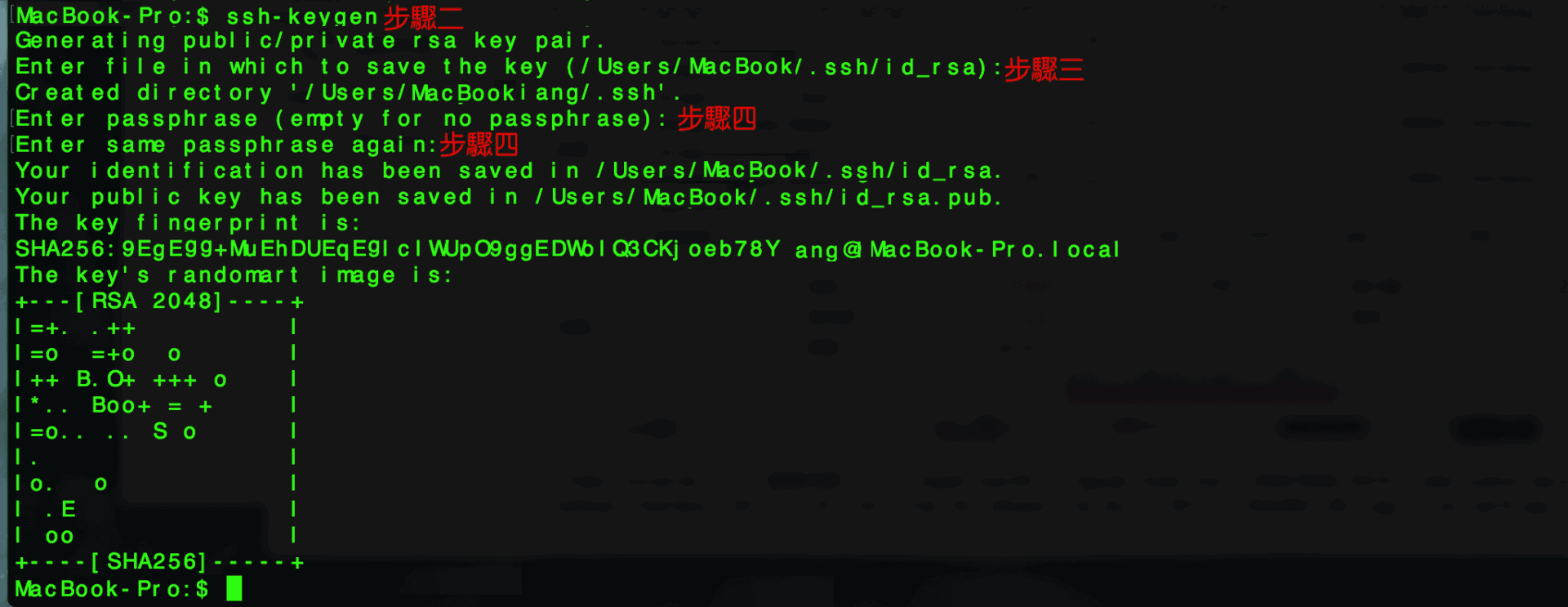 macOS Terminal executing the ssh-keygen procedure.
After completing these steps, a pair of cryptographic keys is generated inside ~/.ssh/:
id_rsa: Your Private Key. Keep this file confidential on your local machine; never share or upload it to public servers!id_rsa.pub: Your Public Key. This is the file you copy and paste into remote servers (e.g., inside~/.ssh/authorized_keyson your cloud server) or onto platforms like GitHub and GitLab.
Support Independent Perspectives & In-Depth Insights
Every thoughtful analysis and candid critique comes from our dedication to truth and quality. We choose not to follow sensational algorithms or clickbait headlines.
Sustaining independent research requires reader support. Make a one-time or monthly contribution, securely processed by Google.
Payments secured by Google · Manage or cancel anytime in your Google Account




Comments