

Facebook is the world’s most popular social media platform, with hundreds of millions of users sharing, interacting, and browsing content every day.
However, if you are not careful, the Facebook app’s power consumption may drain your mobile data and battery, leading to higher phone bills or reduced battery life.
Fortunately, the Facebook app offers some settings that let you save mobile data and battery while still using Facebook.
This article will teach you how to enable these settings in the Facebook app and explain what they do and why they help.
Step 1: Open the Menu Button
First, you need to open the menu button of the Facebook app to access the settings options.
The menu button is located at the bottom right of the Facebook app and is an icon with three horizontal lines, as shown in Figure 1 (1) below:
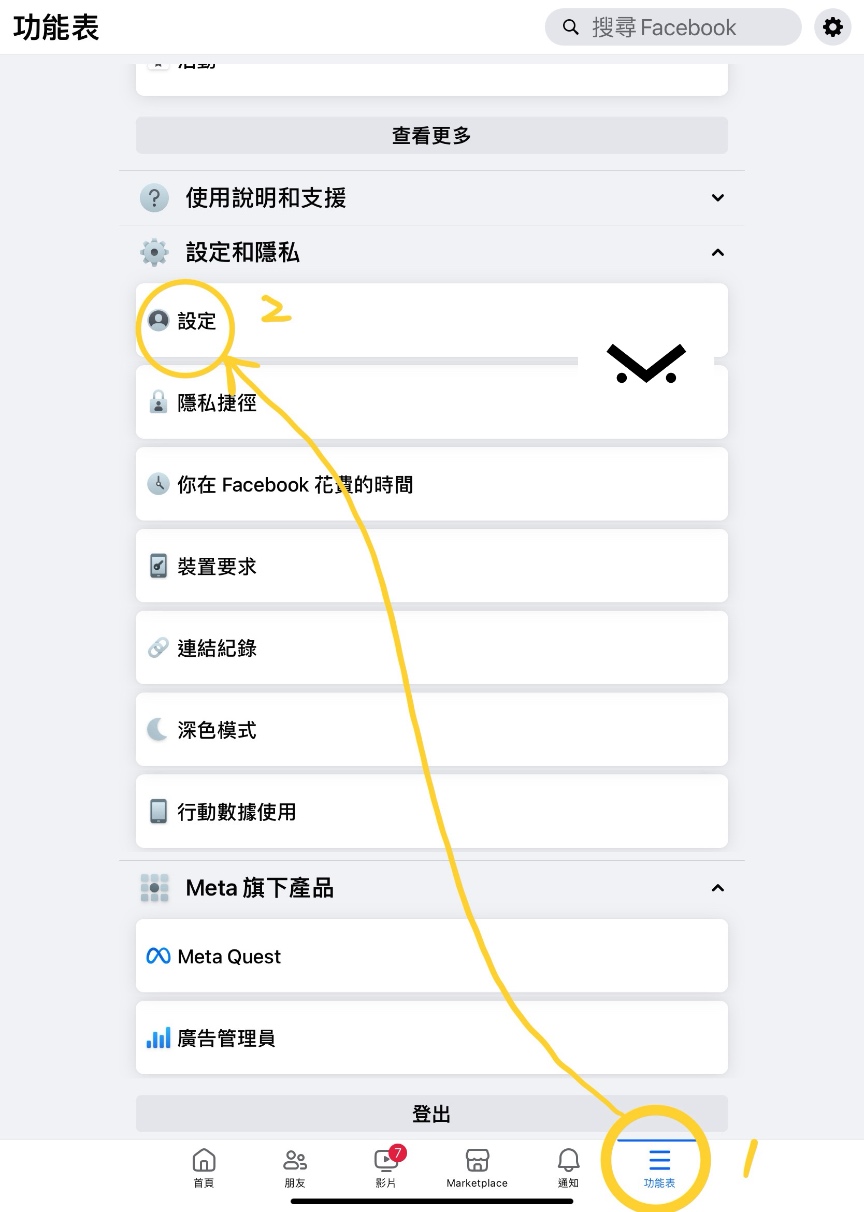 Figure 1, the Facebook menu button.
After tapping the menu button, you will see a pop-up menu containing many different options, as shown in Figure 1 (2) above.
Step 2: Open the Settings Option
In the menu, you need to find and open the “Settings” option to enter the Facebook app’s settings page.
The Settings option is located toward the bottom of the menu and is a button with a gear icon, as shown in Figure 1 (2) above.
After tapping the Settings option, you will enter the Facebook app’s settings page, which contains many different settings sections.
Step 3: Open the Audio and Video Content Option
Please refer to Figure 2 below. On the settings page, you need to find the “Audio and Video Content” option to enter the Facebook app’s audio and video content settings page.
The Audio and Video Content option is located in the “Preferences” section of the settings page, as shown in Figure 2 (3) below.
 Figure 2, the Audio and Video Content option under Preferences.
After tapping the Audio and Video Content option, you will enter the Facebook app’s audio and video content settings page, which contains two important features: “Data Saver” and “Only on Wi-Fi,” as shown in Figure 3 below.
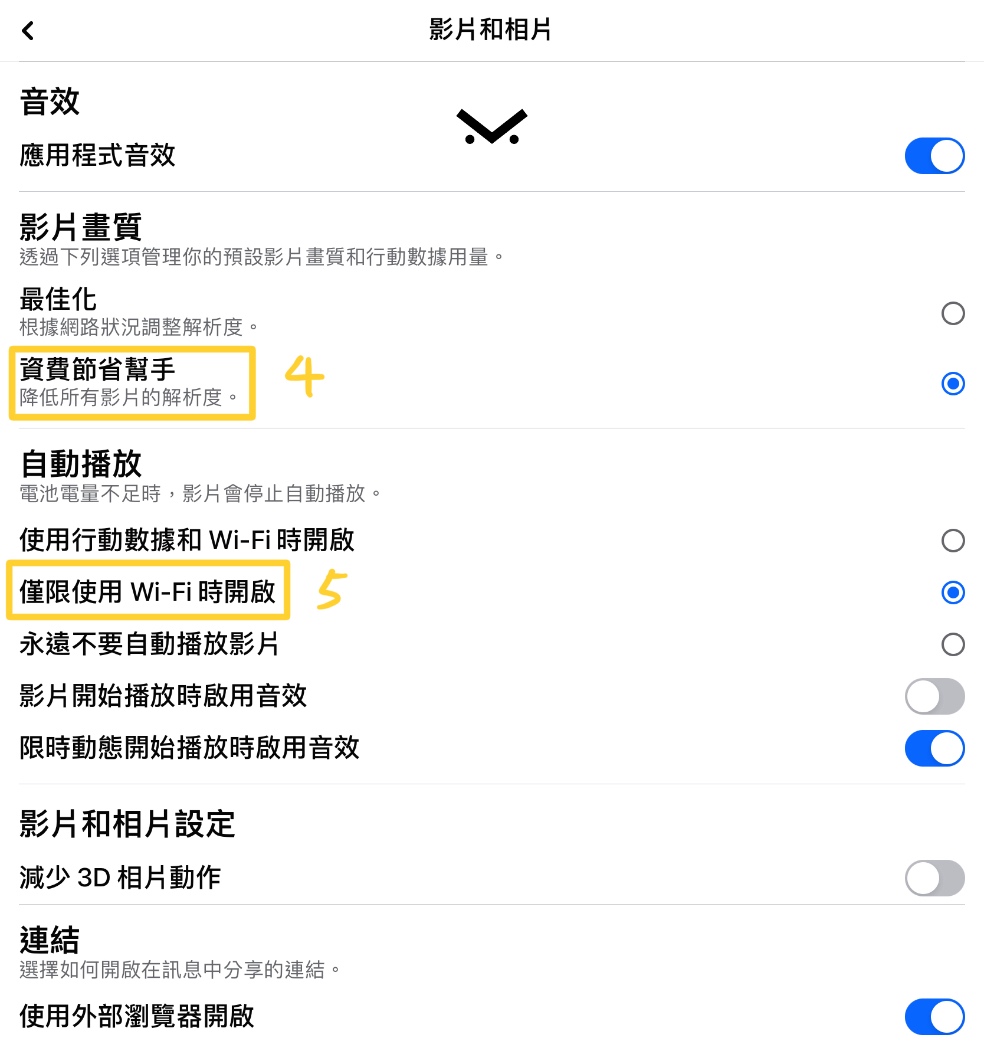 Figure 3, the audio and video content settings page.
Step 4: Enable Data Saver and Only on Wi-Fi
On the audio and video content settings page, you need to manually turn on both the “Data Saver” and “Only on Wi-Fi” features to save data and battery. What these two features do and why they help is explained below:
- “Data Saver”: This feature automatically lowers video quality while you use the Facebook app, reducing video file size and thereby saving your data. After enabling it, you may find that videos look less sharp, but this is normal, as it is meant to help you save more data. If you want to watch high-definition videos, you can tap the “HD” button in the bottom right corner while watching to switch to high-definition mode, but this will use more data, so please use it with care.
- “Only on Wi-Fi”: This feature automatically stops videos from autoplaying while you use the Facebook app unless you are connected to a Wi-Fi network. This prevents you from unknowingly watching videos you are not interested in and wasting your data and battery. After enabling it, you may find that video previews no longer animate, but this is normal, as it is meant to help you save more data and battery. If you want to watch a video, you can tap the preview once to start playback, but this will use your data, so please use it with care.
To enable these two features, you simply need to slide the toggle switches next to them so they turn green, as shown in Figure 3 (4) (5) above.
Conclusion
Congratulations, you have completed the tutorial on enabling the data- and battery-saving settings in the Facebook app. We hope this article has been helpful, allowing you to save data and battery while using the Facebook app and enjoy a better user experience.
If you have any questions or suggestions, feel free to leave a comment below, and we will reply as soon as possible. Thank you for reading, and have a wonderful day!
Support Independent Perspectives & In-Depth Insights
Every thoughtful analysis and candid critique comes from our dedication to truth and quality. We choose not to follow sensational algorithms or clickbait headlines.
Sustaining independent research requires reader support. Make a one-time or monthly contribution, securely processed by Google.
Payments secured by Google · Manage or cancel anytime in your Google Account




Comments