
Have you ever experienced this frustration: your phone buzzes with an unread notification badge, you open Facebook hoping for something meaningful, only to find an automated stamina gift request from an acquaintance you haven’t spoken to in years, or an invite to a casual mobile game you never asked for?
These relentless game notifications disrupt your daily focus and easily cause you to miss genuine messages that actually matter.
Fortunately, Facebook includes a built-in “one-click tranquility” toggle. With just a few quick steps, you can eliminate these interruptions permanently.
Here is a concise guide to turning off game requests while answering the most common concern: “Will this break my saved games?”
Quick Shortcut: Direct Official Settings URL
If you are currently browsing on a desktop computer, bypass multiple menu layers by visiting the official settings page directly:
Direct Link: https://www.facebook.com/settings/?tab=applications
Core Guide: Disabling “Games and App Notifications”
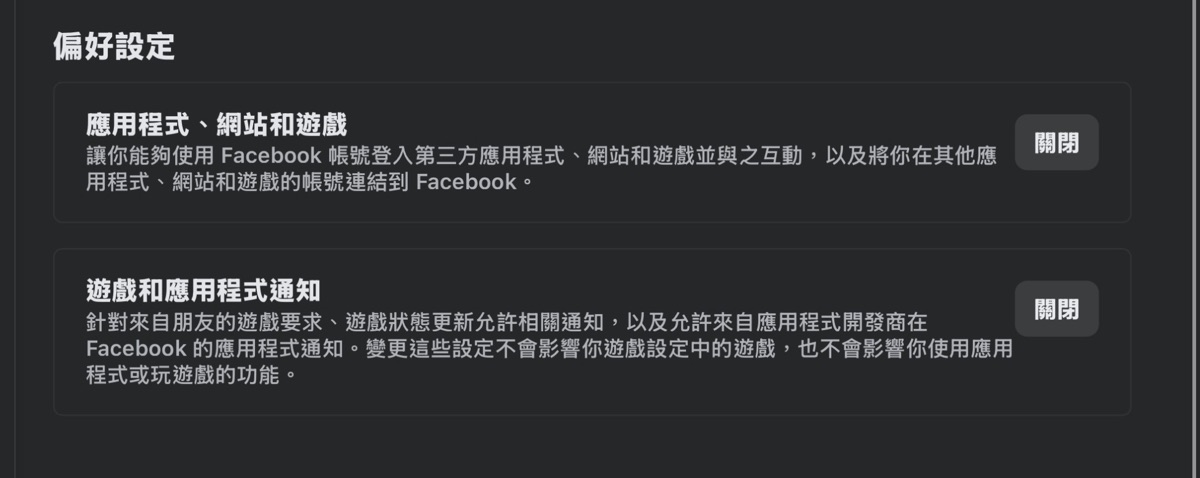
On this settings page, locate the section titled “Games and App Notifications.” This single setting acts as the master valve controlling unwanted requests.
What does this toggle actually block?
According to Facebook’s official documentation, toggling this off suppresses:
- Game Requests from Friends: Frequent “send lives/stamina,” “join my clan,” or game invitations.
- Game Activity Updates: Automatic feed notifications when friends unlock achievements or level up.
- Developer Broadcasts: Promotional notifications pushed directly by game publishers.
Will This Affect Games I Actually Play?
This is the most common worry. Facebook explicitly clarifies: “Changing these settings won’t remove your games or affect your ability to play games or use apps.”
This means that if you actively play games linked to your Facebook account, your cloud saves, high scores, and in-game inventory remain completely intact. You can play normally—you simply won’t be bombarded with unsolicited pop-ups.
Step-by-Step Instructions by Device
Desktop Browser Instructions
- Click your profile avatar in the top right corner of Facebook.
- Select Settings & Privacy > Settings.
- In the left navigation sidebar, select Apps and Websites.
- Locate Game and App Notifications and switch it to Off.
Mobile App Instructions (iOS / Android)
- Tap the Menu icon (three horizontal lines or profile avatar).
- Tap the gear-shaped Settings icon at the top right.
- Scroll down to the Permissions section and tap Apps and Websites.
- Toggle off notifications for games and linked applications.
Summary
Facebook should serve as a space to connect with friends and share life updates—not a cluttered billboard for automated game requests. With this simple adjustment, you restore a clean notification center and reclaim a distraction-free social experience.
Support Independent Perspectives & In-Depth Insights
Every thoughtful analysis and candid critique comes from our dedication to truth and quality. We choose not to follow sensational algorithms or clickbait headlines.
Sustaining independent research requires reader support. Make a one-time or monthly contribution, securely processed by Google.
Payments secured by Google · Manage or cancel anytime in your Google Account



Comments