

After purchasing an Apple MacBook Pro laptop for the first time, I wondered whether taking a bite out of this apple was truly the right choice. After a couple of days of hands-on use, I grasped the basic operating model, desktop environment, and application ecosystem.
My bottom-line conclusion on the MacBook Pro is: “Unless you plan to develop Apple apps, or are willing to pay a premium for ‘stability’, ‘convenience’, and ‘sleek aesthetics’, you don’t necessarily have to buy an Apple computer. (Wait, does this sound like a buying endorsement?)” Of course, if you’re a devoted Apple fan, buying one is practically preordained.
Below are spontaneous observations jotted down during my initial time with the MacBook Pro. They might be a bit eclectic, so take them as subjective references if you are considering purchasing an Apple laptop. These perspectives were honed through years of conditioning dating all the way back to the Windows 3.0 era:
- Pros and cons of Apple vs. Microsoft computers.
- User experience differences: Apple MacBook Air/Pro vs. Microsoft Windows.
- Apple OS X vs. Linux: Can you spot the differences?
- Is MacBook Air/Pro convenience a blessing or a curse?
- Should I buy an Apple MacBook Air/Pro?
- Deciding between OS X and Windows based on your work applications.
- References.
1. Pros and Cons of Apple vs. Microsoft Computers
The true value of Apple computers lies in sufficient performance, high system maturity, prompt updates, refined industrial and software design, deep hardware-software integration, and surprisingly solid value-for-money. More importantly, for those less tech-savvy, an Apple machine is remarkably accessible.
In a single phrase, I would say an Apple computer is “made to solve problems.” That was humanity’s original motivation for inventing computers in the first place. From that standpoint alone, Steve Jobs was brilliant. By comparison, early versions of Microsoft Windows often felt like trouble makers (though that is largely historical now).
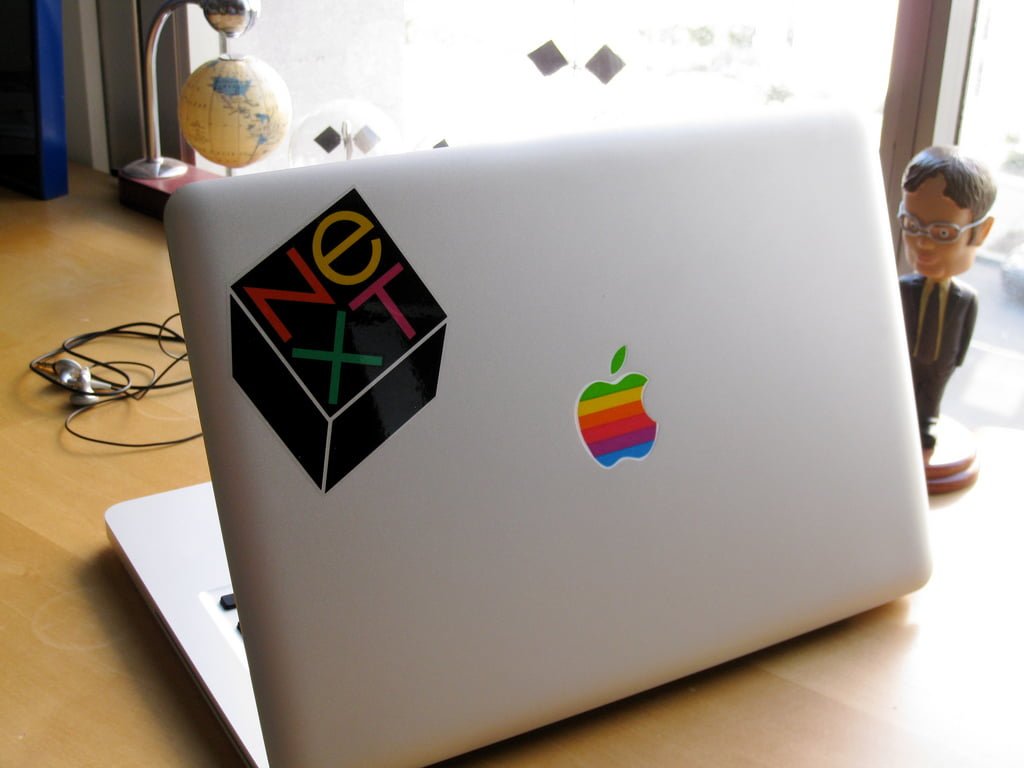
Evaluating purely by performance within the same price tier, Apple’s baseline MacBook Air or Pro models easily outmatch many competing Windows laptops.
Raw performance has always carried some myths. PC gamers naturally require Windows due to game engine and graphics compatibility. Beyond gamers, users generally divide into three main groups: regular everyday users, photographers/graphic designers, and 3D architectural/CAD/engineering professionals. Each group possesses different needs and considerations regarding macOS; not everyone requires top-tier hardware.
Looking strictly at peak workstation performance, building a system capable of satisfying that third group of demanding masters will generally cost more in the Apple ecosystem than with Microsoft. Fortunately, these professionals are typically high earners who care primarily about seamless, uncompromised fluidity rather than budget constraints.
Leaving budgets aside, Apple computers comfortably hit a 95-point benchmark out of the box. Windows systems, however, with extensive modular hardware expandability (and Linux, though software ecosystem support lags behind), can push performance scores to 120 or beyond. But such ultra-spec PCs are complex, requiring bespoke configurations and advanced maintenance knowledge—often impractical unless you genuinely need that raw power.
Contrary to popular belief, baseline Apple models offer strong price-to-performance. However, stepping up just one hardware tier—such as upgrading internal storage from 128GB to 256GB—can hike the price by 30% to 40%, far exceeding Windows upgrade premiums. Furthermore, Macs have minimal upgradeability; hardware improvements usually require replacing the entire machine. By contrast, desktop Windows rigs let you keep and reuse most existing chassis components.
As for the two classic criticisms leveled against Windows—stability issues and malware vulnerability—they are largely relics of the past.
 Does anyone still remember Clippy?
Ever since Windows 8, Microsoft has improved OS stability dramatically. My six- or seven-year-old PC rarely throws major system crashes. Ironically, within just days of using macOS, I ran into a few application-level freezes.
Regarding viruses and malicious exploits: ever since Windows integrated built-in real-time antivirus defenses and strict software execution policies, maintaining basic digital hygiene (such as not clicking suspicious links recklessly) makes contracting malware quite uncommon.
Microsoft’s continuous progress over the years has been very evident.
2. User Experience: Apple MacBook Air/Pro vs. Microsoft Windows
Switching from Windows to Apple OS X, interacting with the system feels remarkably polished. Apple designs each micro-interaction with precision (simply holding the machined aluminum unibody chassis makes you feel professional). Nevertheless, several long-standing habits require adjustments. Many operations accomplished effortlessly in Windows sometimes require convoluted workarounds on a Mac, likely due to security sandboxing.
Without knowledge of the historical rivalry between Microsoft and Apple, one might suspect both companies deliberately took opposing approaches just to spite each other (which, historically, they often did). If Microsoft’s workflow is A-B-C, Apple insists on accomplishing the same objective via C-B-A—partly driven by extensive patent-clearing strategies.
Solving the same task, Apple operates like the Vatican, providing one pristine, authoritative path forward. Microsoft operates like Rome—all roads lead to Rome, offering myriad ways to reach the same outcome. (Though Microsoft has increasingly adopted streamlined interfaces in modern releases.) While both reach the destination, my decades under Windows’ influence left me feeling occasionally restricted on a Mac.
For example, when preparing to upload photos to Facebook, the native Apple file dialog prevents users from renaming files directly. To rename a file, you must open Finder separately—a step executed instantly in Windows file dialogs.
Additionally, in OS X, never drag a folder with the same name into a directory containing another folder of that name: macOS can treat the incoming folder as an overwrite replacement, wiping out older contents completely. Caution is essential; a simple drag-and-drop mishap once erased an entire day’s photoshoot, leaving me with no choice but to reshoot everything.
Strictly speaking, Microsoft offers considerably more forgiveness. For casual users who overlook minute details, Windows can actually feel safer and more lenient.
Furthermore, Apple’s context menus have quirks: right-clicking an item and choosing “Copy” duplicates the file right in the same folder. Why not simply call it “Duplicate” or “Backup”?
3. Apple OS X vs. Linux: Can You Spot the Differences?
Booting up the MacBook Pro for the first time, I detected a distinct Linux-like ambiance under the hood—both operating systems share deep roots in BSD and UNIX. If you have experience with Ubuntu or CentOS, you will immediately notice structural similarities. In many respects, Apple OS X can be viewed as a polished, commercially refined UNIX distribution backed by extensive hardware vendor and software developer support. (Put simply, Apple generates commercial profits, so developers gladly invest time and resources into macOS.)
Conversely, if you have only ever known Windows, have zero interest in learning operating system intricacies, aren’t developing Apple apps, and don’t particularly obsess over industrial styling, transitioning to OS X might prove frustrating. As workloads grow and time becomes scarcer with age, setting aside hours to master a foreign computing environment becomes increasingly challenging.
4. Is MacBook Air/Pro Convenience a Blessing or a Curse?
As mentioned earlier, OS X shares structural parallels with UNIX/Linux directory trees. Anyone unfamiliar with UNIX structures will initially find Mac file hierarchies disorienting.
This circles back to why I describe Apple computers as simple and convenient: Apple deliberately narrows the pathways available to reach a goal. Once you master that designated path, it becomes the only way you know how to operate.
For instance, Apple discourages direct root-level filesystem management, funneling you into sandboxed user folders reminiscent of Windows “Documents,” albeit enforced with stricter constraints.
Apple builds computers meant to solve problems; restricting foundational tweaks to enforce a uniform method makes practical sense for the masses.
For novice users, mastering one reliable workflow is satisfying. Even if Apple’s ease of use is engineered through strict behavioral constraints, it serves its intended audience well (even if it exasperates power users who prefer meticulous manual file structure management).
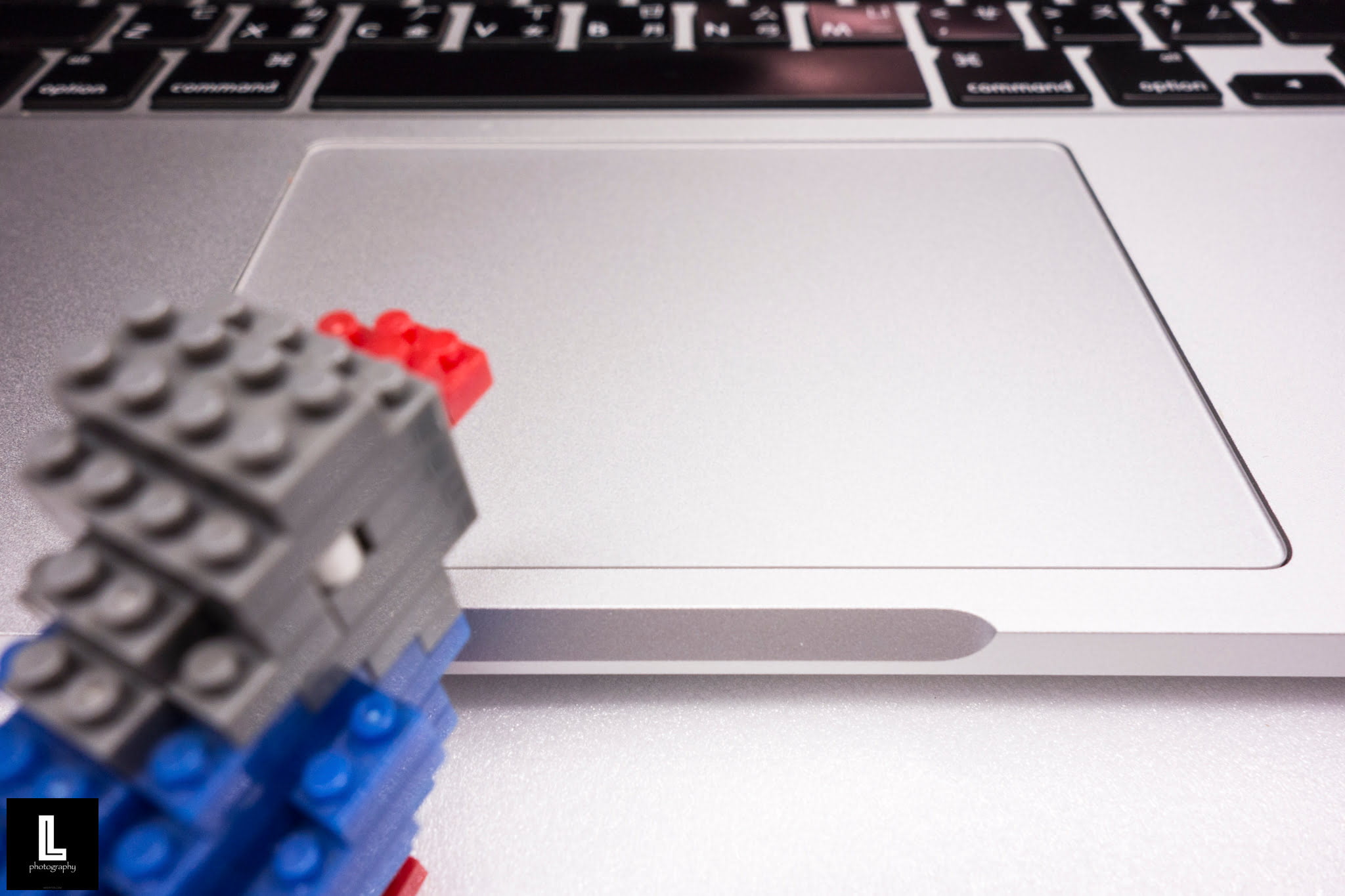
Many also recommend MacBooks specifically for their exceptional multi-touch trackpads. While the trackpad is undeniably smooth, in day-to-day productivity it is not necessarily magical compared to Windows quick keys or an ergonomic scroll-wheel mouse executing identical actions just as swiftly.
5. Should I Buy an Apple MacBook Air/Pro?
You may notice this discussion centers primarily on portable MacBook Air and Pro laptops, without touching on the Mac Mini or Mac Pro. In the desktop realm, Windows desktops still hold substantial advantages in customizability and raw price-to-performance.
However, if you can build an end-to-end ecosystem using exclusively Apple devices—field terminals (iPad), office workstations (iMac), server hardware (Mac Pro), and networked backup units (AirPort Time Capsule)—it forms a cohesive workflow.
As your familiarity with Apple systems deepens, a unified computing environment accelerates daily productivity and eliminates setup friction. The primary hurdle is capital expense, which represents a non-trivial commitment for a young startup.

Compared to bulky desktop units, lightweight portable hardware like the MacBook Air and MacBook Pro earns my highest recommendation. Carrying a MacBook into a riverside café in Tamsui, even if you are just reading comics, passersby might mistake you for a poet penning literature.
6. Choosing Between OS X and Windows Based on Your Work Applications
Before committing to Apple or Microsoft hardware, evaluate whether the essential software tools for your day-to-day profession offer native macOS editions.
While Macs can run Windows via virtualization or dual-booting (Boot Camp), maintaining dual operating systems introduces friction. If you insist on genuine licenses, you must purchase a separate Windows license to run on your Mac, alternating between two disparate operating environments. Juggling two OSes defeats simplicity—you inevitably gravitate toward one primary system anyway, and keeping redundant software simply wastes storage space.
I know a prominent university professor who followed this path: he never used macOS itself, but consistently purchased the newest MacBook hardware. When asked why, his explanation was simple: he just loved the industrial design of Apple hardware.
Moreover, migrating to a new OS often forces you to relearn critical applications. In our design studio, our vector illustration workflow transitioned from CorelDraw to Adobe Illustrator. I had used CorelDraw since my student days, but the lack of a native Mac version posed a significant adjustment hurdle after the transition.
Prior software mastery does not guarantee a flatter learning curve with alternative applications; conflicting keyboard shortcuts and UI paradigms often create unexpected friction. You must consider whether you are willing to navigate this transitional pain.
Furthermore, if you actively trade in domestic stock markets, an Apple computer may pose challenges. Historically, many local trading platforms were built using Microsoft legacy technologies, and various online banking portals strictly required Microsoft Internet Explorer.
(2017.02 Update: Bank of Taiwan Securities rolled out an HTML5-based web trading interface, giving stock traders one more reason to consider switching systems!)
If you are a graduate student in biomedical engineering or electrical/electronic engineering, a Mac might prove cumbersome. Many proprietary scientific computation and simulation suites do not support macOS natively, whereas Mac-native software almost always includes a Windows counterpart.
If you are a writer, journalist, or blogger, a MacBook Air is an ideal solution. Apple provides virtually everything you need out of the box, allowing you to focus purely on writing without administrative hassle, while enjoying the mobility to work seamlessly from any café.
If you are a photographer who doesn’t rely on CorelDraw and doesn’t require mobility, an iMac is a stellar choice. Its display fidelity and streamlined asset handling easily satisfy high-resolution photo workflows and quick client previews.
If you are a dedicated PC gamer, the choice is obvious: invest in a high-end graphics card and multi-core CPU, max out the system RAM, upgrade to Windows 10, and enjoy maximum gaming performance.
If you are a patent engineer, attorney, or certified accountant, I suggest leaning toward Windows. These professions carry zero tolerance for procedural oversights; you need a system that offers generous safety margins and file recovery options. Apple’s rigid operating environment is less forgiving when mishaps occur. Moreover, your work requires exchanging files across diverse organizations and institutions where Windows compatibility is essential.

If you teach K-12 education, where you regularly interface with varied home computer setups across families, maximizing file compatibility makes Windows the most practical choice. For university professors, use whatever suits your personal preference—you set the document requirements for your students anyway.
If you work in real estate—such as sales agencies, property brokers, or leasing agents—a MacBook Air or lightweight MacBook meets most daily needs while presenting a polished, professional image. However, if you are studying for professional licensing examinations, Windows remains safer, as many local test-prep video platforms historically required Internet Explorer.
If you are a product designer, owning both an iMac and a MacBook Pro—and splitting your workdays between your studio and stylish coffee shops—epitomizes the classic designer aesthetic (just remember to pair it with handcrafted spectacles).
Finally, I’d like to ask everyone: “If you work in ________, which operating system—Apple or Microsoft—serves you best?” Feel free to share your personal setup and experiences in the comments below!
(2017.02 Update: A reader asked whether macOS is recommended for digital music production. A professional music producer I know pairs a 15-inch MacBook Pro with an external monitor and audio interfaces; switching from Windows to Apple noticeably streamlined his creative production workflow.)
7. References
- Microsoft Taiwan official software store website.
- Beginner’s Guide: Apple Photos Library Precautions and Management (iMac, Mac Mini, MacBook Air, Pro).
- Bank of Taiwan Securities / Real-Time Market HTML5 Web Interface (Chrome and Firefox compatible setup guide).
- Buying Apple Hardware at Best Value: Educational Discounts and Promotion Analysis (Mac Mini, iMac, MacBook Pro/Air).
- Next-Gen MacBook Product Analysis.
- Hardware Reference: Apple iMac.
Support Independent Perspectives & In-Depth Insights
Every thoughtful analysis and candid critique comes from our dedication to truth and quality. We choose not to follow sensational algorithms or clickbait headlines.
Sustaining independent research requires reader support. Make a one-time or monthly contribution, securely processed by Google.
Payments secured by Google · Manage or cancel anytime in your Google Account



Comments