
“Unbelievable associative power!” That was my immediate reaction when I first encountered AutoDraw, an experimental drawing tool newly launched on Google’s development platform.
Simply put, AutoDraw provides a cutting-edge technology that uses artificial intelligence to recognize and associate whatever weird lines and doodles you scribble.
This drawing technology isn’t just great for playing guessing games with friends and family; it can also be used in presentation design. You can easily sketch shapes that pop into your head even when you don’t know what they’re called, making your presentation details much richer and more engaging.
Behind the AutoDraw[1] technology lies not only a milestone in the gradual evolution of AI (similar to autonomous driving systems capturing road imagery, identifying outlines of road hazards, and precisely defining what kind of obstacle lies ahead), but also a showcase of community collaboration: numerous artists voluntarily contributed illustrations to help the project, demonstrating the formidable power of shared collective intelligence in the internet age[2].
Here is a quick introduction and tutorial on how to use AutoDraw:
For example, the doodle below is a dog I drew (if you can actually tell, give yourself a round of applause).
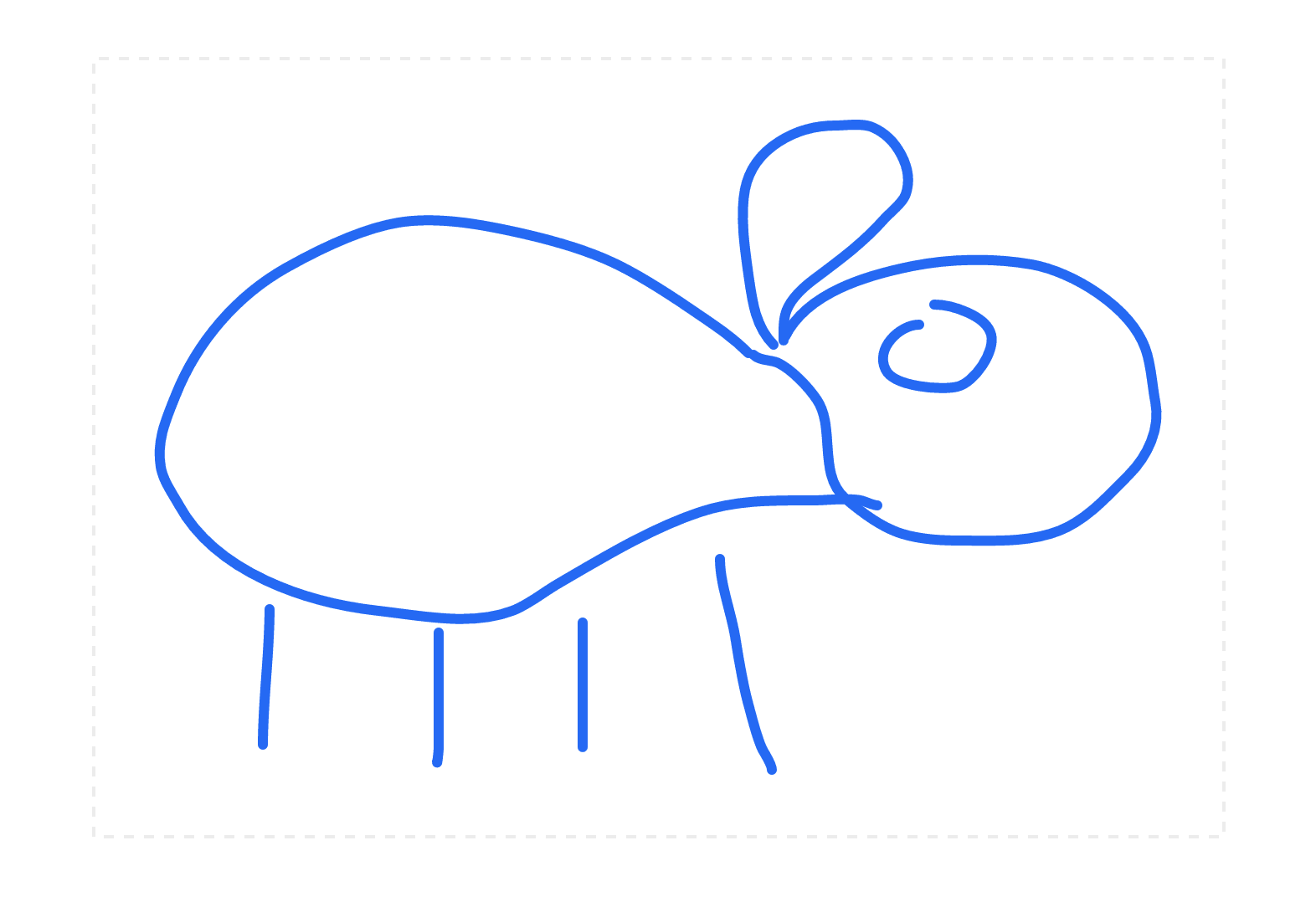 A dog?
AutoDraw knows!
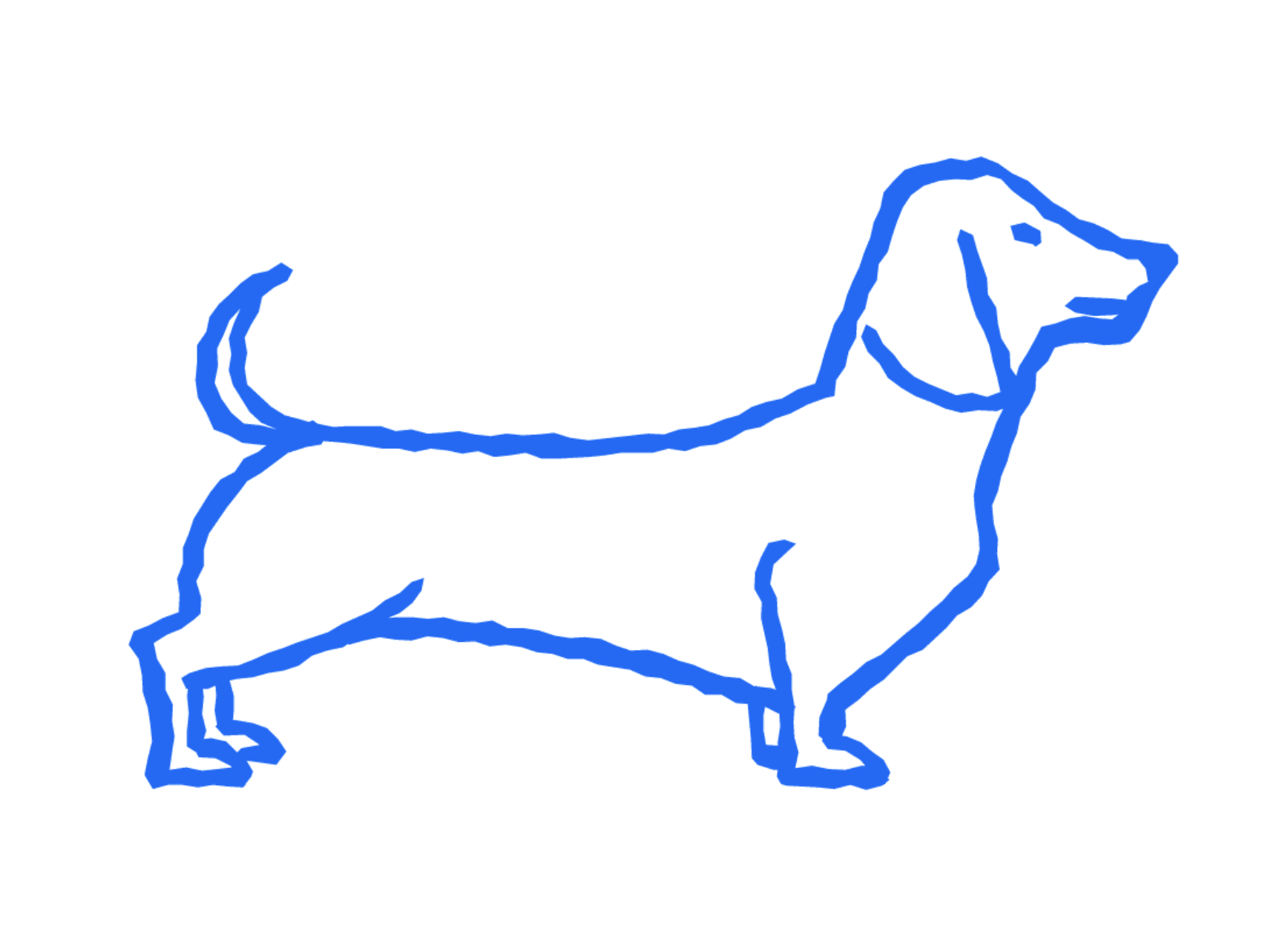 A dog.
AutoDraw Tutorial and Guide
After opening the official AutoDraw website[1], you’ll see a screen similar to the one below. Click the “Start Drawing” button to enter the drawing interface.
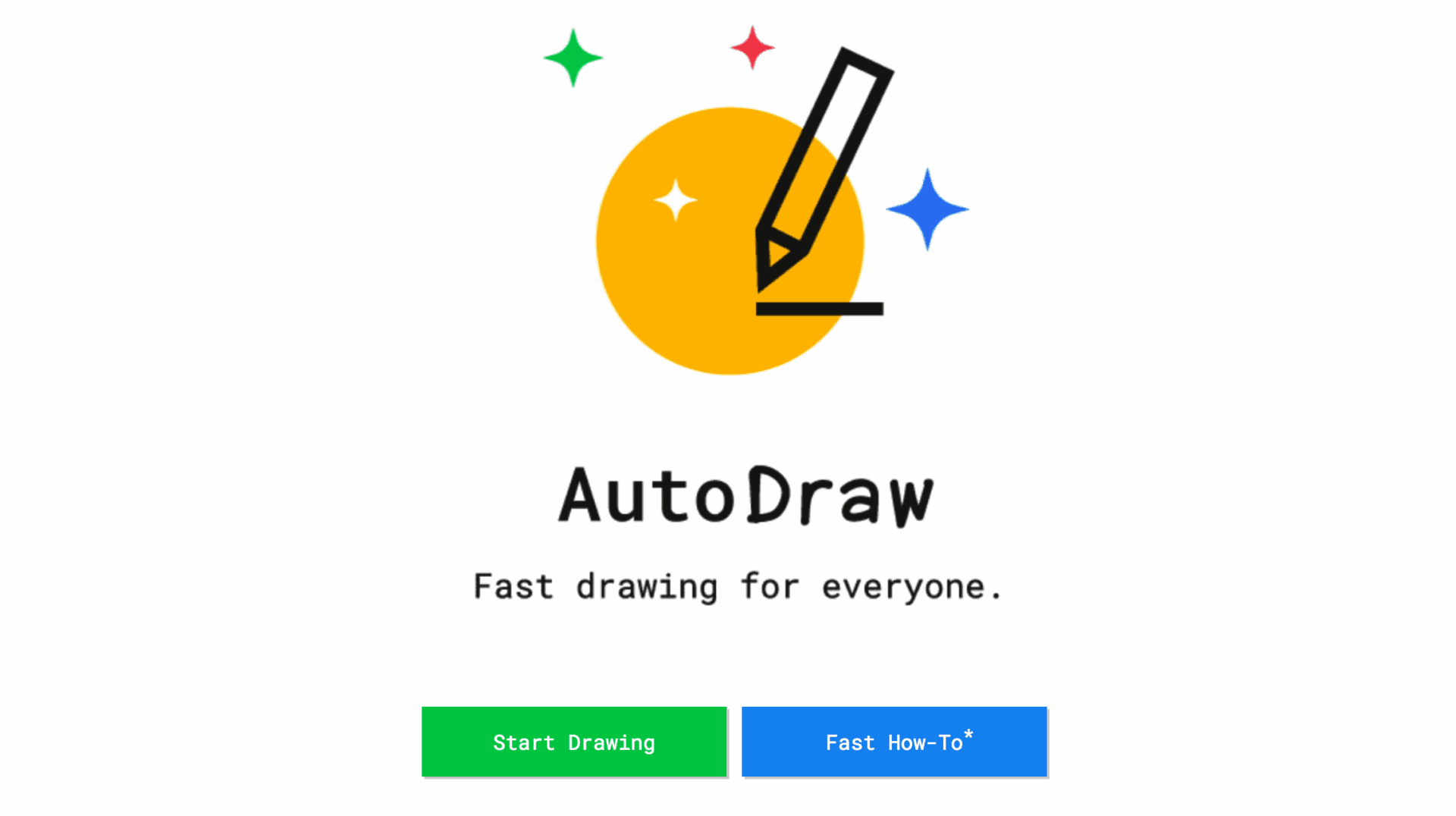 AutoDraw
As shown in the image below, the AutoDraw web interface offers a canvas where you can freely sketch lines. You can also use keyboard shortcuts (for example, Apple: Command + X, Windows: ALT + X to cut shapes) for controls similar to standard desktop software.
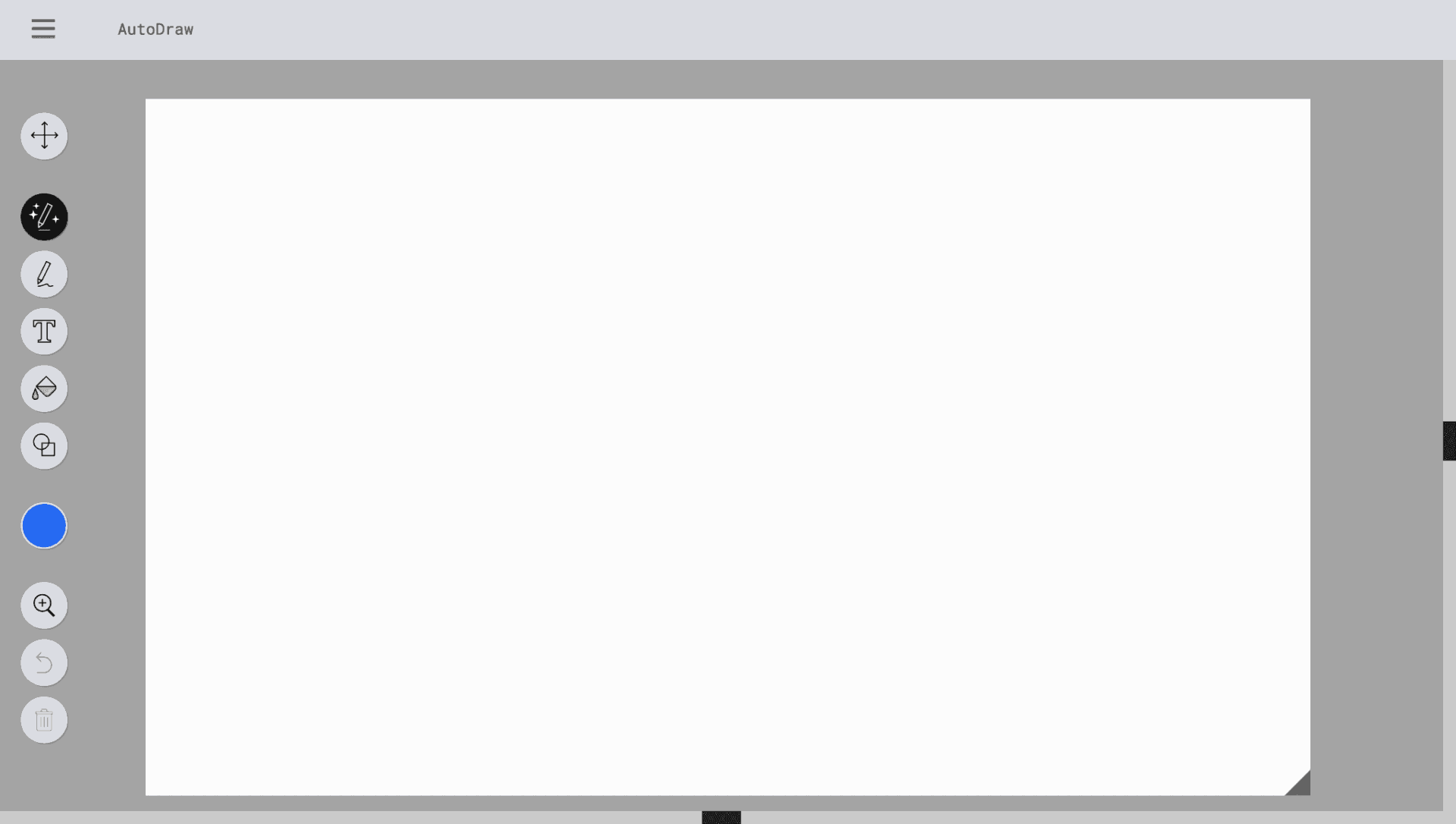 AutoDraw interface.
Several drawing tools are built into the left panel of the screen. In addition to basic features similar to MS Paint, the most important one is the second button from the top: the “AutoDraw Pencil Tool.” Only lines sketched with this tool are automatically recognized by artificial intelligence, triggering real-time matching suggestions at the top of the screen.
In the example below, I doodled a whale (?) on the canvas, and AutoDraw’s AI recognition system instantly generated several related suggestions.
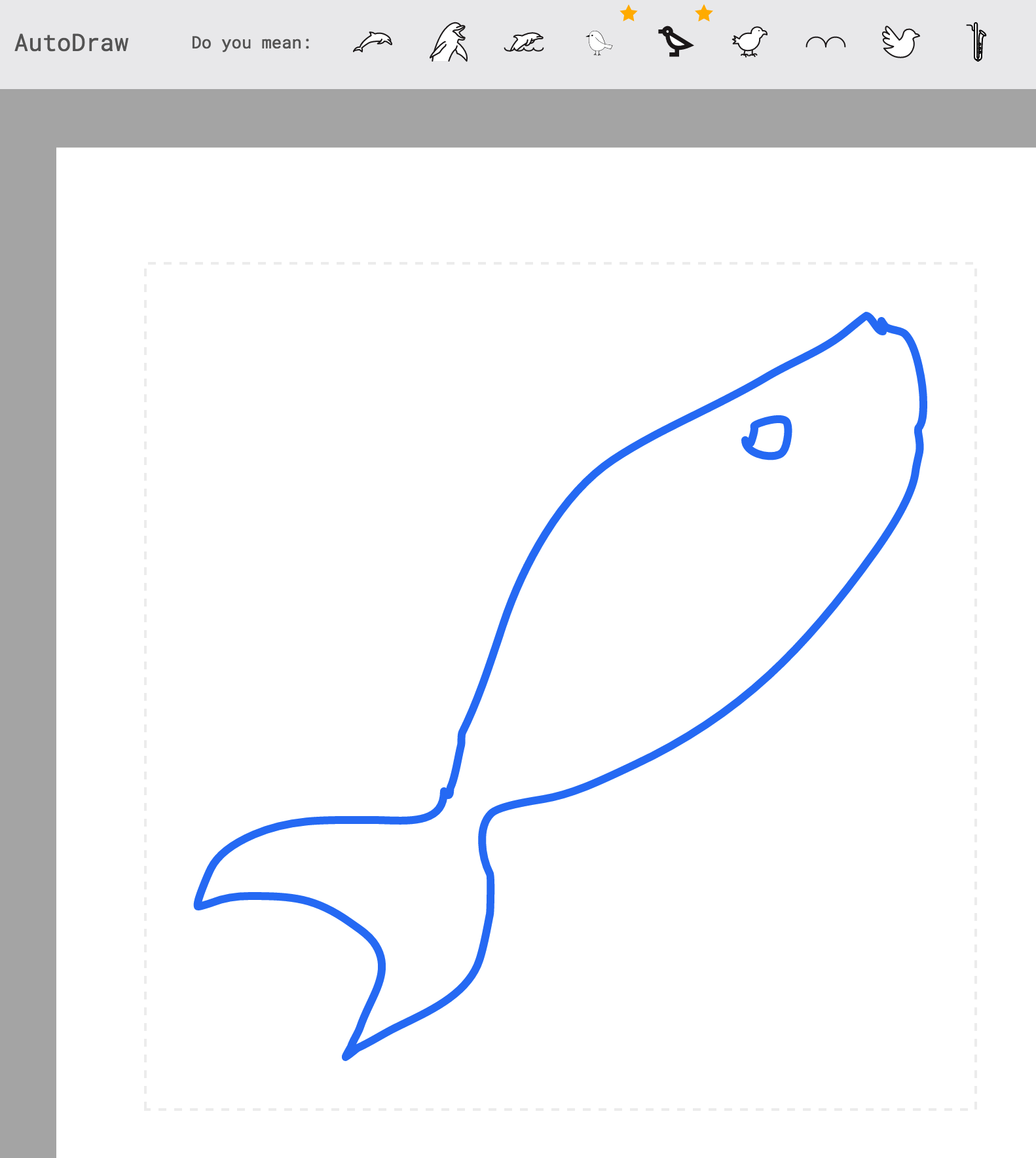 Drawing lines and generating matching artwork.
Looking at the matched suggestions at the top, because this whale was drawn so “accurately” (?), cetacean illustrations were placed right at the front by the system.
Clicking on any suggested icon that matches your intent replaces your rough sketch with a refined graphic created by an artist. These polished icons are perfect for slide decks or classroom presentations, adding an artistic touch that captures the audience’s attention.
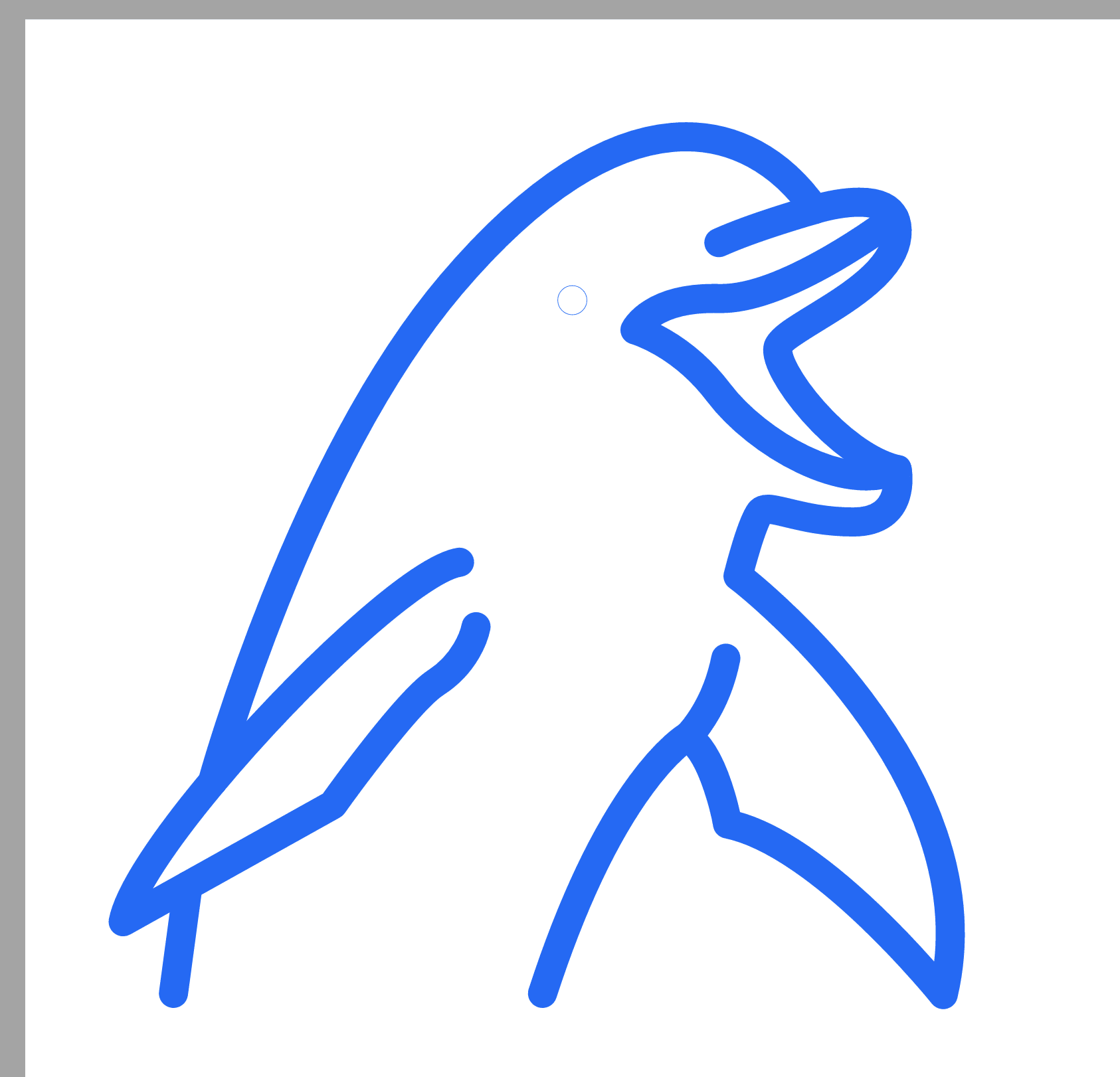 A dolphin actually popped up!
Currently, in addition to the web version on the official website, AutoDraw also provides an Android mobile app on Google Play. An Apple iOS app hasn’t been released yet, so Apple fans will need to be a little patient (honestly, the web version works great on its own).
Further Reading
- Official AutoDraw Website.
- Want to share your illustrations with the world? AutoDraw welcomes artwork submissions from creators—check out the “Submit Artwork” form for details.
Support Independent Perspectives & In-Depth Insights
Every thoughtful analysis and candid critique comes from our dedication to truth and quality. We choose not to follow sensational algorithms or clickbait headlines.
Sustaining independent research requires reader support. Make a one-time or monthly contribution, securely processed by Google.
Payments secured by Google · Manage or cancel anytime in your Google Account




Comments