

Apple’s macOS Sierra operating system introduces the remarkably powerful “Universal Clipboard” feature. As long as you own both an Apple Mac/MacBook and an iPhone/iPad, you can effortlessly copy and paste text and images across both platforms.
Simply put, you can copy a paragraph of text from Safari on your iPhone and instantly paste it directly into Pages on your Mac. It couldn’t be more convenient!
Enabling Universal Clipboard
Before you can take advantage of the Universal Clipboard, make sure the following settings are configured properly.
1. Enable Bluetooth on both iPhone and Mac, and Keep Them Paired
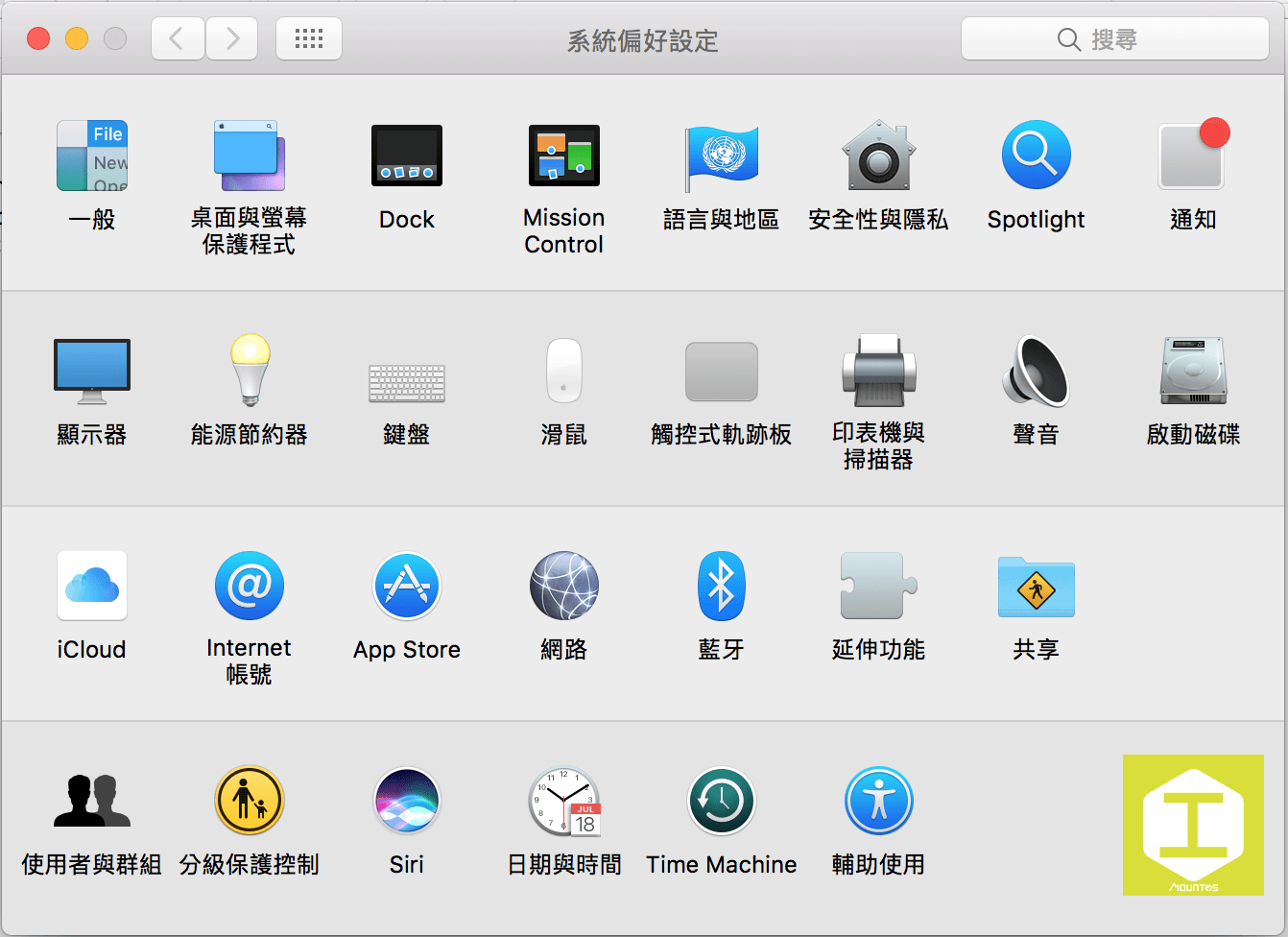
To turn on Bluetooth on your Mac, open “System Preferences” and click the “Bluetooth” icon.
Copy and paste across devices: When your devices are in proximity, you can copy content on one device and paste it on another, even across different applications.
2. Confirm Three Essential Prerequisites
Universal Clipboard is straightforward to use, but depends on three core requirements:
- Both Mac and iPhone/iPad must be logged into the same iCloud account.
- Bluetooth must be turned on on both devices.
- The Mac must run macOS Sierra or later, and iOS must be updated to iOS 10 or later.
Why Is Universal Clipboard So Convenient?
In the past, whenever you came across useful articles, snippets, or images on your iPhone and wanted to transfer them to your Mac, you had to rely on Apple Notes, AirDrop, or messaging apps. While doable, Universal Clipboard streamlines the entire workflow: tap copy on your iPhone, and immediately hit paste on your Mac. For anyone constantly toggling between an iPhone and Mac during work, this is an indispensable feature.
Best of all, it works even without an active internet connection. Because data transfers locally via Bluetooth and peer-to-peer Wi-Fi, you can seamlessly push work from iPhone to Mac while traveling abroad or working offline on flights and trains.
Troubleshooting
If Universal Clipboard fails to respond and you’ve verified all three requirements above, try restarting your iPhone. In most cases, a quick reboot immediately clears any stale pairing state and restores functionality.
Summary
Universal Clipboard is one of the most delightful Continuity features introduced with macOS Sierra and iOS 10, making data sharing between iPhone and Mac completely frictionless. With matching iCloud accounts, Bluetooth enabled, and compatible OS versions, you can enjoy seamless cross-device copying and pasting wherever you go.
Support Independent Perspectives & In-Depth Insights
Every thoughtful analysis and candid critique comes from our dedication to truth and quality. We choose not to follow sensational algorithms or clickbait headlines.
Sustaining independent research requires reader support. Make a one-time or monthly contribution, securely processed by Google.
Payments secured by Google · Manage or cancel anytime in your Google Account


Comments