
Although Apple computers are supported by several industry-standard professional video editing suites (such as Final Cut Pro X), macOS comes built-in with an intuitive and free video editor called “iMovie”, which easily covers everyday video editing needs for most users.
Today, we’ll demonstrate how to insert photos or images (such as logos or fun graphics) directly into an iMovie project.
As shown in Figure 1 below, this is the editing interface of Apple iMovie (version 10.1.2). The bottom area is the “timeline / media track”, while the upper right is the “preview window”.
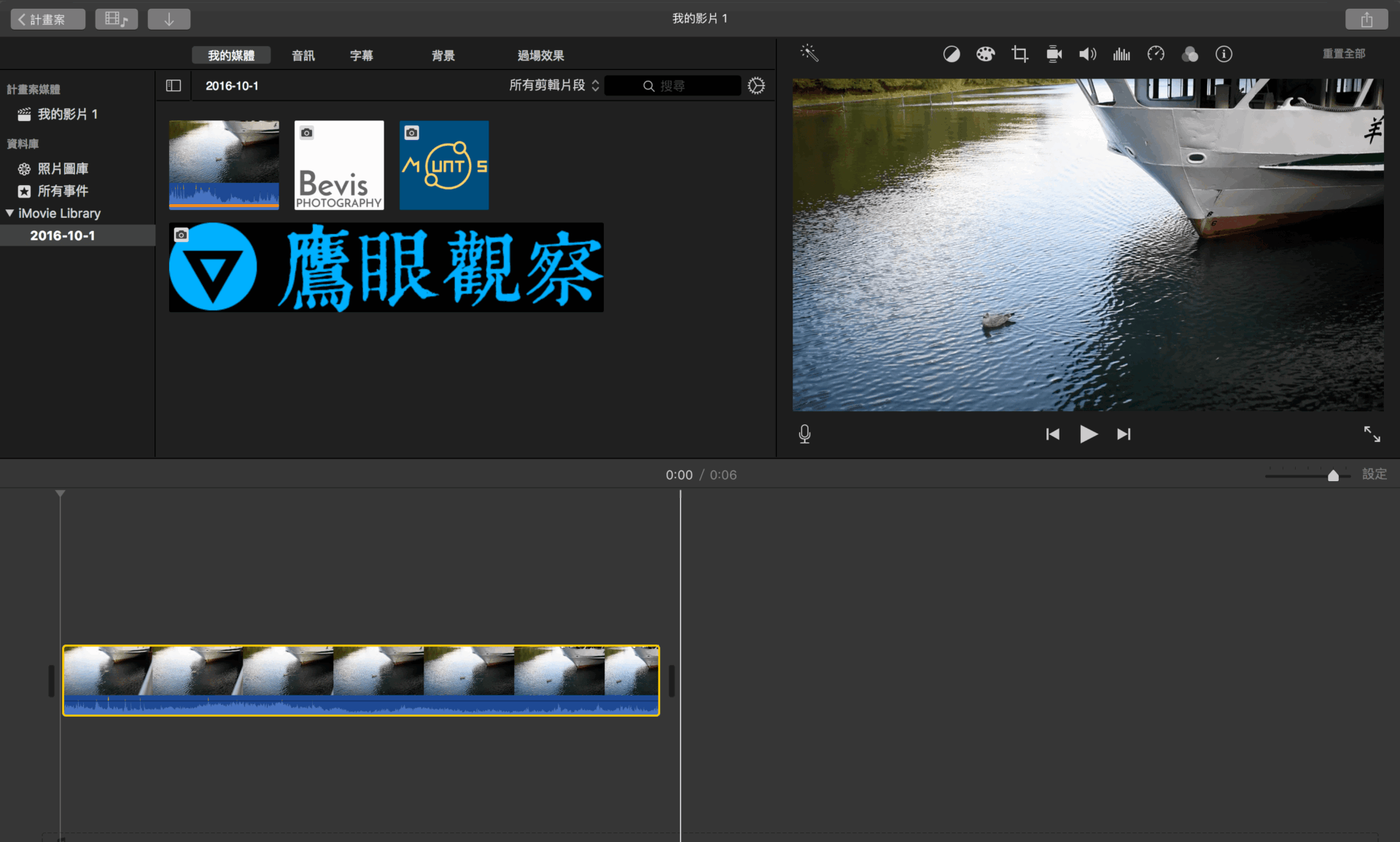
Referring to Figure 2 below, drag your image directly onto the timeline above the video clip, and adjust its duration as desired.

Because Apple iMovie defaults the video overlay style to Cutaway, click on the image in the timeline and enable the “Video Overlay Settings” button located above the preview window.
For example, in Figure 3 below, we set the overlay style to “Picture in Picture”.
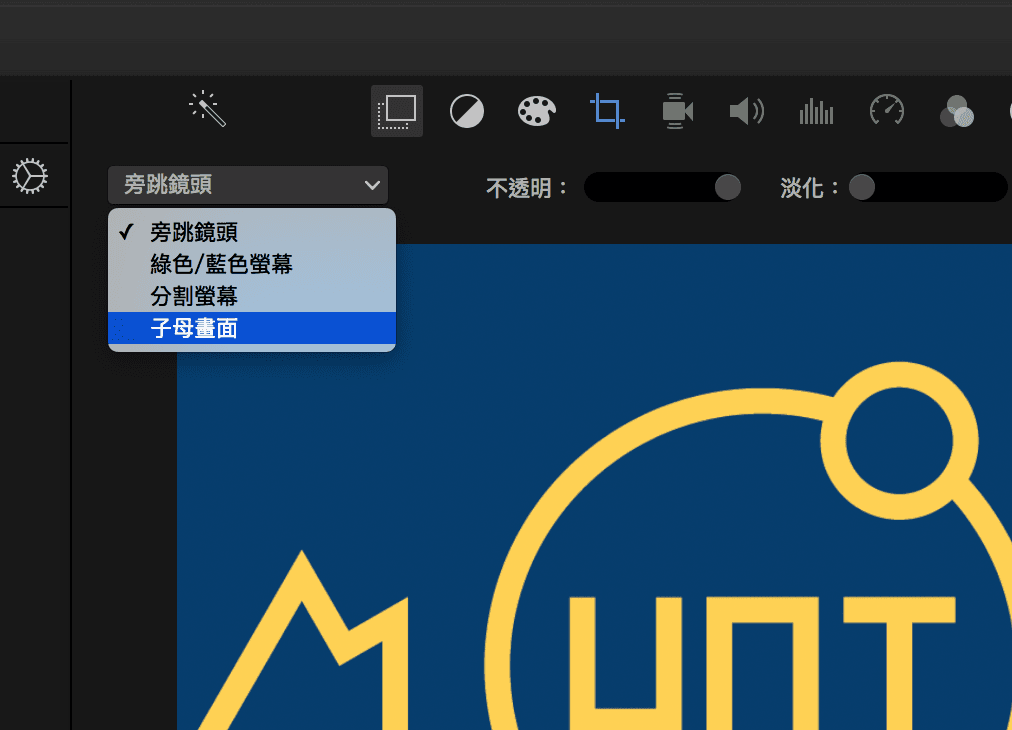
Now, the image appears as an independent floating object on top of the video clip.
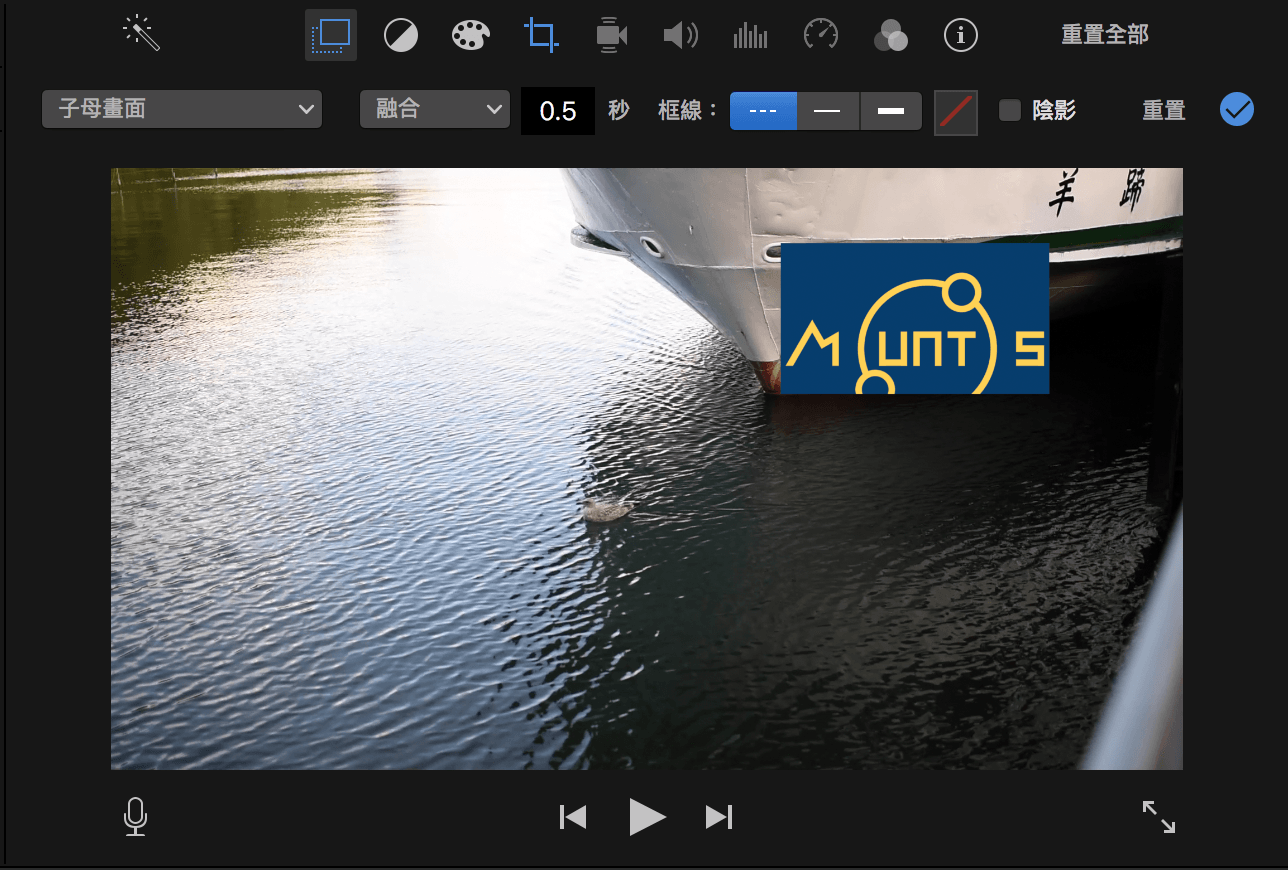
If your inserted image is square and its edges get cropped off, you can adjust its cropping and dimensions.
As shown in Figure 5 below, select the image in the timeline, then click the “Cropping” tool in the advanced toolbar above the preview window.
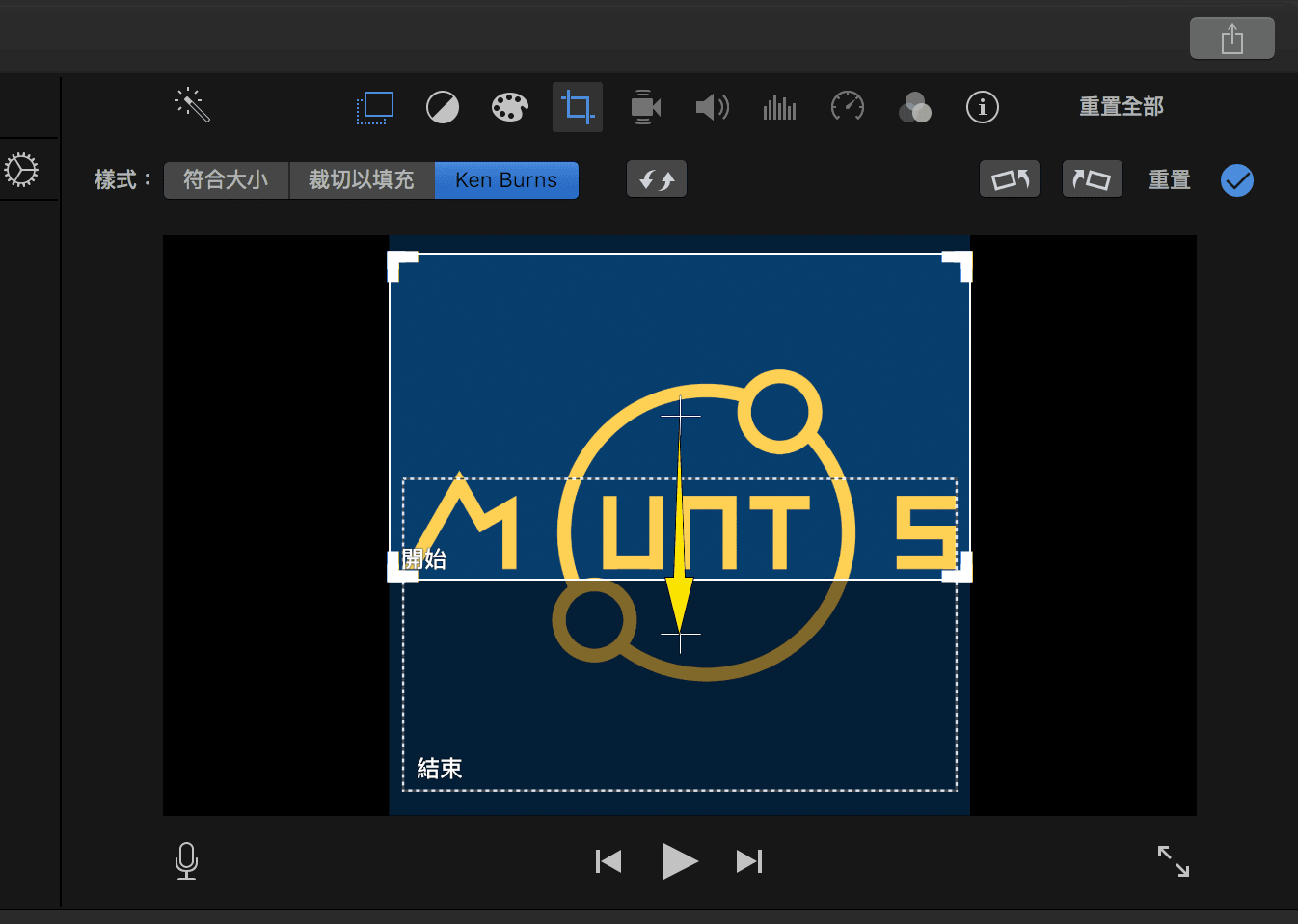
Next, as shown in Figure 6, change the cropping style to “Fit” to display the image at its original aspect ratio on screen.
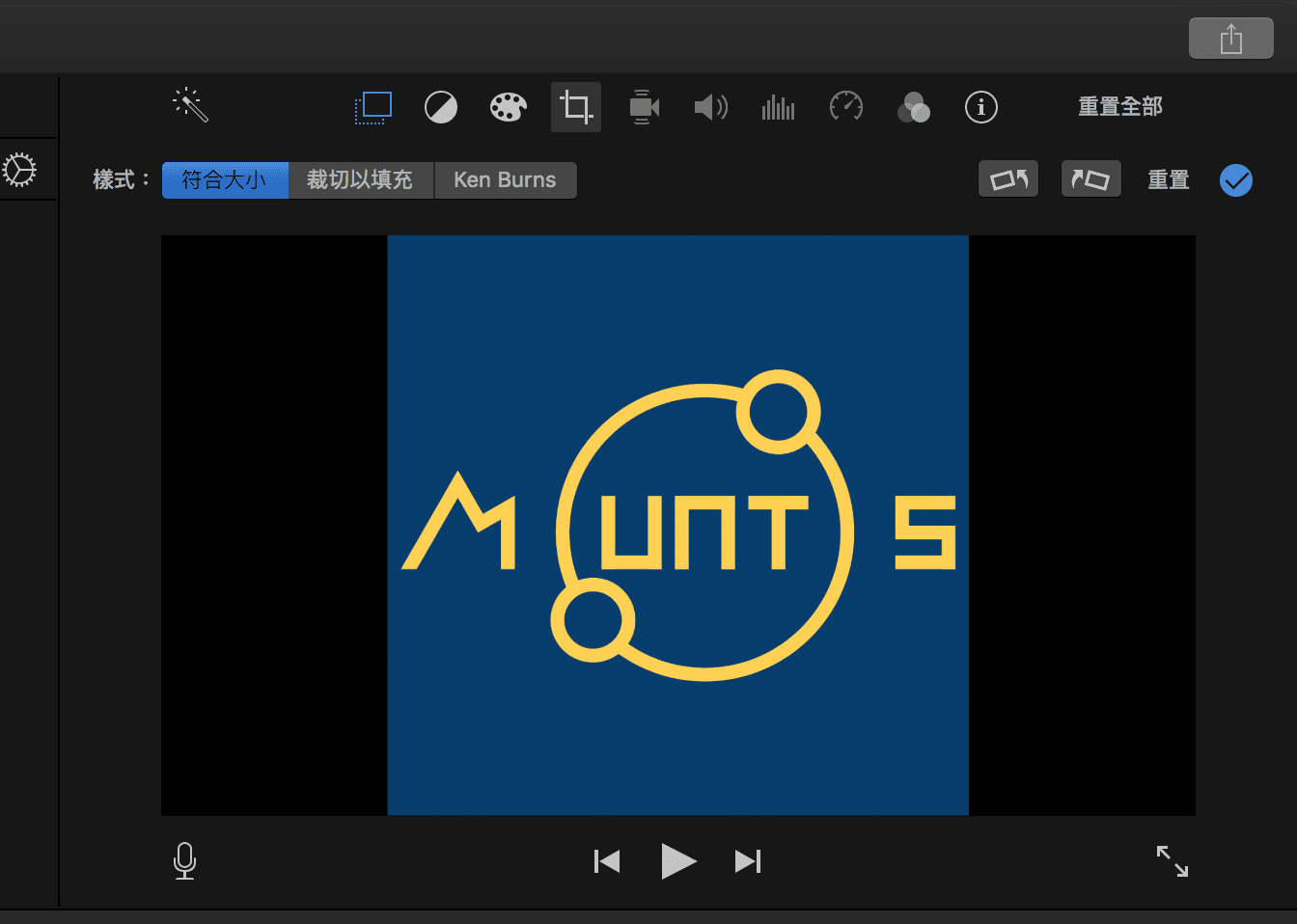
In Figure 7, we can now see the image displayed properly without cropping.
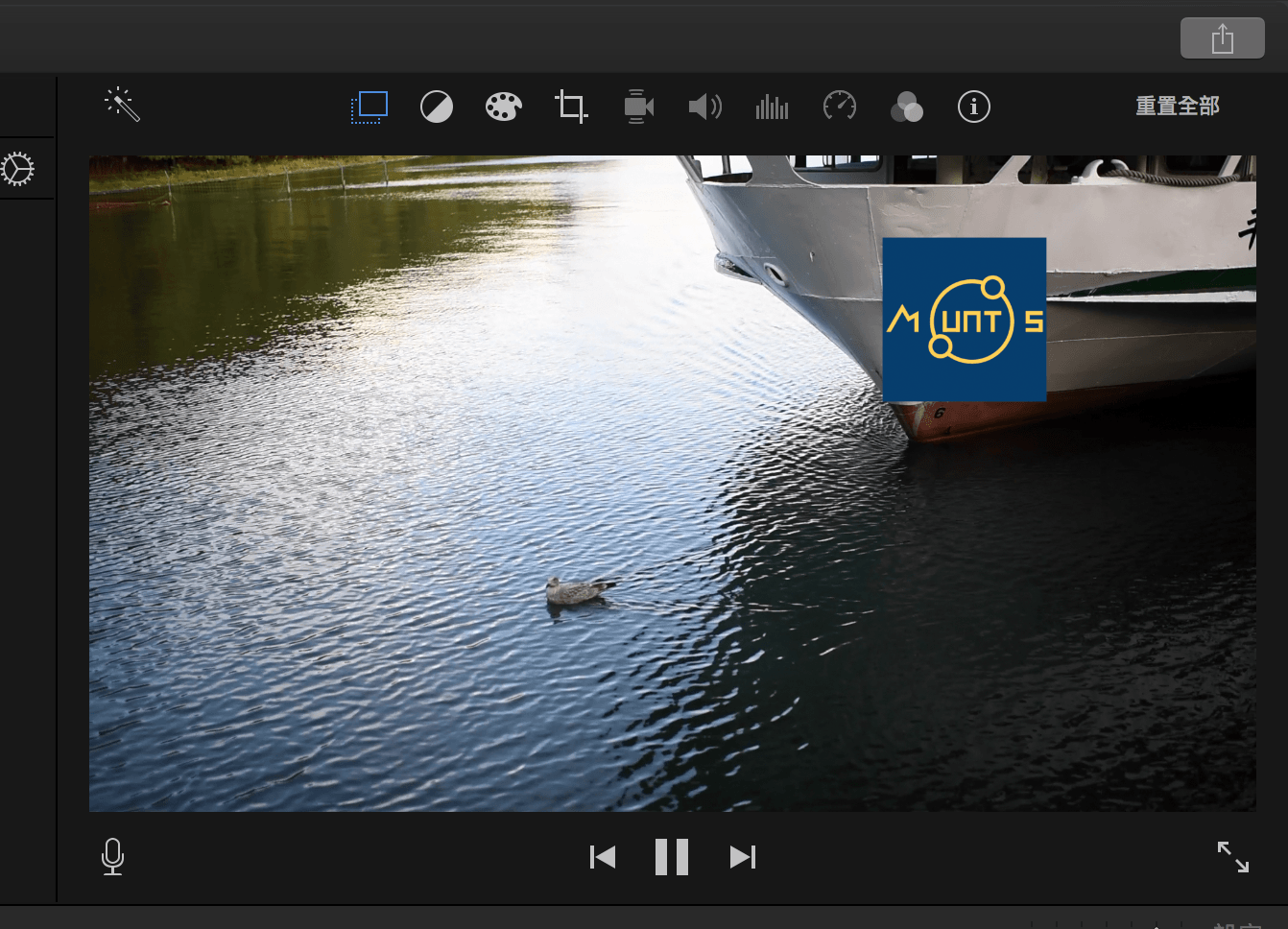
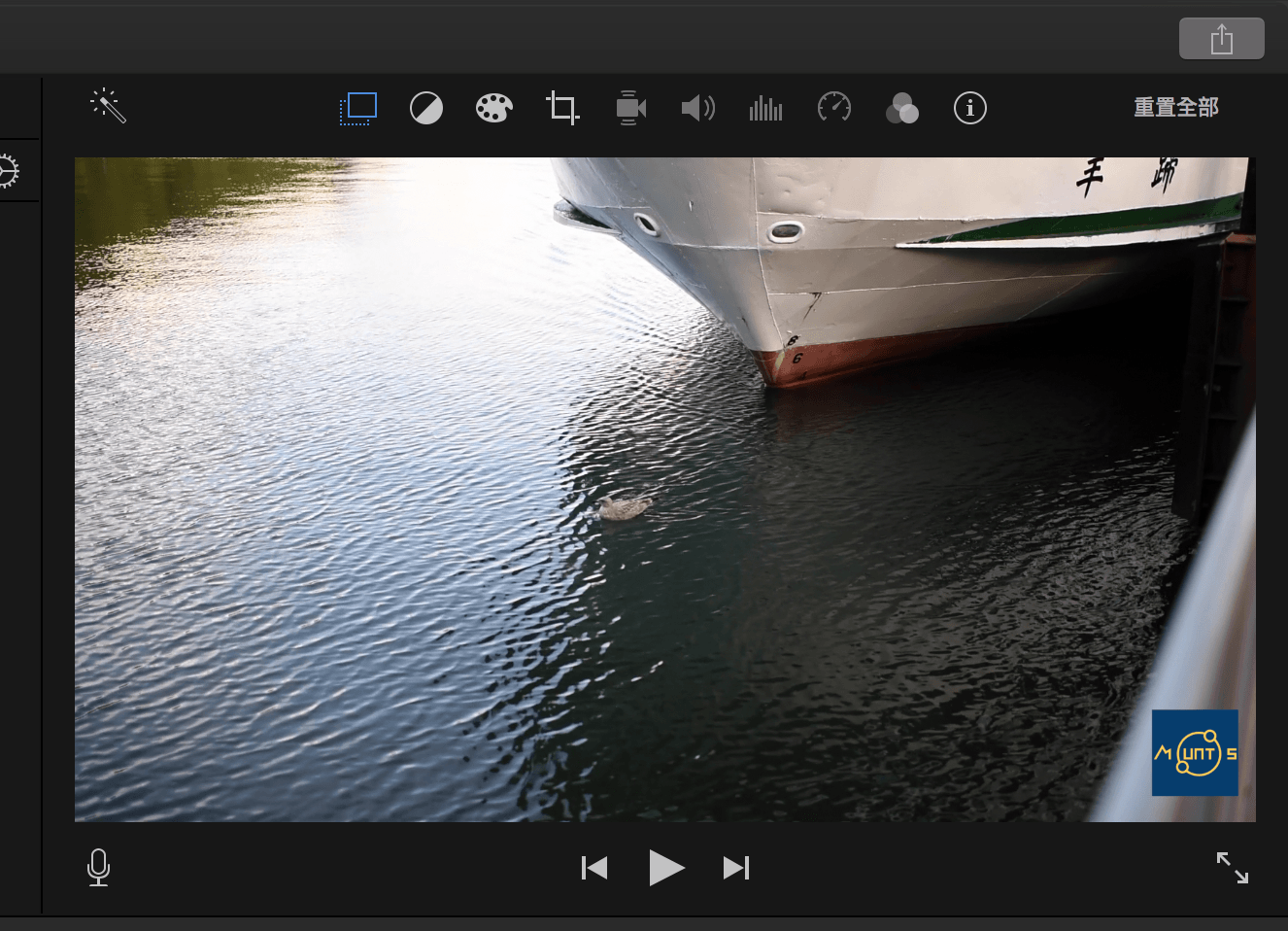
Refer to Figure 8 below: switch back to the “Video Overlay Settings” tool in the toolbar to freely resize and reposition the image anywhere across the frame.
Limitations of Apple iMovie
While Apple iMovie is a handy video editing tool, Apple intentionally limits features like multi-image overlay layering and track counts to distinguish it from the professional “Final Cut Pro X”. If you need to display more than one overlay image simultaneously, we suggest using Keynote or a graphic editor to composite the images onto a single canvas beforehand, and then import that single composite graphic into the timeline.
Support Independent Perspectives & In-Depth Insights
Every thoughtful analysis and candid critique comes from our dedication to truth and quality. We choose not to follow sensational algorithms or clickbait headlines.
Sustaining independent research requires reader support. Make a one-time or monthly contribution, securely processed by Google.
Payments secured by Google · Manage or cancel anytime in your Google Account



Comments