

Apple’s latest version of the macOS operating system for desktop and laptop computers, “Big Sur,” released in November 2020! In conclusion, the actual enhancement effect is not particularly outstanding. If you don’t want to update, you can temporarily wait and see if there are bug reports.
After updating and actually operating it for a round, I found that the most obvious change compared to the previous generation version “macOS 10.15 Catalina” is that the overall design style has become more refined. Although the layout has become flatter, the individual icons have returned to a three-dimensional style. However, more cool tones are used, which quite suits my taste.

macOS Big Sur installation interface
Which Macs Can Install macOS Big Sur?
- iMac: 2014 and later models
- MacBook Air: 2013 and later models
- iMac Pro: 2017 and later models
- MacBook Pro: Late 2013 and later models
- Mac Pro: 2013 and later models
- MacBook: 2015 and later models
- Mac mini: 2014 and later models
From the introduction on Apple’s official website, we can know that the new system has put considerable effort into “Safari,” “Maps,” “Messages,” and privacy protection. Below, I will introduce the more major changes to everyone.
Safari Browser
Taking the Safari browser as an example, during my operating experience I did not feel anything abrupt, except that the new page button was moved, causing me to keep pressing the wrong one and not being used to it.
The start page includes more information, including favorites, iCloud tabs, frequently visited websites, and reading list items, filling the entire page at once, greatly increasing the user’s information browsing volume. Users can also refer to the figure below to set the information they want to appear. Combined with the high synchronization with the iOS version of Safari, the synchronized browsing between different devices is further improved. This is very much worth recommending everyone get used to the operation method, as it can greatly increase the interchangeability between different devices.
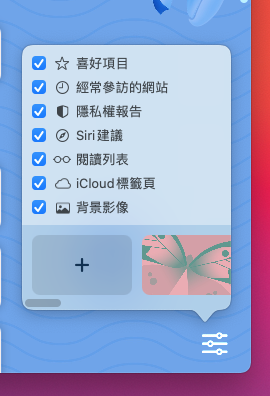
Safari start page setting options
In the tab section, as long as you move the mouse cursor to any page, a preview of that webpage can be displayed, making it convenient to find the website you want to browse. However, under high usage, there will be a sense of time delay, which is not very useful to me personally. After all, the preview window is too small, and the content actually visible may not necessarily be clearly identifiable.
This time, Safari has a flavor of paying tribute to Google Chrome in the password protection section, monitoring known leaked passwords and reminding users to change their passwords. In fact, I have long been warned in the Chrome browser[1], but those leaked passwords were all used by me on unimportant websites, so I was too lazy to change them.
Although Apple emphasizes that the new Safari has higher performance in terms of performance and battery life, and even claims that website loading speed is 50% faster than Chrome, I haven’t particularly felt the benefits of these features yet, so let’s just assume they exist (looking into the distance).
One more small suggestion: during this inspection, I found that the default encoding in the browser’s advanced settings is “Big 5 HKSCS.” I personally recommend manually changing it to “Unicode UTF-8.”
macOS Desktop Control
In the desktop section, the most obvious change is that the desktop icons have become prettier, and the “Dock Launchpad” icon on the left has completely changed, with a slightly transparent background that can avoid covering the work area.
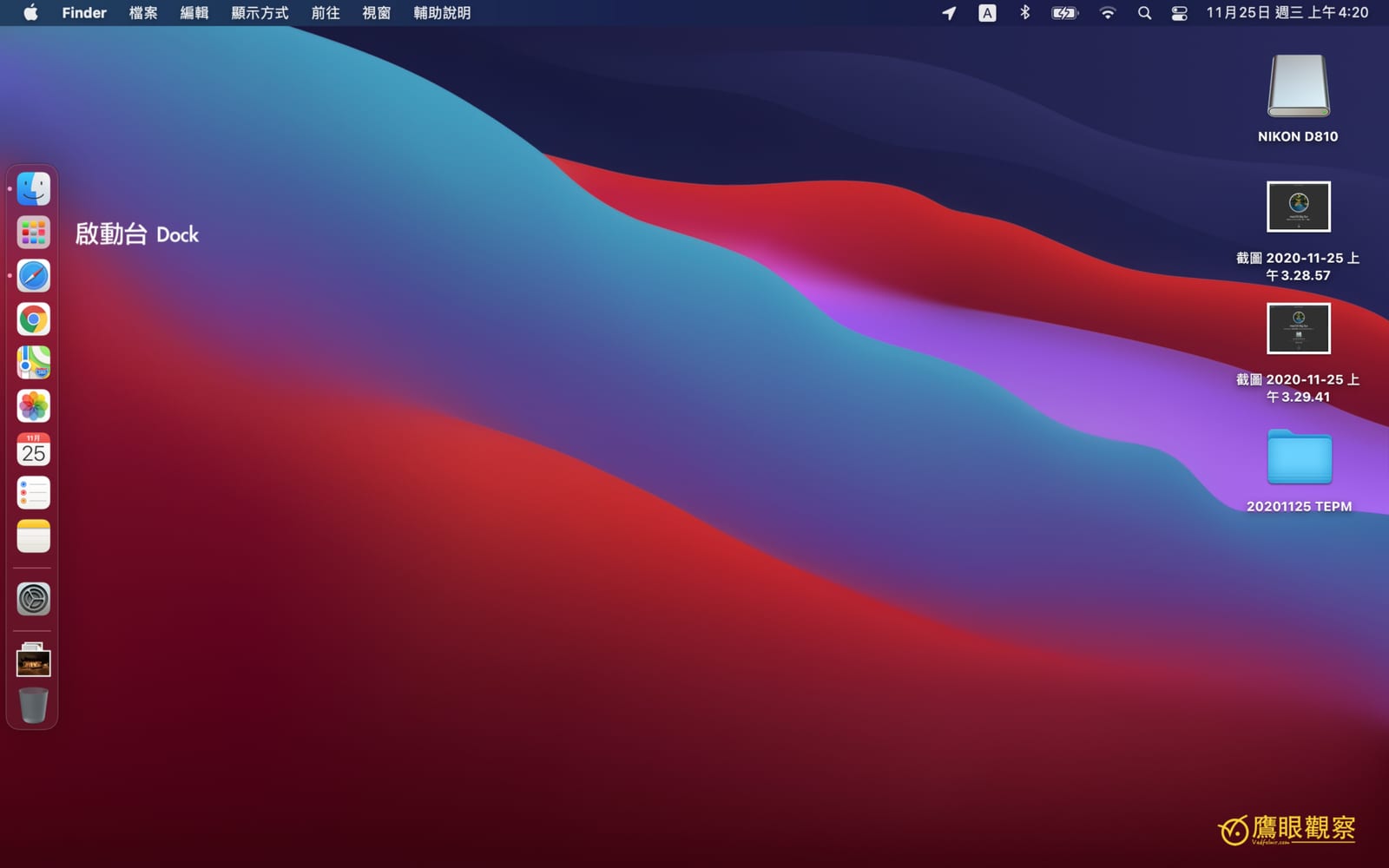
To be honest, I personally still prefer the old icons. The new version has simply become like an iOS desktop collection. Although the reduced recognizability can improve the overall style, it also feels a bit strange somewhere. Perhaps in the future, iPadOS and macOS will be more highly integrated.
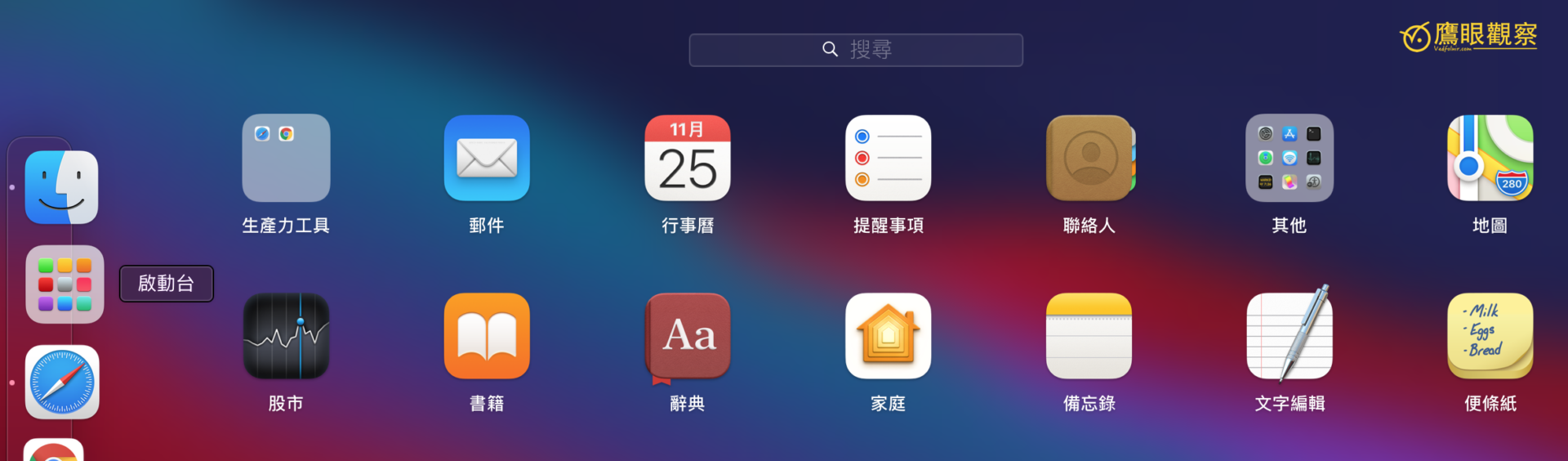
Launchpad Dock and application list
The “Notification Center / Widget Call Button” on the right has been removed in this version, and instead clicking “Time” calls up the Notification Center / Widgets. Losing one icon has limited effect on improving space congestion. On the contrary, clicking the time to call up a whole row of widgets is not very intuitive.
Please refer to the figure below. The content layout of the widgets is not much different from the previous operating system, so just use it as usual. However, Apple has integrated “notification messages” together with widgets to form the new version of the “Notification Center,” which takes some getting used to.
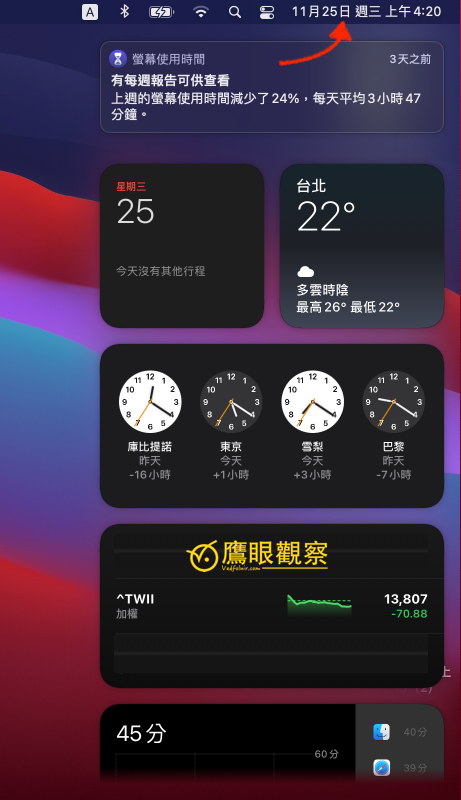
Apple macOS Big Sur widget sidebar
Control Center
Although the traditional widget button is gone, there is also a “Control Center” button.
Please refer to the figure below. After clicking the Control Center button, an integrated control interface similar to that of the iPad and iPhone can be called up. Since multiple wireless network control interfaces are built in, you can directly hide the other WiFi and Bluetooth icons in the menu bar
Support Independent Perspectives & In-Depth Insights
Every thoughtful analysis and candid critique comes from our dedication to truth and quality. We choose not to follow sensational algorithms or clickbait headlines.
Sustaining independent research requires reader support. Make a one-time or monthly contribution, securely processed by Google.
Payments secured by Google · Manage or cancel anytime in your Google Account


Comments