

Apple’s latest tablet operating system, Apple iPadOS 16.1, was fully released recently. Apple fans who haven’t caught up yet can manually download the update in “Settings > General > Software Update.”
A large part of the new features in this version focus on strengthening the system’s multitasking capabilities, including:
Photos
In the Photos app, copying and pasting photo editing parameters has been added, making batch photo editing easier (see the image below).
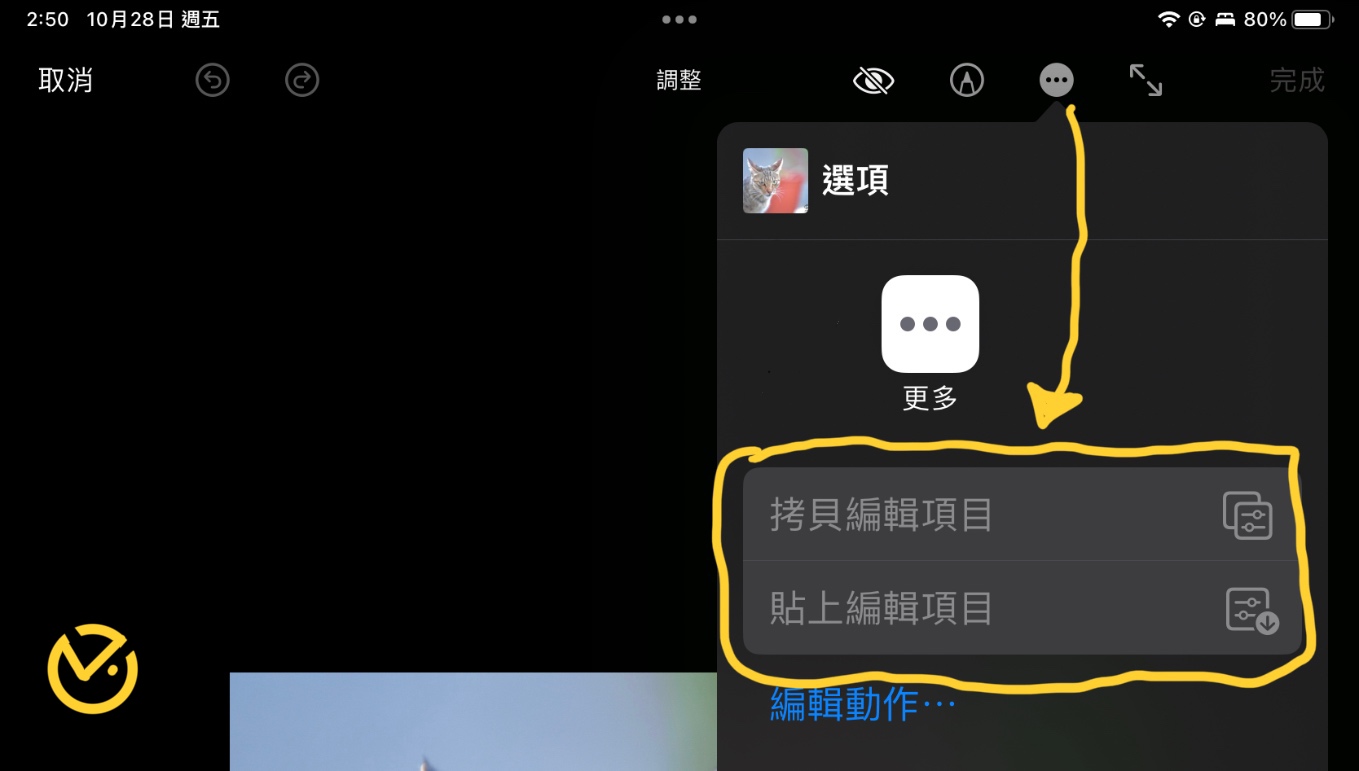
Copy and paste photo editing parameters
iCloud Shared Photo Library makes it easy to keep family photos up to date.
Messages
Added the ability to edit or unsend sent messages, offering a new way to start and manage collaborations.
There are new inbox and composing tools.
Safari Browser
Added “Shared Tab Groups” and a new generation of passkey security technology.
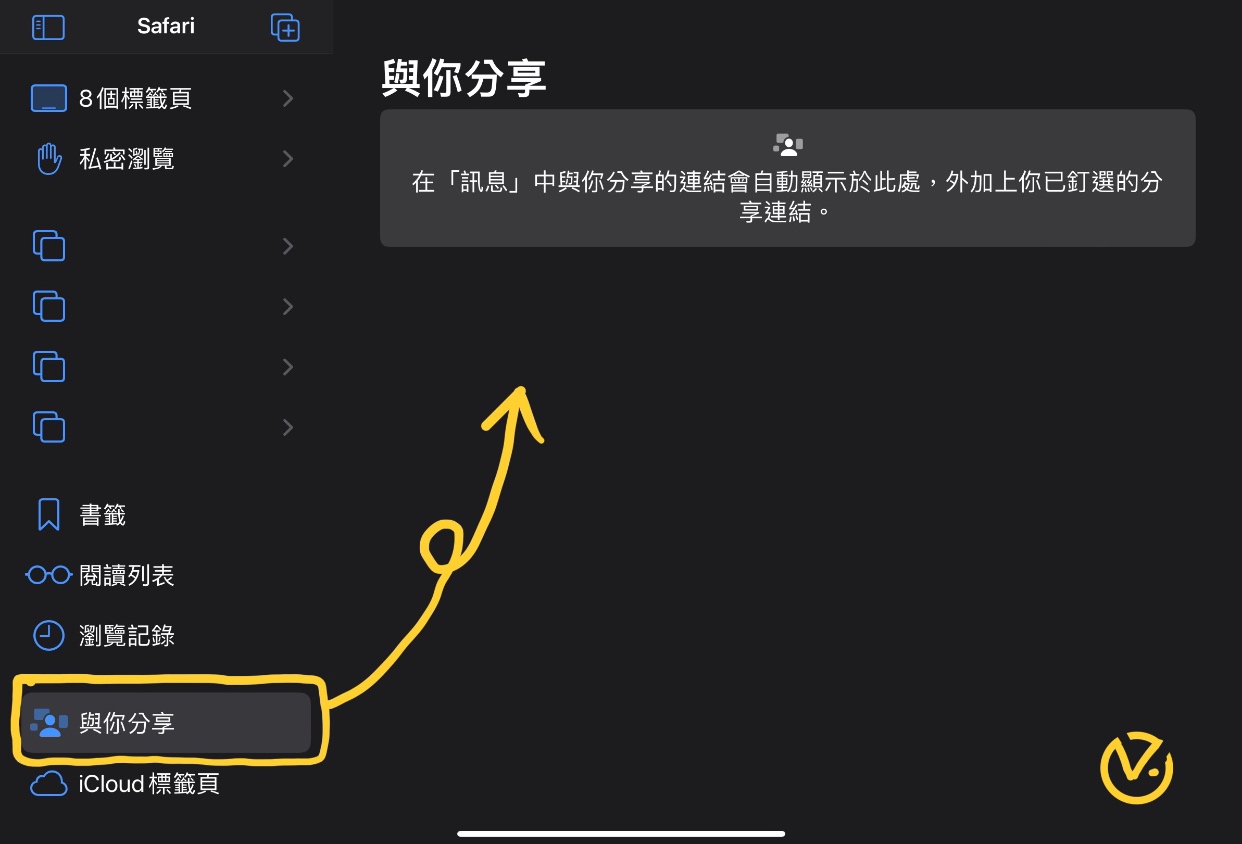
Safari Shared Tab Groups
There’s also a feature I’m not sure was newly added this time, but the author finds it very useful, so I’ll introduce it specially. See the image below: when viewing a webpage in Safari, you can use the share button to directly export it as a PDF document.
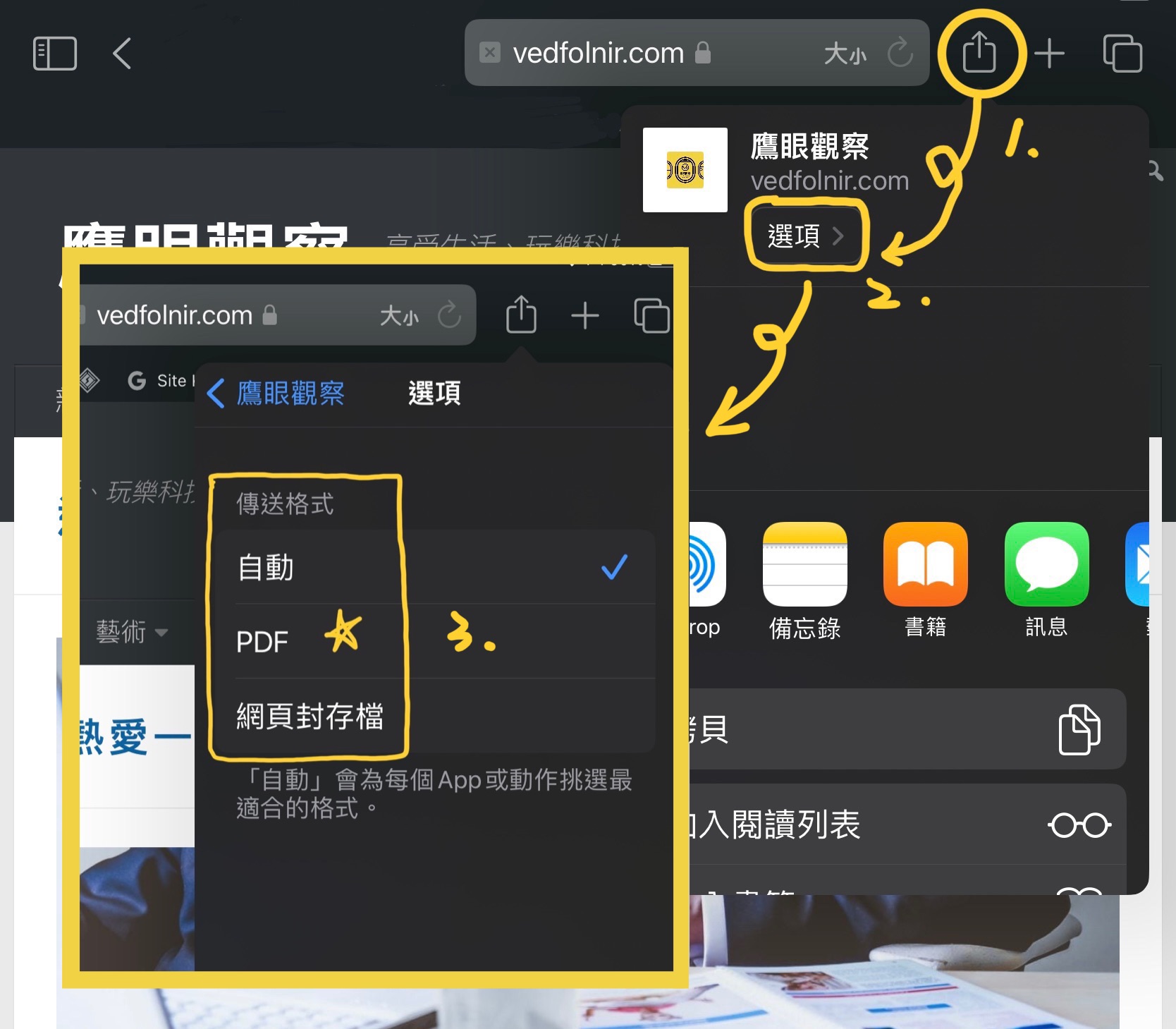
Safari share export to PDF
The multi-page tab design at the top of the browser feels more refined and scrolls more smoothly. And like the macOS browser, you can now pin pages.
Stage Manager
This new iPadOS introduces a brand-new way to multitask, letting you handle multiple overlapping windows and easily switch between them, just like a desktop computer’s desktop.
See the image below: you need to enable it yourself in “Settings > Home Screen & Multitasking > Stage Manager.”
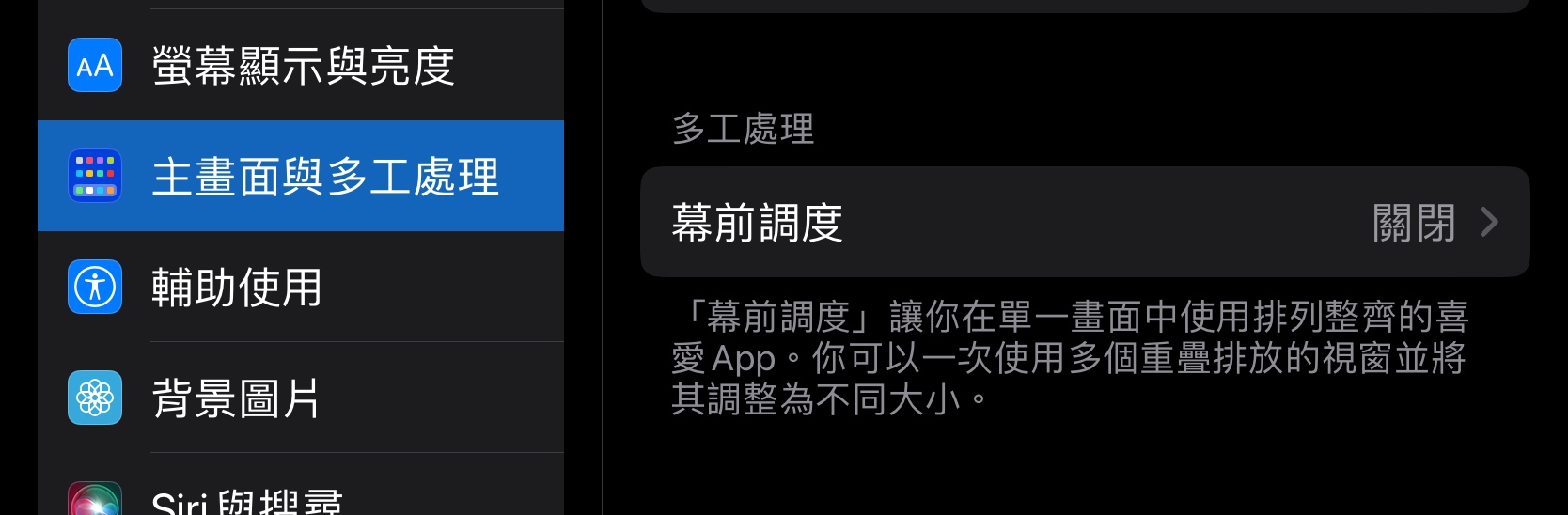
Stage Manager
“Stage Manager” lets us use neatly arranged favorite apps on a single screen. Use multiple overlapping windows at once and resize them to different sizes, as shown below.
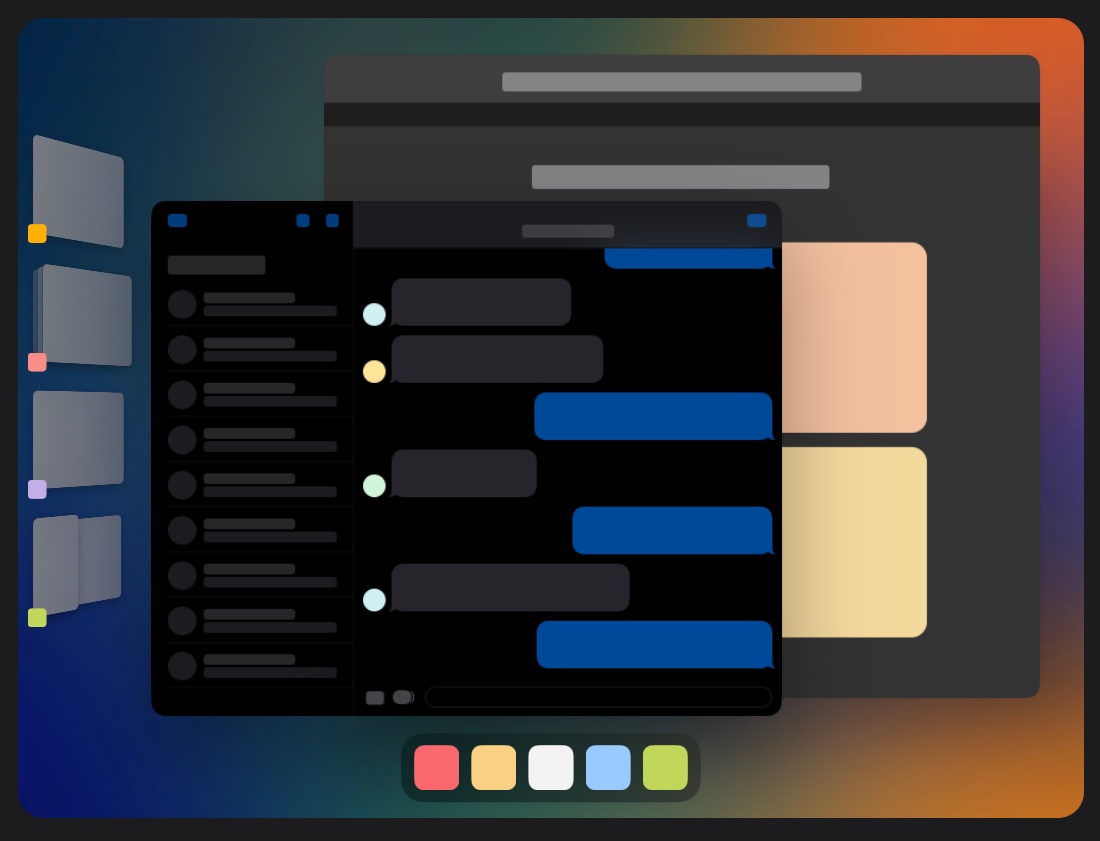
Stage Manager
How to Use Stage Manager
See the image below: once Stage Manager is enabled, a symbol like the one shown appears in the bottom-right corner of each app.
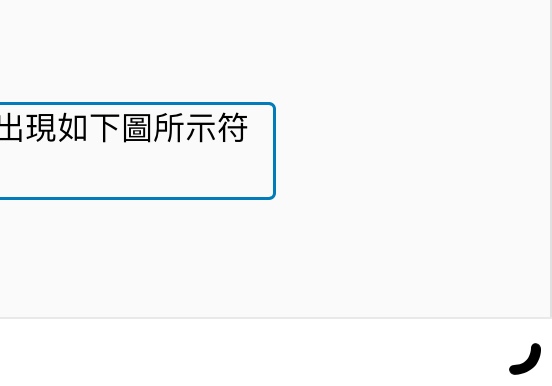
Stage Manager icon
Just drag that icon with your finger and a dedicated Stage Manager screen appears. Interested friends can play around with it themselves.
Problems with Stage Manager
Perhaps Apple’s engineers didn’t notice, but the gesture for dragging the Stage Manager icon is exactly the same as the operation for Quick Note! This means enabling Stage Manager effectively kills off a useful Notes feature.
The author thinks that given the tablet’s inherently more task-specific nature, the Stage Manager feature actually seems overly flashy. There’s no need to sacrifice the useful Notes feature for this rather unnecessary function.
Another point: tablet screens are inherently smaller, and deliberately shrinking app windows just to keep the Dock displayed at the bottom of the screen seems to put the cart before the horse. Not only is it a burden on users’ eyes, but it also consumes more system resources. It’s completely baffling what the engineers were aiming for with this feature.
Notes
Locking notes now uses the device passcode, with no need to set a separate password.
New shapes and text boxes have been added to the drawing area (see the image below).
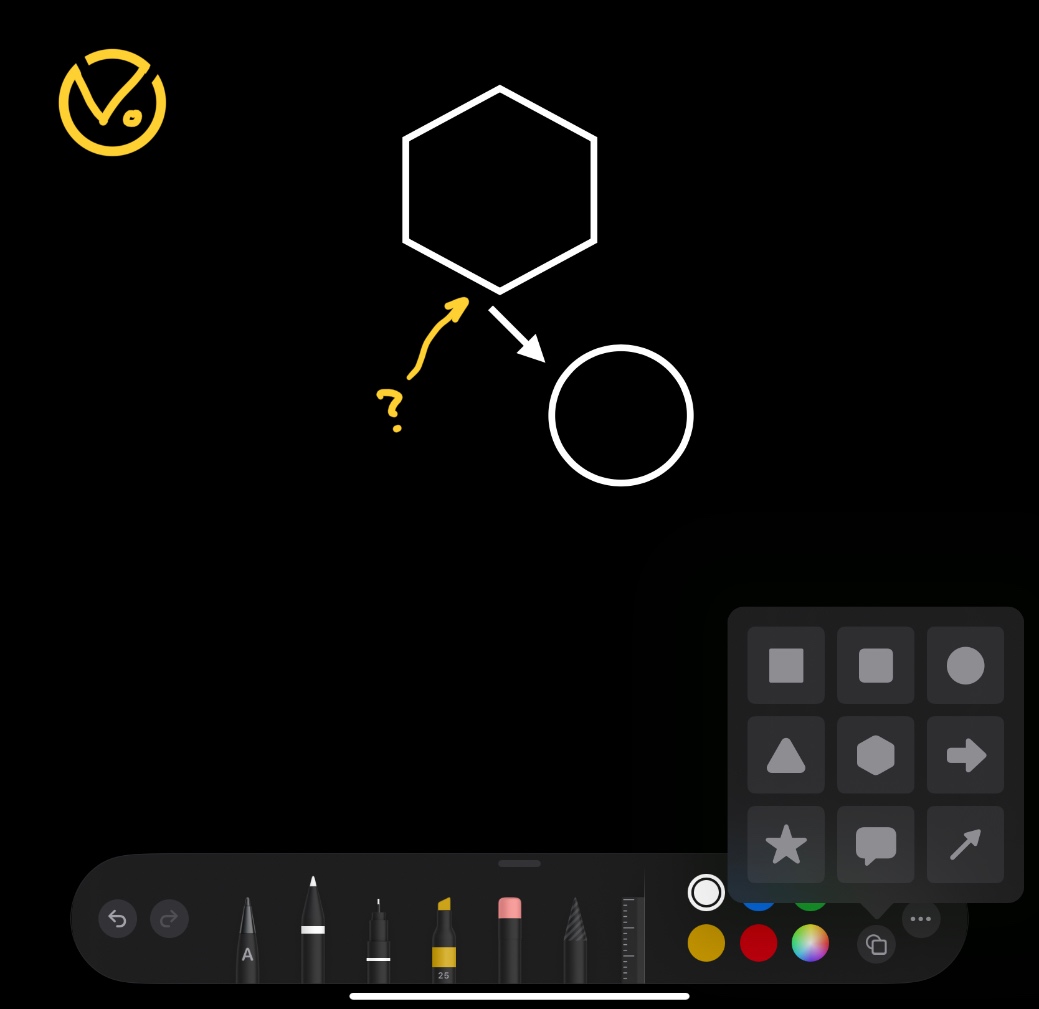
Notes drawing area and new shapes
The unfortunate part is that the shapes can’t be intuitively snapped together magnetically, so it’s not very smooth to use and can’t serve as a mind-map alternative—you’re better off just drawing everything by hand.
iPadOS 16.1 A Issue
This OS update actually introduced a problem that I’m not sure how many people have noticed. But at least I’ve been startled by it several times.
Have you noticed there’s a spot when the tablet boots up that makes you feel really annoyed?
See the image below: the author really doesn’t know why that time display became so bloated. The whole layout would probably scare Steve Jobs into haunting Tim Cook in his dreams.
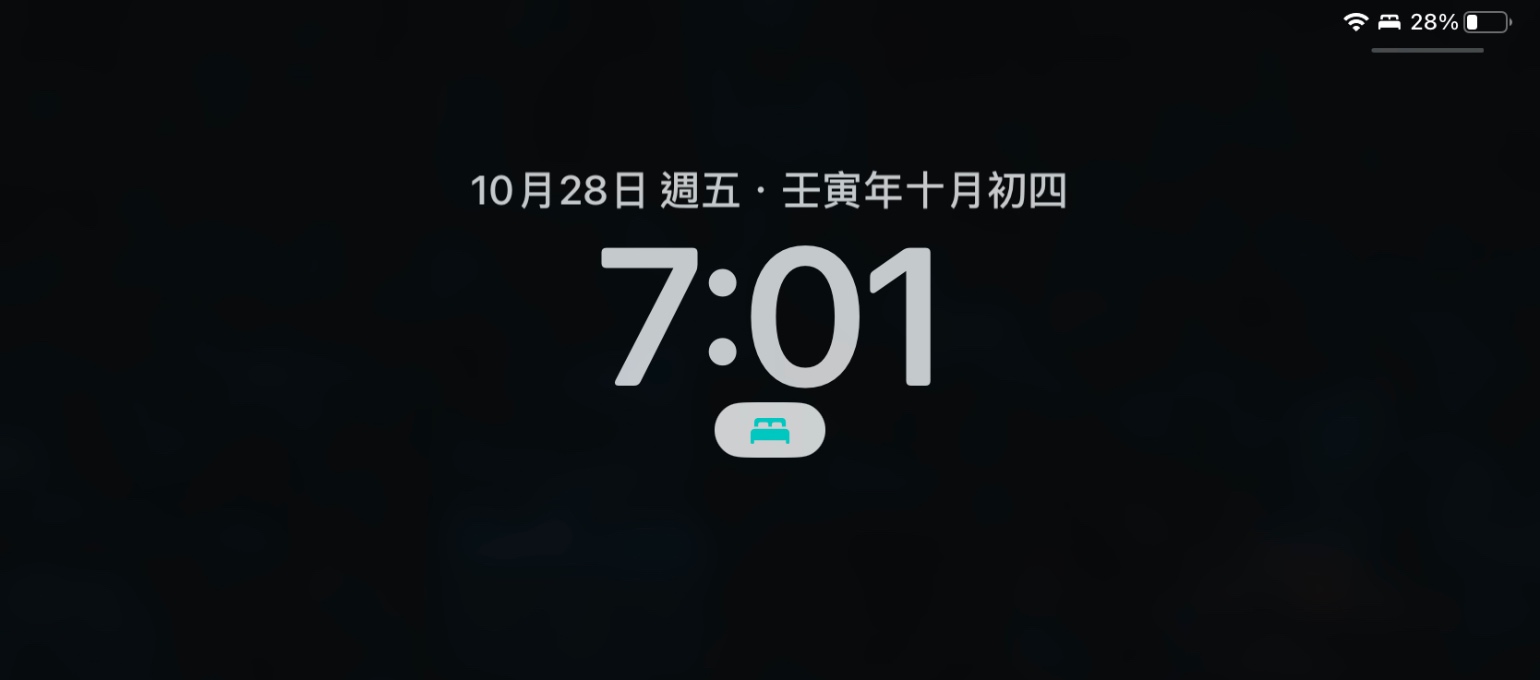
Support Independent Perspectives & In-Depth Insights
Every thoughtful analysis and candid critique comes from our dedication to truth and quality. We choose not to follow sensational algorithms or clickbait headlines.
Sustaining independent research requires reader support. Make a one-time or monthly contribution, securely processed by Google.
Payments secured by Google · Manage or cancel anytime in your Google Account



Comments