
After migrating an old WordPress site to a new host or changing the server’s IP address, you might find that your browser still displays the old site’s content or even throws connection errors. When this happens, you should check whether certain browser settings need refreshing, including DNS propagation records and stored cookie data.
Generally speaking, as long as you have confirmed that your newly deployed site is operating normally and that its IP address is unique, yet you still cannot access it properly, you can troubleshoot using the following three steps!
Check Global DNS Propagation Records
First, you need to verify whether the new IP address of your blog or website has successfully propagated across global DNS servers.
When migrating a site or changing its IP address, this updated record needs time to spread across worldwide DNS servers so your browser can resolve the new address correctly. The duration varies depending on your domain registrar (such as NameCheap). If you are unsure whether DNS propagation is complete, you can use a free web tool to verify: ”🌍 Global DNS Propagation Checker”.
Simply enter your domain name, and the tool will automatically check whether major DNS servers worldwide point to your new IP address. If all DNS records show the updated IP, your browser should be resolving to the correct server.
Furthermore, browsers cache website data for varying lengths of time (from days to years depending on site configuration). Immediately after migration or an IP change, your browser may continue serving cached resources from the old site. Therefore, I recommend clearing two critical pieces of data from your browser: DNS records and cookies.
Fixer’s Tip: Since cache clearing procedures differ across browsers, I will use Google Chrome—the browser with the largest market share—as our example.
Clear Browser DNS Cache
If you use Google Chrome, type chrome://net-internals/#dns into your address bar, and you will see the settings screen shown in Figure 1.
Click the “Clear Host Cache” button to flush the browser’s internal DNS resolver cache.
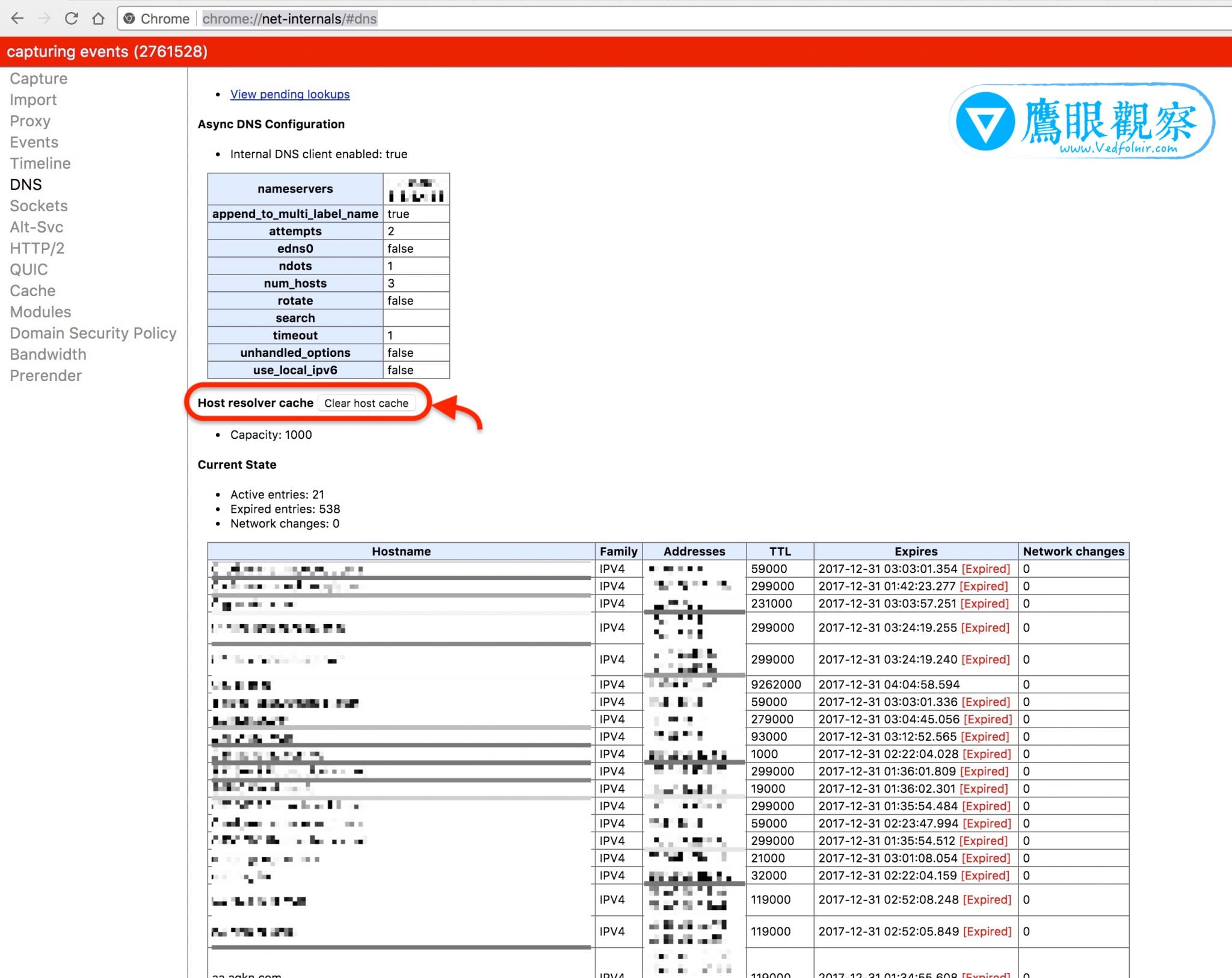 Figure 1: Google Chrome DNS cache settings.
If you are a Firefox user, you can temporarily disable DNS cache retention:
- Type
about:configinto the address bar; - Search for the string
network.dnsCacheExpirationand set its value to0.
However, I recommend resetting it back to 3600 after troubleshooting, as keeping DNS records cached noticeably speeds up daily web browsing.
Clear Browser Cookies and Cached Data
If you completed the previous two steps but still cannot access your new website properly, proceed with the following step. Keep in mind that this will remove stored session tokens and cached files, meaning you will need to log back into websites.
Using Google Chrome as an example, open the browser menu, navigate to settings, and choose “Clear Browsing Data” to bring up the dialog box shown in Figure 2.
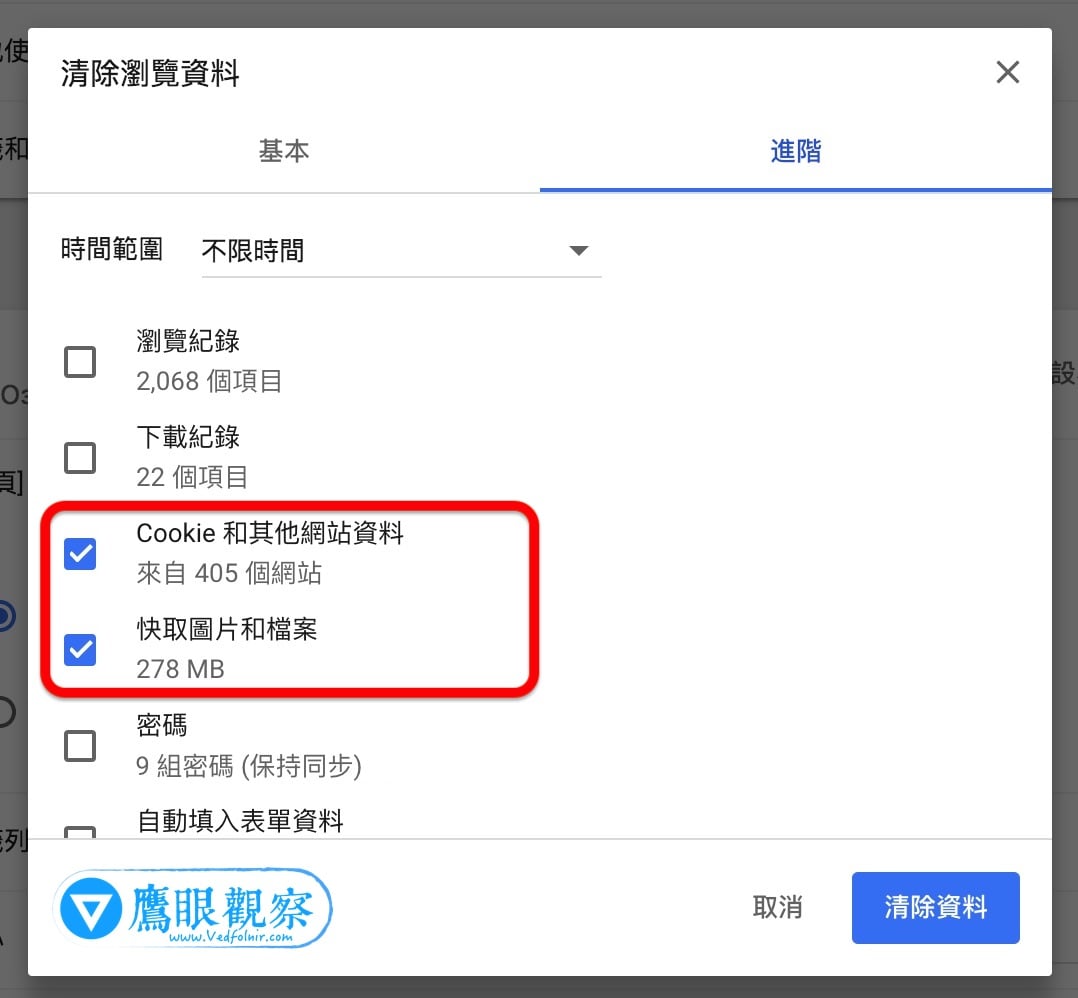 Figure 2: Clear browsing data dialog.
Under standard circumstances, checking “Cookies and other site data” and clicking “Clear data” will wipe stored site state and allow the new site to load cleanly. I usually also check “Cached images and files”, which purges stale media files and frees up valuable disk space!
If you have tried all three steps above and still cannot reach the new site, the issue most likely does not lie on your computer, but rather in your web server configuration or a misconfiguration with your domain registrar. In that case, you will need to inspect the server logs and DNS host records step by step!
Lastly, here is a handy backup tool: “Flush Cache of Google Public DNS”!
While DNS propagation worldwide is quite fast today, if you happen to be the unlucky one whose newly updated IP is taking hours to resolve, submitting your domain to Google’s public cache flush tool might give it the needed nudge.
Support Independent Perspectives & In-Depth Insights
Every thoughtful analysis and candid critique comes from our dedication to truth and quality. We choose not to follow sensational algorithms or clickbait headlines.
Sustaining independent research requires reader support. Make a one-time or monthly contribution, securely processed by Google.
Payments secured by Google · Manage or cancel anytime in your Google Account


Comments