

Generally speaking, one of the main reasons for investing in a mid-to-high-end online or line-interactive uninterruptible power supply (UPS) is the incredibly convenient inclusion of power management software (PMS).
This automated software proves especially invaluable when your connected load is a server system housed in a remote server room. APC uninterruptible power supply systems provide a very capable power management tool called “PowerChute (Personal Edition).” If you are an APC user, it is highly recommended that you install it and explore its capabilities.
All you need to do is install the power management software in advance and connect the UPS data cable (formerly coaxial cables, now predominantly RJ45 network cables or USB) to your computer or server. Whenever a power outage or voltage irregularity occurs, the UPS communicates with the computer to launch the management software, automatically saving your data, closing applications, and initiating a safe system shutdown. This capability is also why we recommend choosing a line-interactive or online UPS over a basic offline model. Have you ever seen a mini power plant on your desk?
Beyond allowing you to monitor current power and battery metrics in real time, PowerChute enables you to configure local utility electricity rates per kilowatt-hour, automatically calculating your daily electricity costs. It even estimates your daily carbon emission rate—a feature that is both fascinating and genuinely practical.
Downloading APC Power Management Software
APC (American Power Conversion) PowerChute software can be acquired from two sources: the installation disc included in the UPS packaging, or the official APC download page.
Note: Account registration on the official website is required before downloading.
The software comes in two editions: Business Edition and Personal Edition. The primary difference lies in the number of UPS units that can be managed from a single host machine.
PowerChute Installation Guide
When running the PowerChute installer for the first time, you will encounter the setup screens shown below:
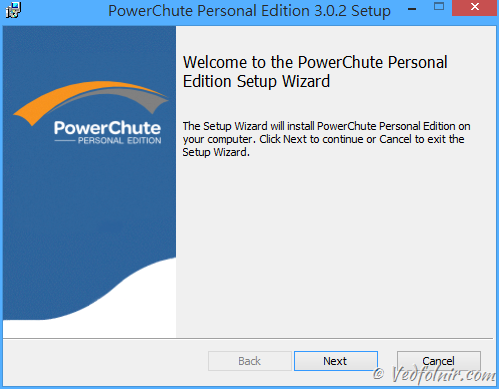
Setup wizard welcome screen
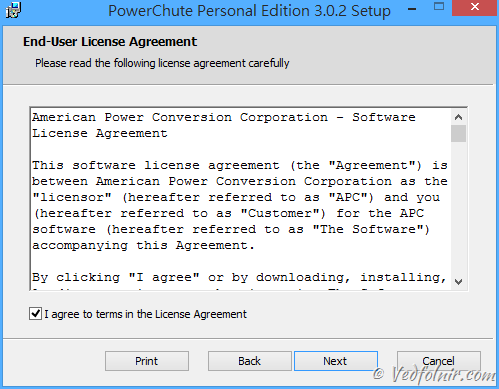
Software installation step 2
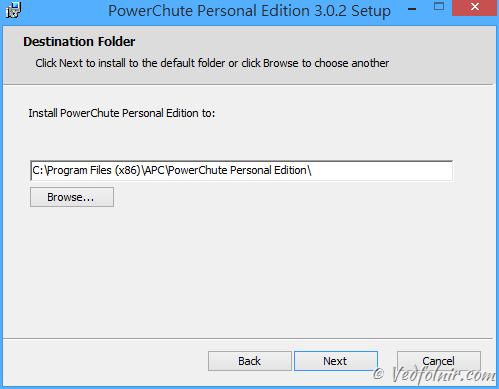
Software installation step 3
As shown in the image below, if you have not connected the UPS to your computer before running the installer, the software will pause and prompt you to establish the connection first. This serves as hardware verification for the software.
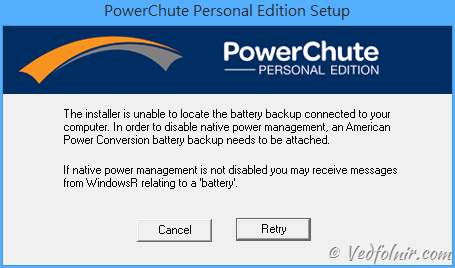
Installation prompt dialog
Next, connect the UPS to your PC via the USB cable, and the operating system will automatically configure the device.
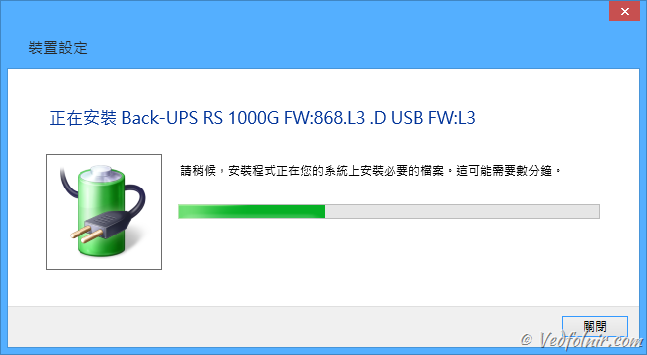
Setup notification when connecting APC UPS via USB
Once Windows completes configuring the device, it initially recognizes the UPS as an external battery. However, once PowerChute completes installation, the generic battery icon is replaced by the official APC tray icon.
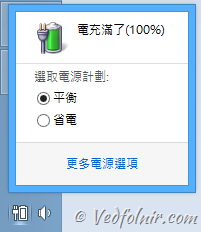
Battery icon on the taskbar
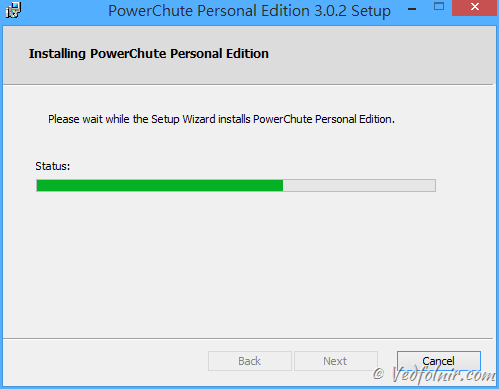
Software installation step 4
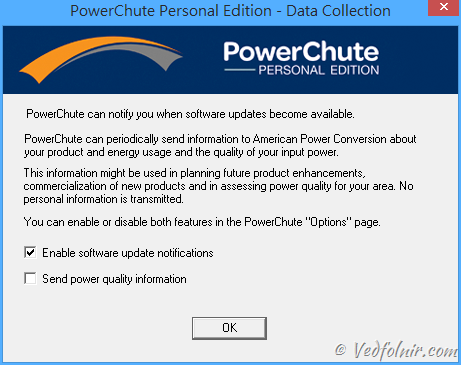
Software installation step 5: Update notifications and sending telemetry to APC
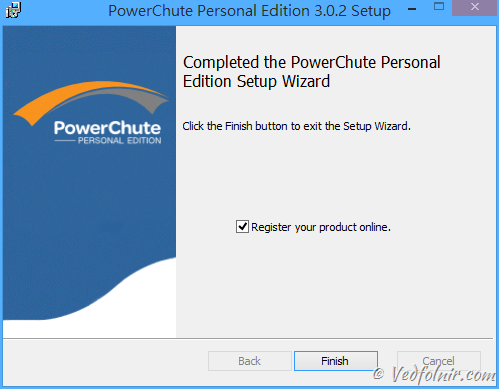
Software installation step 6
The setup process is now complete. Click “Finish” to exit the installer.
You will now find the PowerChute icon in your Windows system tray. Right-clicking it brings up the context menu:
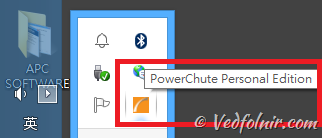
Power management software tray icon
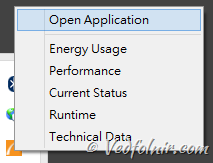
Context menu
Power Management Software User Interface
Upon opening PowerChute for the first time, the software displays shortcuts to common tasks categorized across three core pillars: “Monitor your System”, “Configuration”, and “Energy Management”. Beginners can explore each section according to their needs.
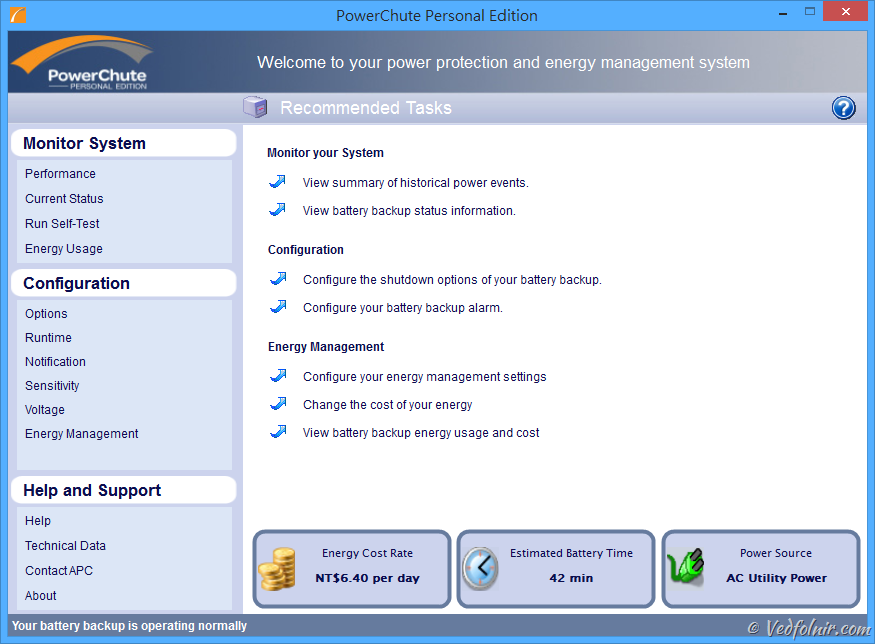
Common task shortcuts
The most useful tab is the Current Status page, which you can switch to directly.
As shown below, this screen displays comprehensive power metrics, including the Power Source (Alternating Current Utility Power / AC Power or Battery), whether the Input Voltage is holding steady at 110V, the daily CO2 Emissions Rate, and daily energy consumption. It instantly makes your computer feel like a micro power plant.
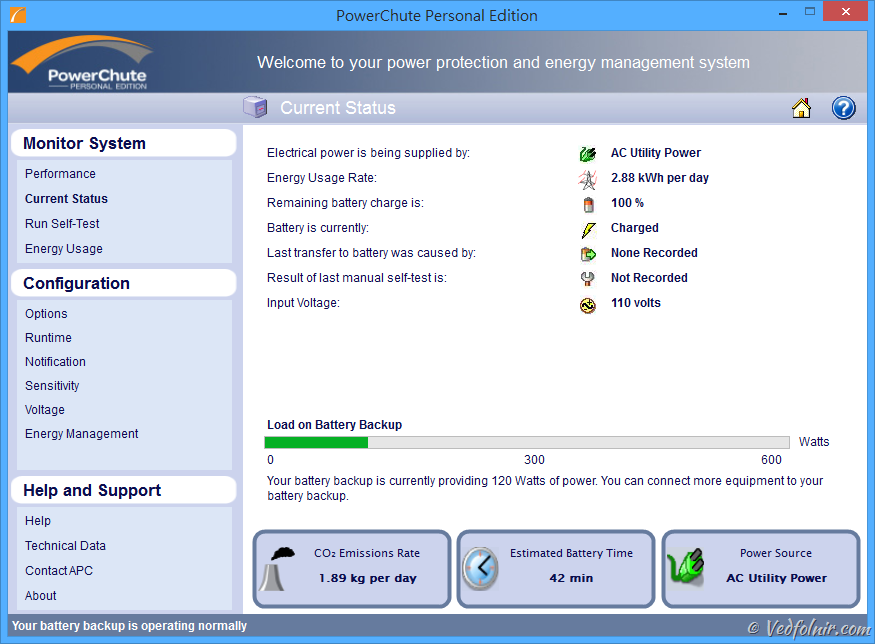
PowerChute status display
Run Self-Test
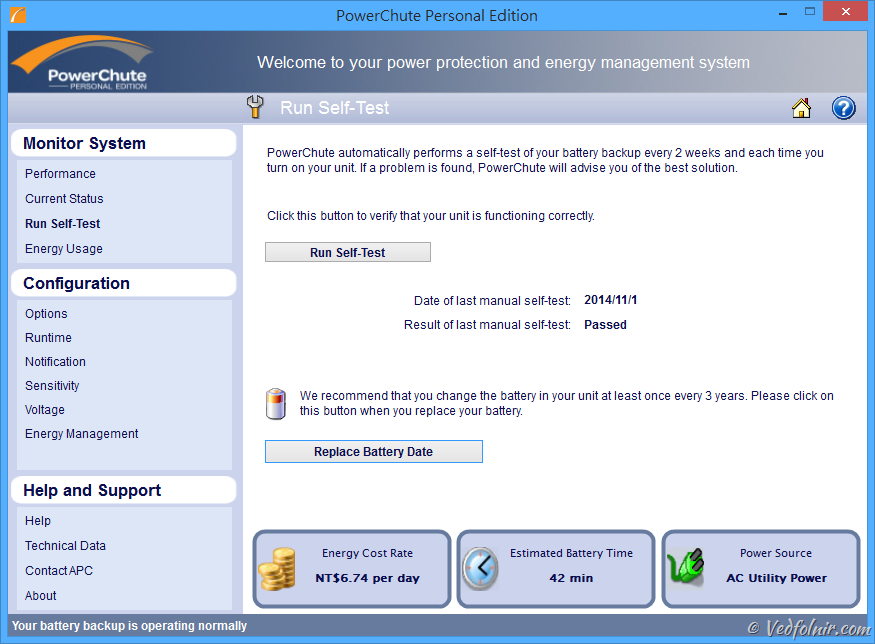
The “Run Self-Test” feature detects potential UPS battery or component issues early—a signature capability of premium models.
As mentioned earlier, PowerChute can monitor carbon emissions and daily power consumption. You can find detailed statistics under the Energy Usage tab.
APC presents energy metrics in intuitive, real-world terms, translating consumption into actual currency costs or the equivalent number of trees required to absorb the generated emissions. This provides an immediate, tangible sense of energy impact. Waste often persists simply because people have no visibility into where their power is going.
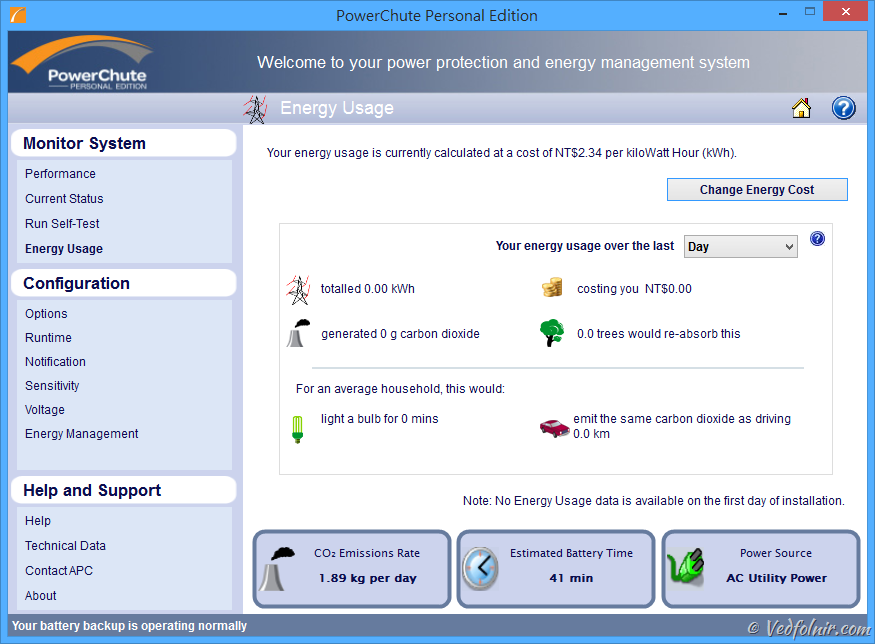
Energy Usage dashboard
Through “Change Energy Cost”, you can configure local electricity rates per kilowatt-hour (kWh) across different regions, converting total power draw directly into monetary cost calculations.
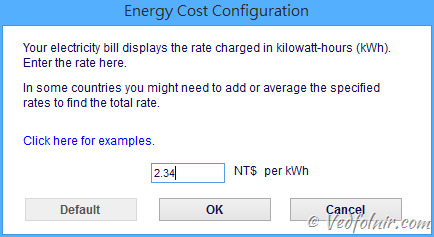
Energy cost configuration
Runtime: Sets how long the system runs on battery power or how much reserve runtime remains before initiating an automated safe shutdown.
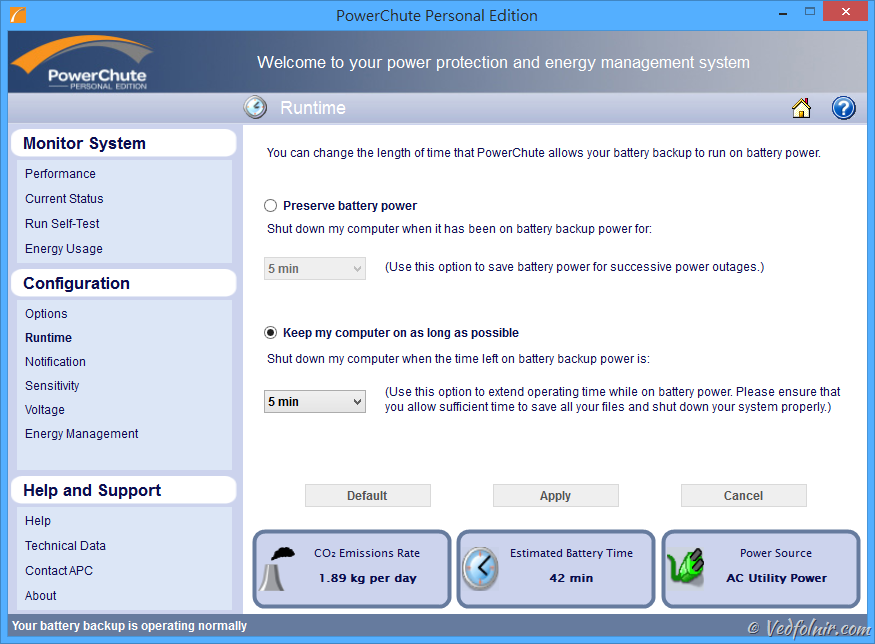
Runtime settings
Voltage: Configures the high and low AC utility voltage thresholds. When input levels exceed or drop below these safe boundaries, the UPS switches automatically to battery power to safeguard connected equipment.
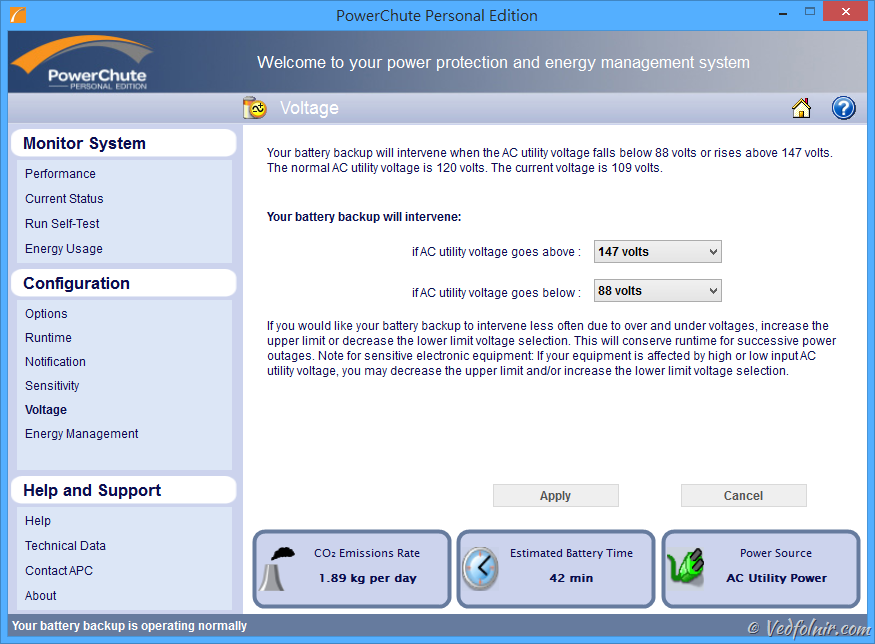
Voltage thresholds
Energy Management Settings: Configures power-saving master-controlled outlets, allowing peripheral slave outlets to power down automatically when the master device is turned off.
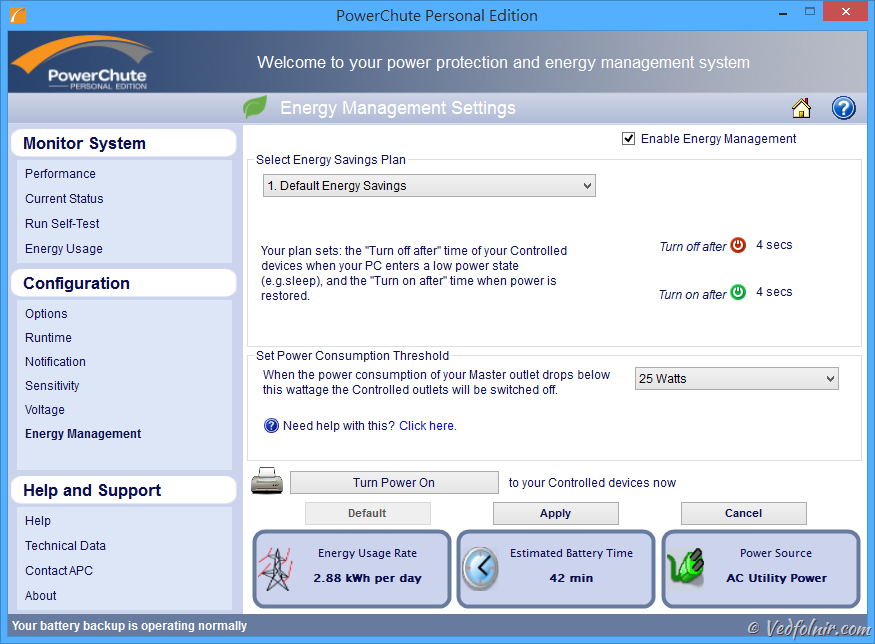
Energy Management Settings
Behavior During a Power Outage
Now let’s examine how PowerChute responds during an actual mains power failure.
When utility power cuts out or voltage fluctuates abnormally, triggering the UPS to engage battery power, a desktop notification immediately pops up: “Your UPS battery backup is no longer receiving AC utility power.”

Power outage alert message
Once battery power activates, the Current Status display updates accordingly. The Input Voltage drops to 0 Volts, the Remaining Battery Charge begins decreasing from 81%, and most critically, “Time Until Shutdown” reveals precisely how much operating time remains so you can take appropriate action.
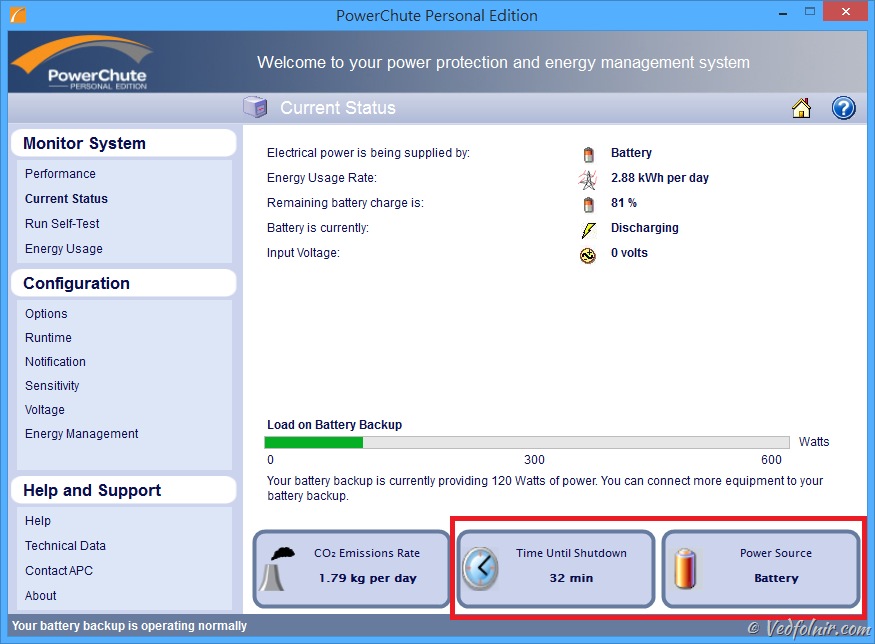
Battery power status display
When utility power is restored, PowerChute notifies you that AC power has returned: “AC utility power restored to your battery backup.”

Power restoration alert
Language Localization Note
The manufacturer noted that PowerChute includes built-in multilingual support. However, for Chinese users, it only includes Simplified Chinese out of the box, without an in-app language toggle.
If you specifically require the Simplified Chinese interface on a Traditional Chinese system:
- Temporarily switch your operating system display language to Simplified Chinese.
- Perform a fresh installation of PowerChute; the installer will auto-detect the locale.
- Once installed, switch your OS display language back to Traditional Chinese.
A bit of a workaround, but it gets the job done!
Further Reading
- Product Recommendation: APC Back-UPS Pro 1000 Line-Interactive UPS.
- PowerChute® Personal Edition.
- UPS Uninterruptible Power Supply: Fundamentals and Buying Guide.
- APC Back-UPS Pro 1000 UPS Hands-on Review and Setup Tutorial (Unboxing).
Support Independent Perspectives & In-Depth Insights
Every thoughtful analysis and candid critique comes from our dedication to truth and quality. We choose not to follow sensational algorithms or clickbait headlines.
Sustaining independent research requires reader support. Make a one-time or monthly contribution, securely processed by Google.
Payments secured by Google · Manage or cancel anytime in your Google Account



Comments