

As the price of NFTs rises, whether artists or people selling chicken cutlets on the street, everyone has recently jumped into this virtual digital market, all wanting to make money along with everyone else in this new blue ocean.
I myself am also at the stage of learning and exploring, and I have observed that everyone seems to have learned from a cram school, all following templated initial steps, such as the feeling that one must have a Discord to be trendy. Many people are even willing to pay someone to help set up a community (Discord calls it a server, same meaning).
Then, what follows is that many ill-intentioned scammers have also jumped into this field. Their opening move is just like those stock gurus, forcibly pulling people in everywhere on Facebook, Telegram, and Line, spreading grandiose dreams, and demanding that everyone join their Discord server, but when you actually go in, it is really just a bunch of useless stale nonsense.
However, I found that Discord has a rather interesting aspect. Because the mobile app has a relatively small screen size, its layout design is quite complex and variable. Whether it is the server or private message control commands, they appear in different positions on the screen, which may make some beginners have a little trouble finding how to set things up.
Below I will introduce, using Apple iPadOS as an example (iPhone is largely the same), how to leave, report a server, and delete and report private messages in a conversation.
Leaving and Reporting a Discord Server
Please refer to Figure 1 below. The leftmost column of the Discord interface is the server list, from which you can select the community you want to browse.
Next, the column to the right is the discussion channel list of a single server. This is the server’s main list, from which you can select the unit you want to browse, such as announcements, information channels, voice chat channels, and so on.
Above the discussion channel list, the server name is displayed, and to the right of the name there is a ”⋯” button. Clicking it brings up the settings page.
Please also refer to Figure 1. At the bottom of the settings page, two options are provided: “Report Server” and “Leave Server.” For annoying scam groups, I suggest reporting first and then leaving.
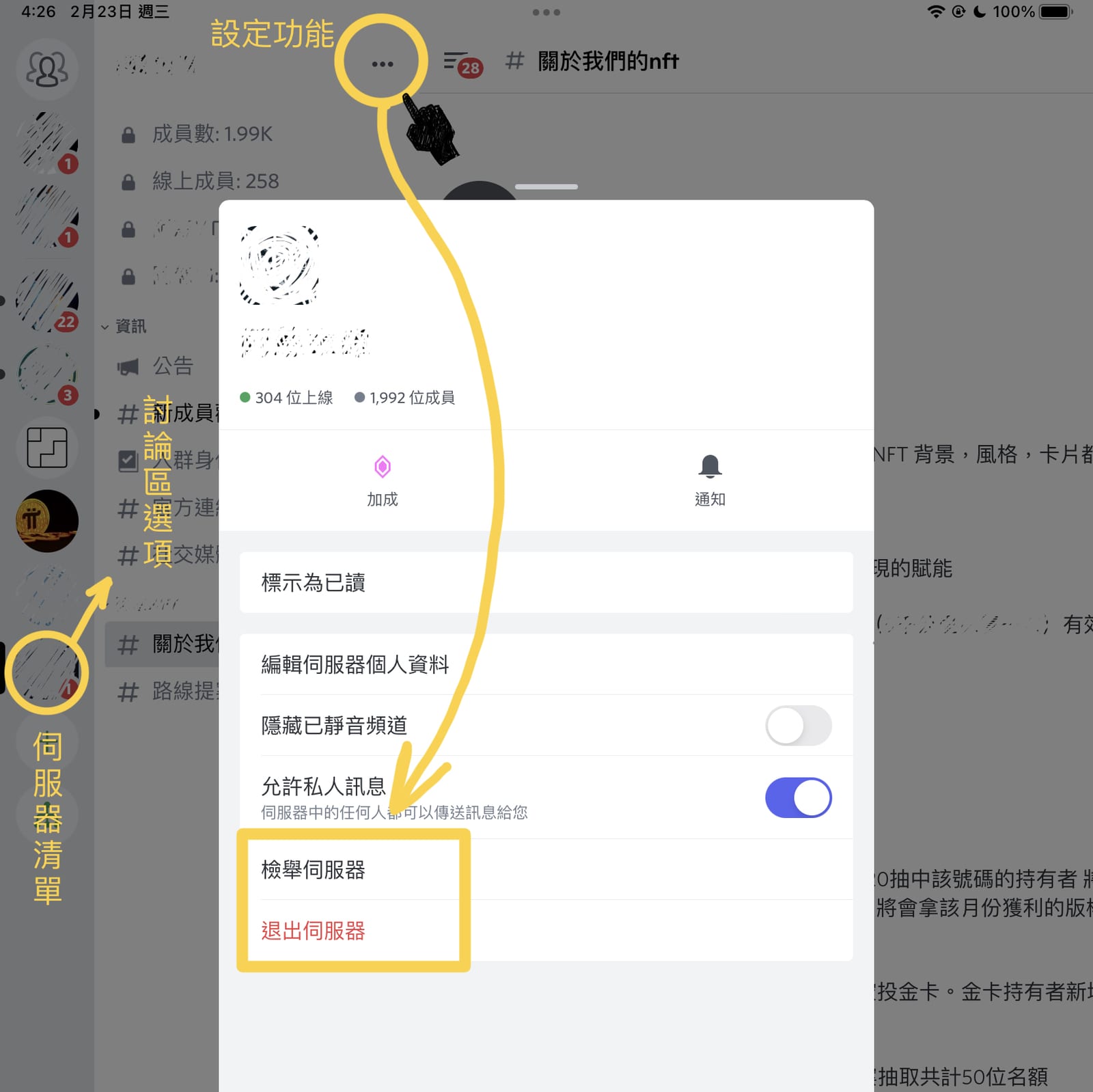
Figure 1. Leaving and reporting a Discord server.
Closing and Reporting a Discord Conversation or Private Message
Besides trying every trick to lure you into joining the group servers they set up, scammers also actively send you private messages (as shown in Figure 2). Otherwise, how would they scam you?
At this point, we can likewise report and close that conversation.
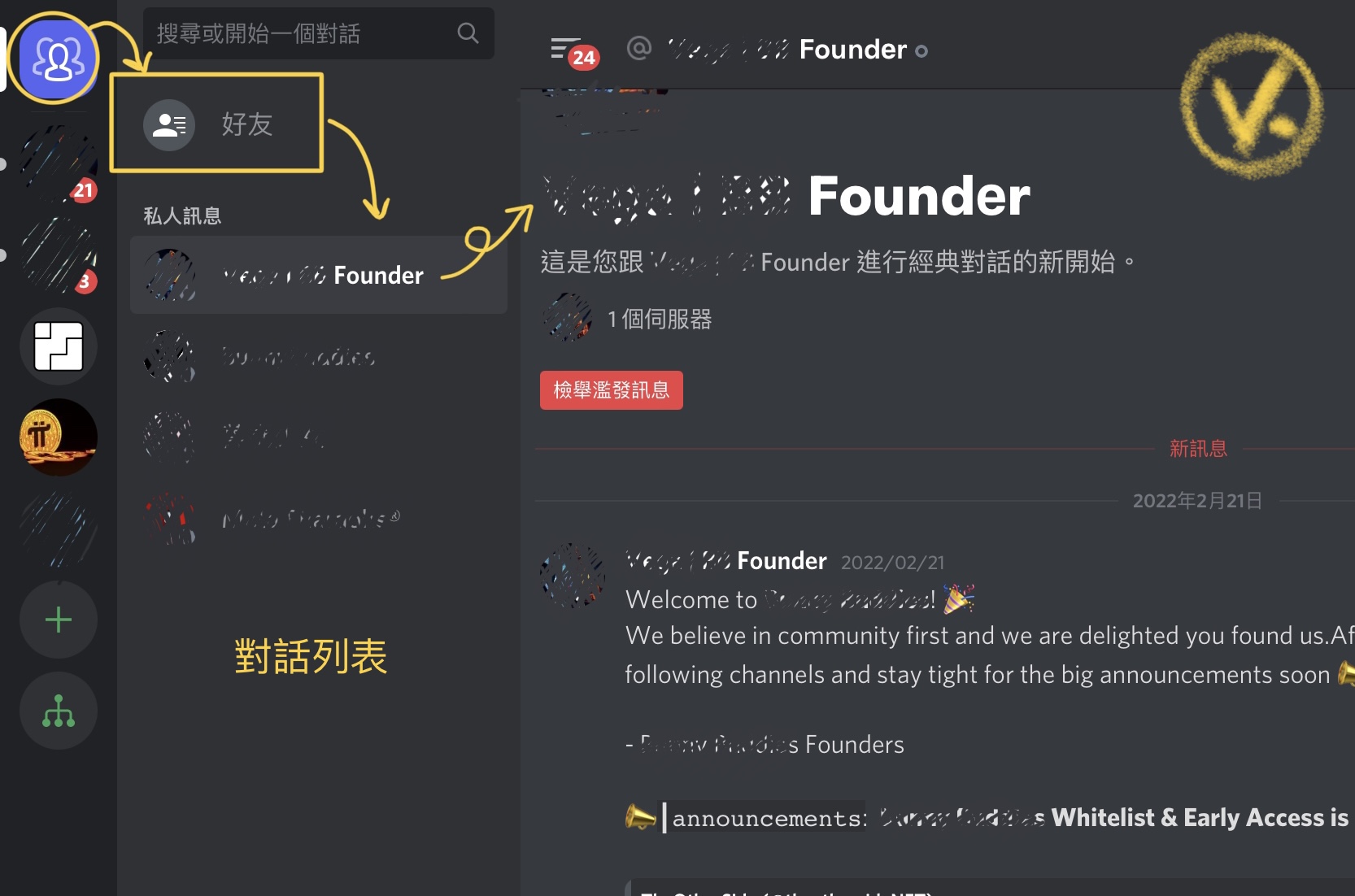
Figure 2. Conversation list and contents.
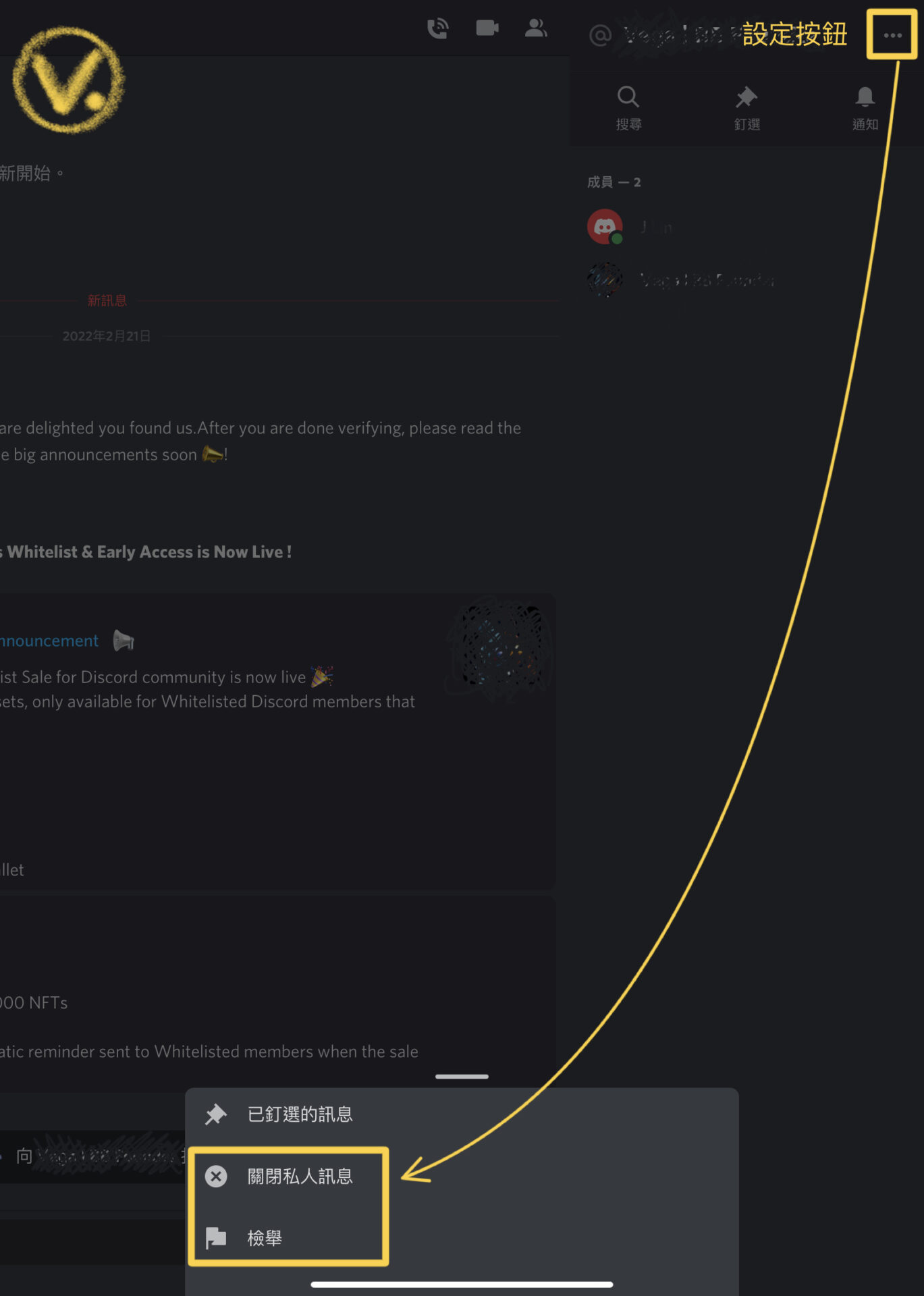
Figure 3. Conversation control settings button.
Please refer to Figure 3 above. The settings functions for closing and reporting a conversation now appear in the upper right of the screen, but they do not appear when you first open the conversation window.
Please also refer to Figure 2. First click the username in the “conversation list” on the left side of the screen, or the human icon symbol ”👤” in the upper right of the conversation box, and only then will the ”⋯” settings button appear (as shown in Figure 3).
After clicking that settings button, options such as “Close Private Message” and “Report” will appear on the screen.
Support Independent Perspectives & In-Depth Insights
Every thoughtful analysis and candid critique comes from our dedication to truth and quality. We choose not to follow sensational algorithms or clickbait headlines.
Sustaining independent research requires reader support. Make a one-time or monthly contribution, securely processed by Google.
Payments secured by Google · Manage or cancel anytime in your Google Account




Comments